
Managing and Tracking Jobs
Once Shapeshifter's AI has analyzed jobs for your client, you can browse matches, review detailed compatibility breakdowns, track progress through your job search pipeline, and manage individual opportunities with updates, reminders, and archiving. This guide covers the complete workflow from discovering jobs to managing them through the application process.
Before you begin: Make sure you've completed the initial Jobs setup and that Shapeshifter has loaded job matches for your client.
Browsing Job Matches
After setup completes, Shapeshifter displays your personalized job feed. The initial load may take 3-4 minutes as the AI analyzes millions of jobs against your profile, but subsequent visits auto-update daily.
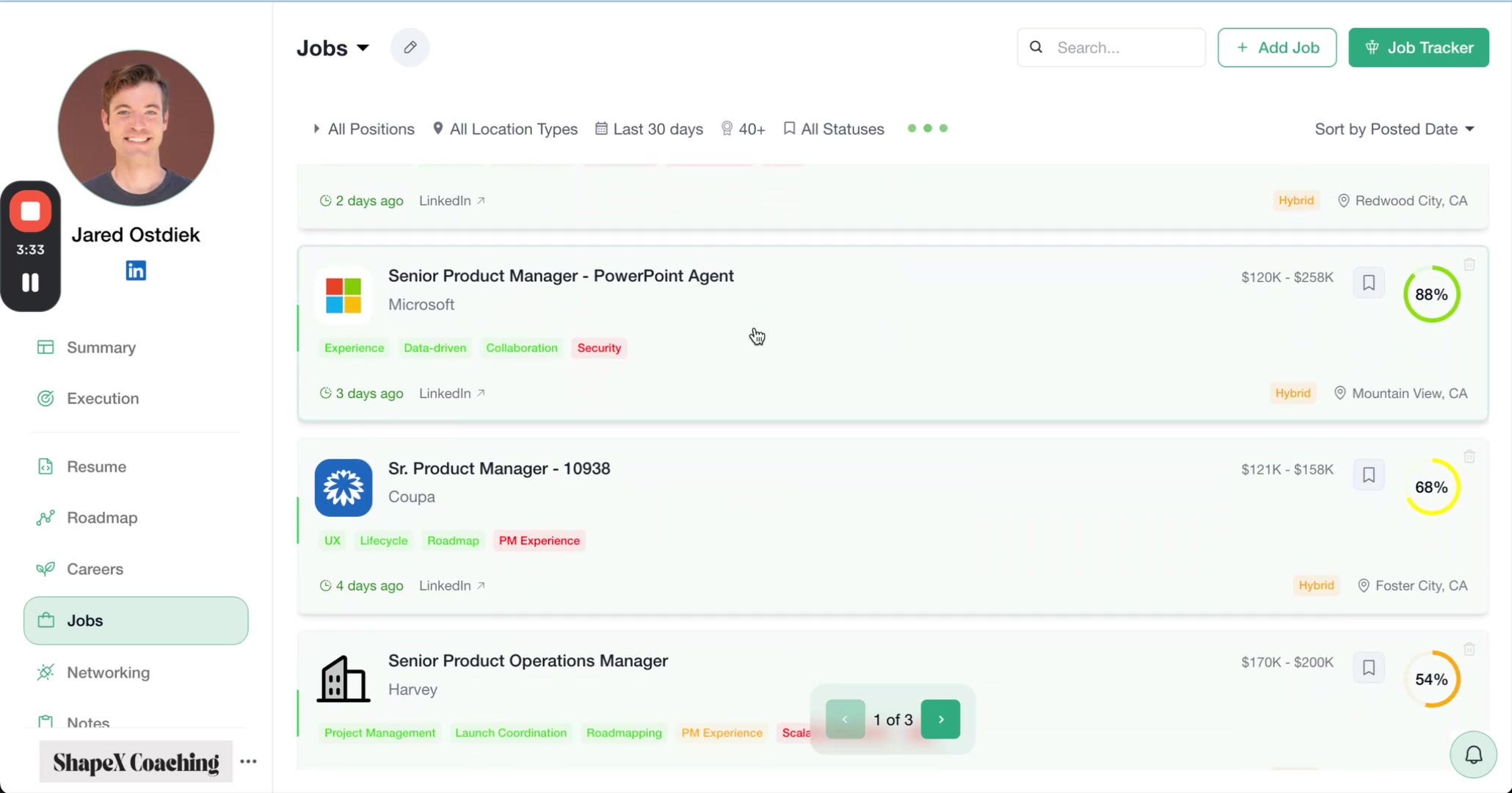
Once loaded, you'll see a list of job postings, each displaying:
Company name and logo
Job title
Skill tags – Key skills required for the role
Posted date – How recently the job was listed
Source – The job board (e.g., LinkedIn, Indeed)
Location type – Remote, On-site, or Hybrid
Salary range – When available
Compatibility score – AI-calculated match percentage (e.g., 88%, 97%)
Sort jobs by "Posted Date" to find the newest opportunities, or by "Compatibility" to prioritize the best matches. Use pagination controls to browse through multiple pages of results.
Understanding Job Analysis
Click on any job listing to open a detailed side panel with in-depth AI analysis. The Analysis tab breaks down exactly why a job matches (or doesn't match) your profile.
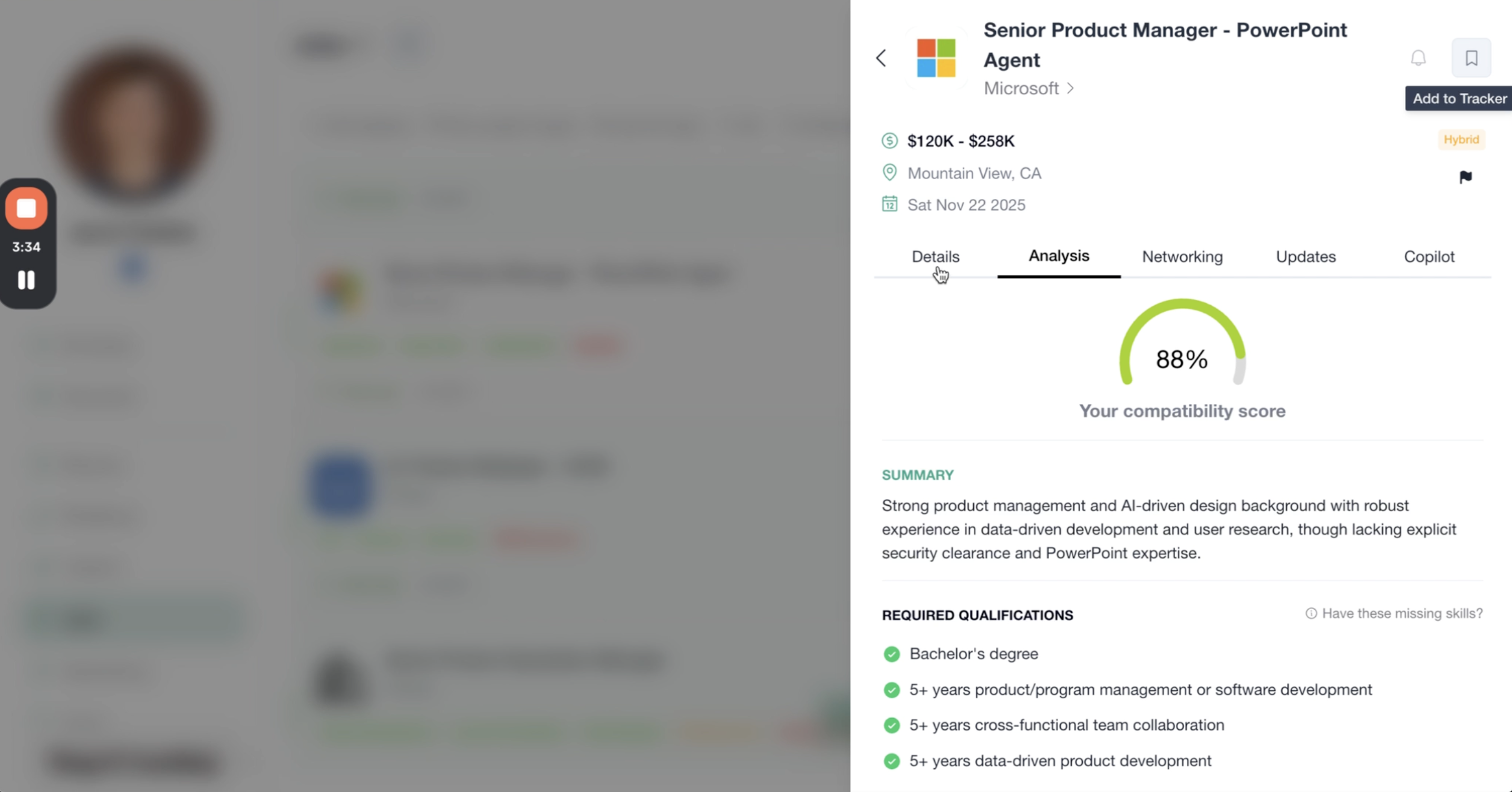
The analysis includes:
Compatibility score – Overall match percentage
Role summary – AI-generated overview of the position
Required Qualifications – Must-have requirements with checkmarks showing which you meet
Preferred Qualifications – Nice-to-have skills with match indicators
Focus on jobs with 70%+ compatibility scores. The AI analyzes job descriptions against your skills, experience, and preferences to calculate these scores, helping you prioritize high-potential opportunities.
Using the Job Tracker Board
The Job Tracker is a Kanban-style board that visualizes your client's job search pipeline. It helps coaches and clients see progress at a glance and move opportunities through each stage of the application process.
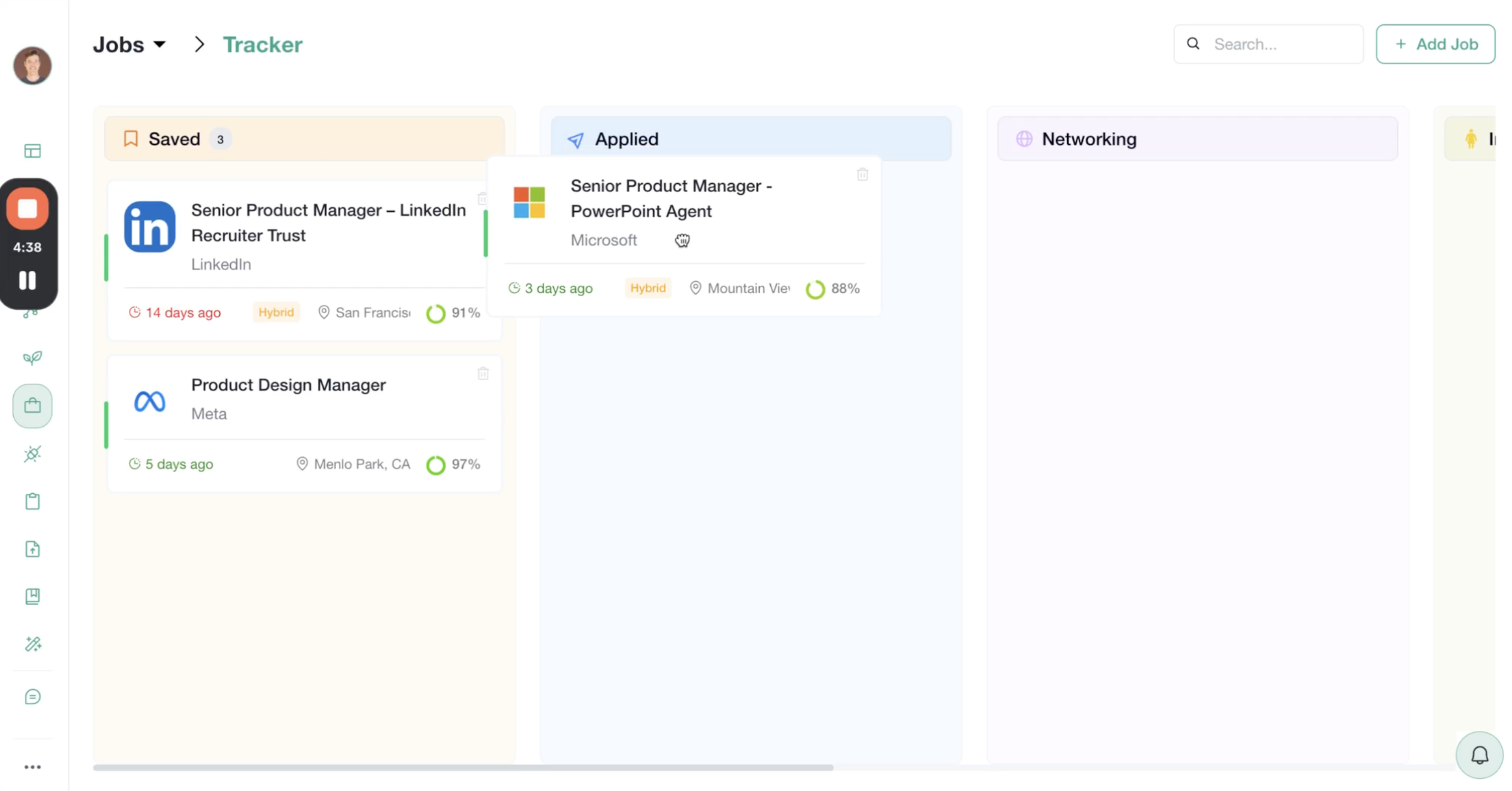
Tracker Stages
The board includes six columns representing each stage of the job search:
Saved – Jobs you've bookmarked for future action
Applied – Applications you've submitted
Networking – Opportunities where you're reaching out to contacts or building relationships
Interviewing – Active interview processes
Offered – Positions where you've received an offer
Rejected – Applications that didn't move forward
Adding Jobs to the Tracker
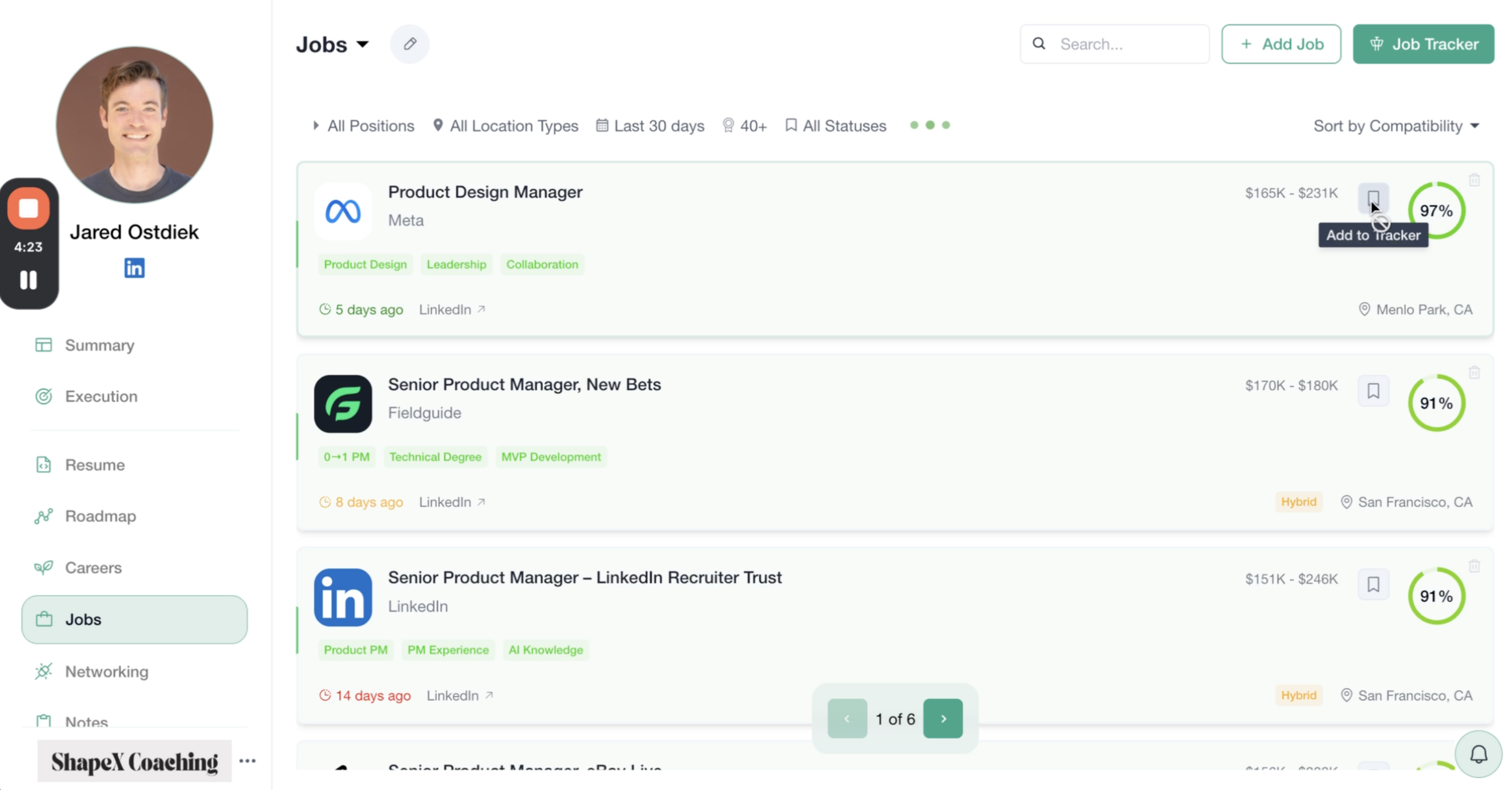
To add a job to your tracker, simply click the bookmark icon on any job listing. The job will automatically appear in the "Saved" column.
You can drag and drop jobs between columns as your application progresses. This gives both coaches and clients real-time visibility into the job search pipeline.
Managing Individual Jobs
Each job in your tracker has several management tools to help you stay organized and accountable.
Logging Updates
The Updates tab lets you document progress and keep notes about each opportunity. This is especially useful for tracking:
When you submitted your application
Follow-up actions taken
Networking conversations
Interview feedback
Offer negotiations
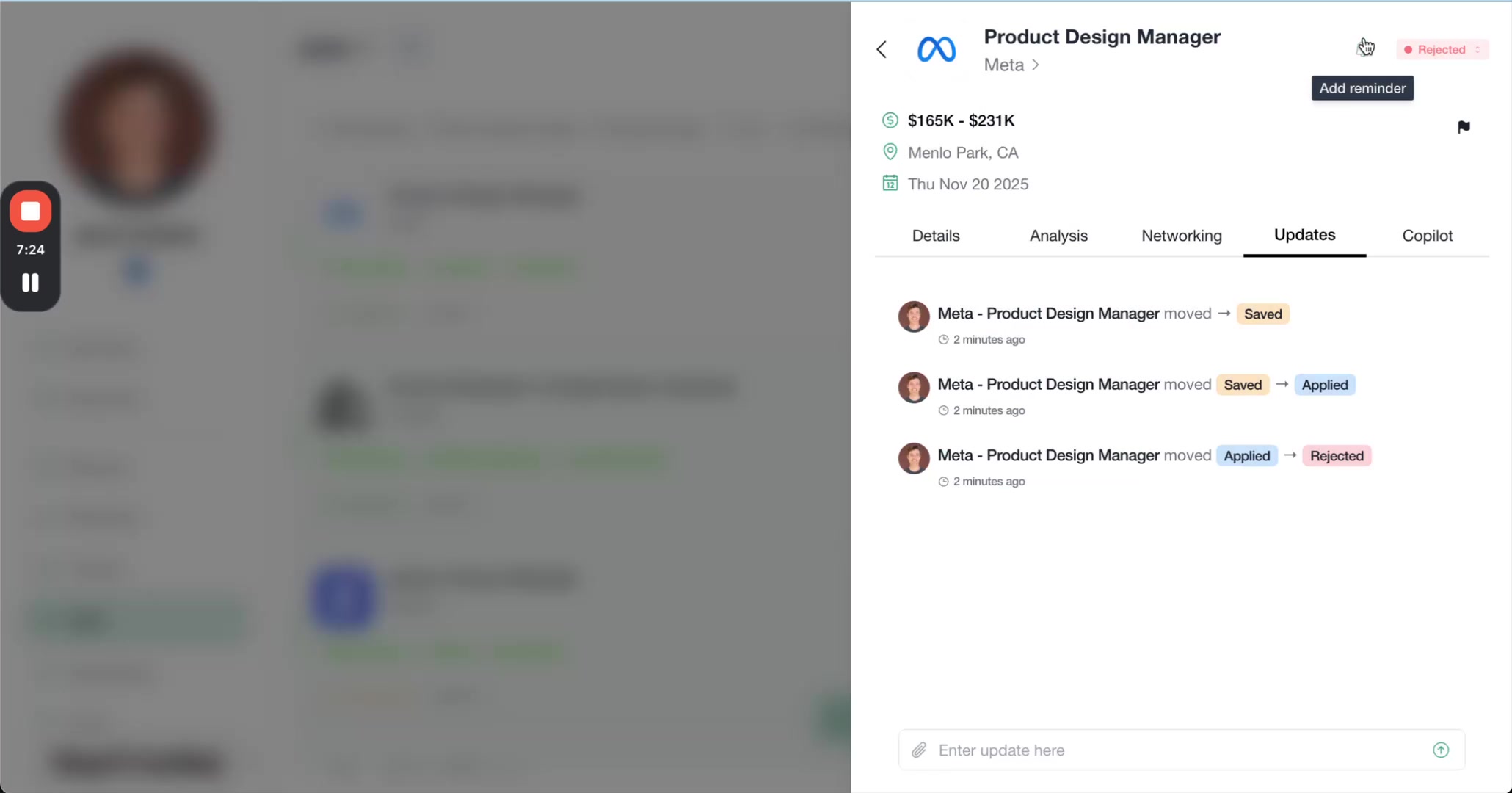
Simply type your update in the text field and it will be logged with a timestamp. Both coaches and clients can see this activity log, ensuring everyone stays aligned.
Setting Reminders
Stay on top of follow-ups and deadlines by setting reminders for each job. Click the reminder icon to open the reminder modal.
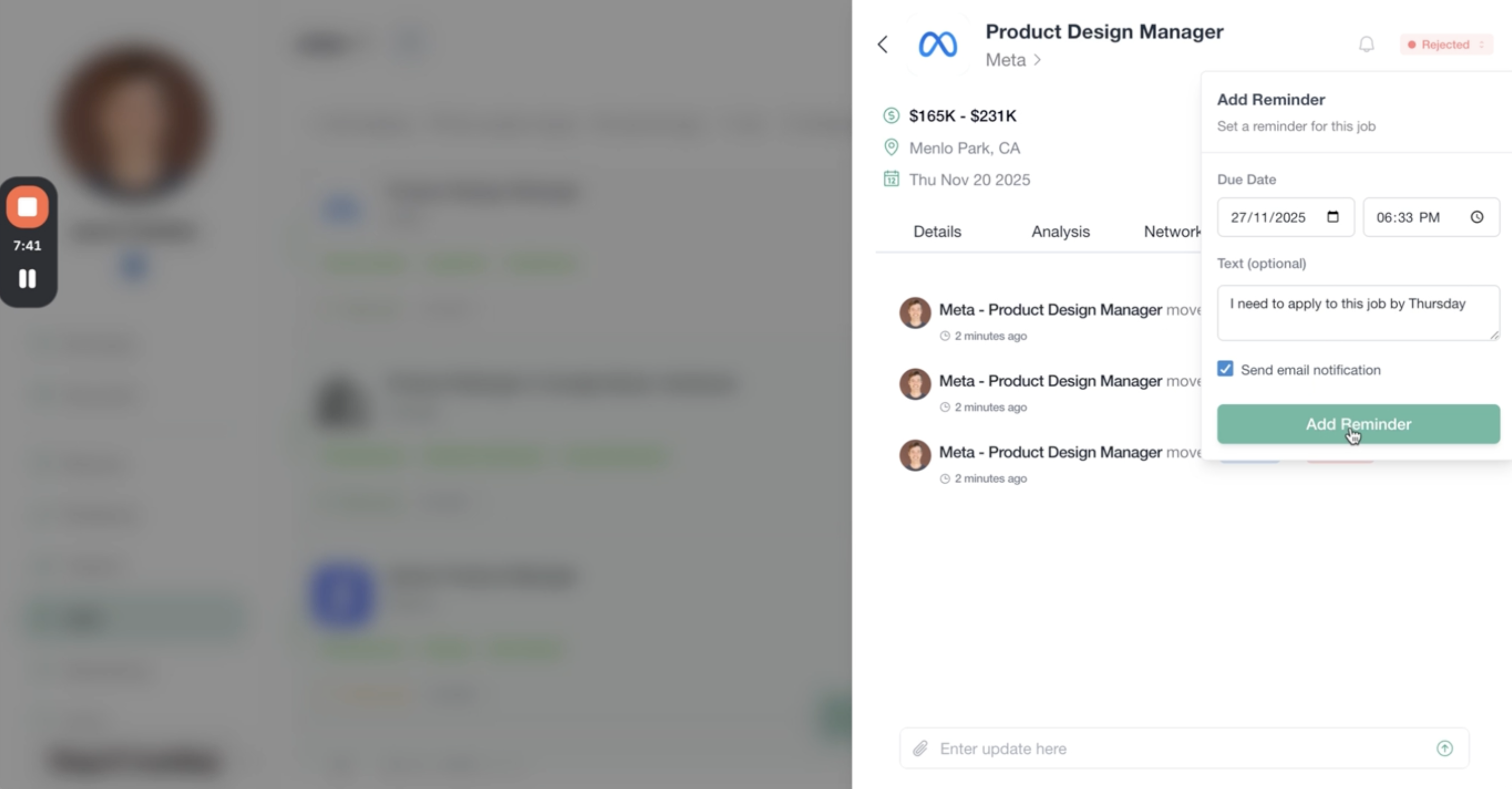
You can configure:
Due Date – When you need to take action
Time – Specific time for the reminder
Text – Optional note about what needs to be done
Email notification – Get reminded via email in addition to in-app alerts
Use reminders to follow up one week after applying, prepare for upcoming interviews, or respond to offers before deadlines. Email notifications ensure you never miss critical timing.
Reporting Issues
If you encounter problems with a job listing such as broken links, expired positions, or inaccurate analysis use the flag icon to report it. This helps improve Shapeshifter's AI matching for everyone.
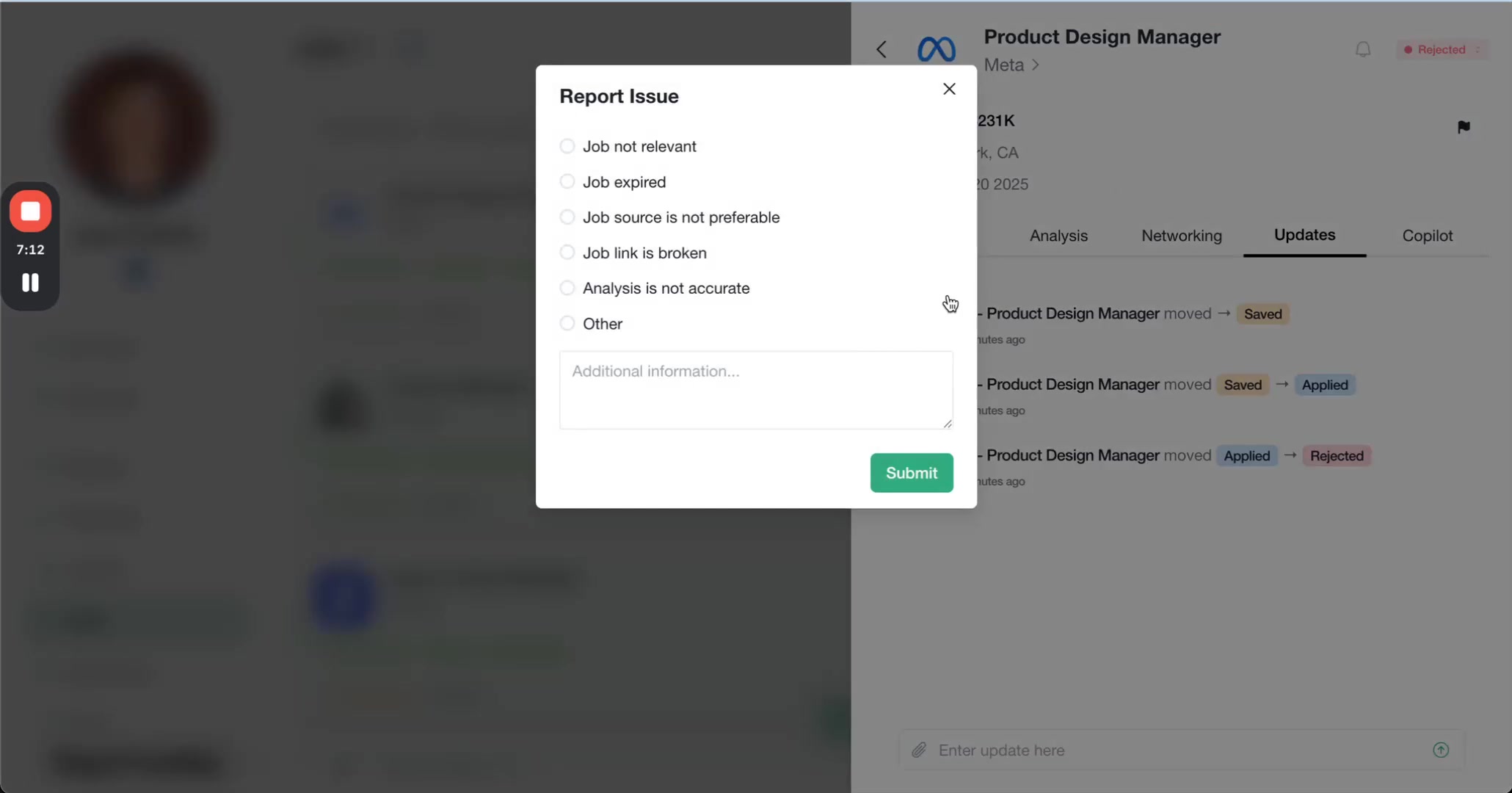
For detailed guidance on reporting job quality issues, see Reporting Job Quality Issues.
Archiving Jobs
Keep your job feed clean by archiving positions you're no longer interested in. Click the archive icon (looks like a delete trash bin) on any job listing to remove it from your active feed.
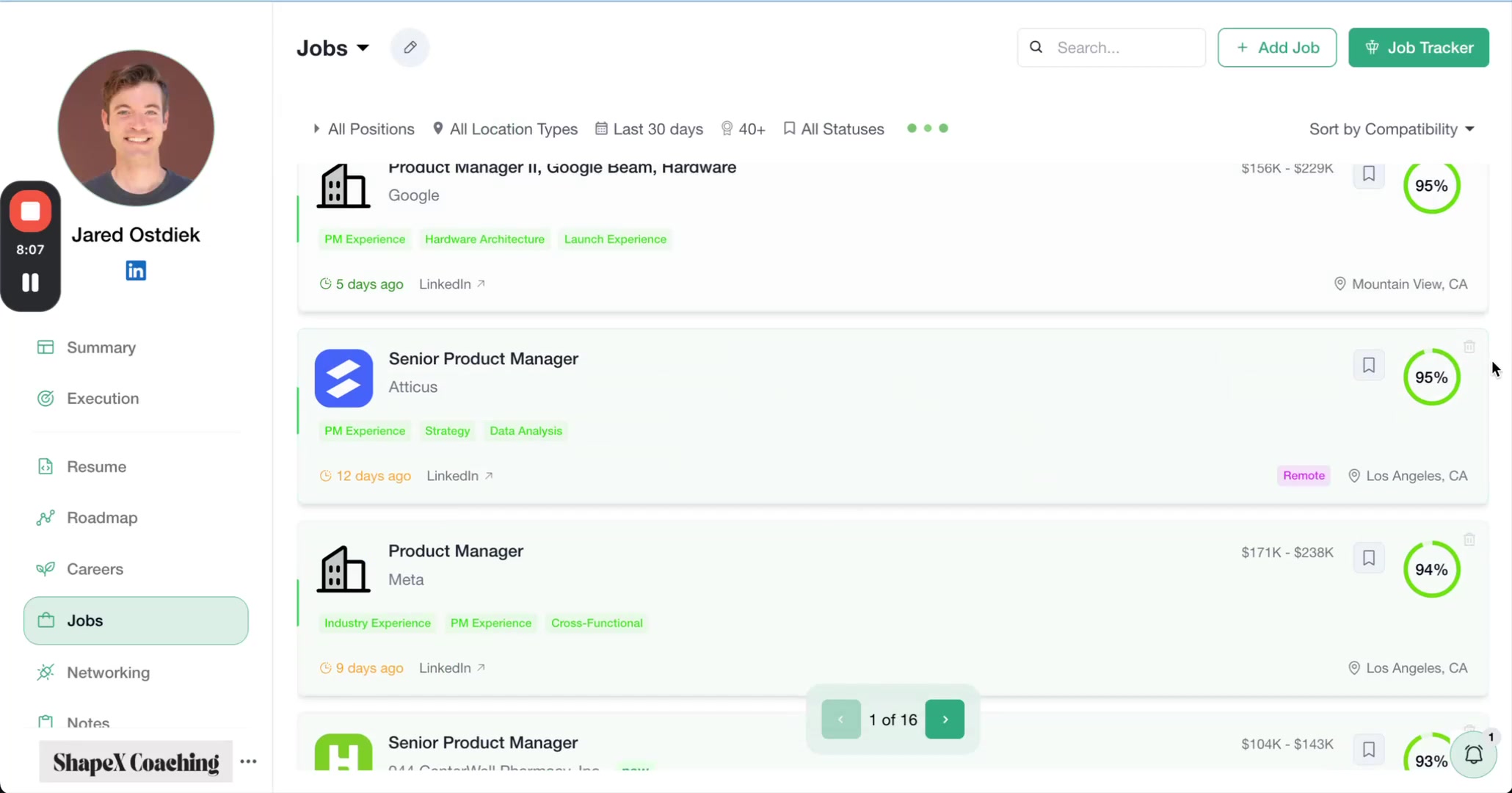
Archived jobs are still accessible by toggling to the "Archived Jobs" view in your filters, so nothing is permanently lost.
Regularly archive irrelevant jobs to keep your feed focused on opportunities that truly match your career goals. This also helps Shapeshifter's AI learn your preferences over time.
Daily Auto-Refreshes
Shapeshifter automatically refreshes your job feed every 12-24 hours, scanning for new postings that match your profile. You don't need to manually trigger searches—just check back regularly to see fresh opportunities.
The first time you access Jobs after setup may take a few minutes to load, but all subsequent visits will show updated results instantly.
Coach Visibility and Dashboard Features
As a coach, you have full visibility into your client's job search activity:
See which jobs they've saved, applied to, and are interviewing for
Review their updates and progress notes
Monitor compatibility scores and help prioritize applications
Track aggregate metrics across all clients
This transparency enables proactive coaching and accountability, ensuring clients stay active in their job search and hit their weekly application goals.
Video Walkthrough
For a complete visual demonstration of browsing, analyzing, tracking, and managing jobs in Shapeshifter, watch the video below: