Using Custom Tags to Organize Da
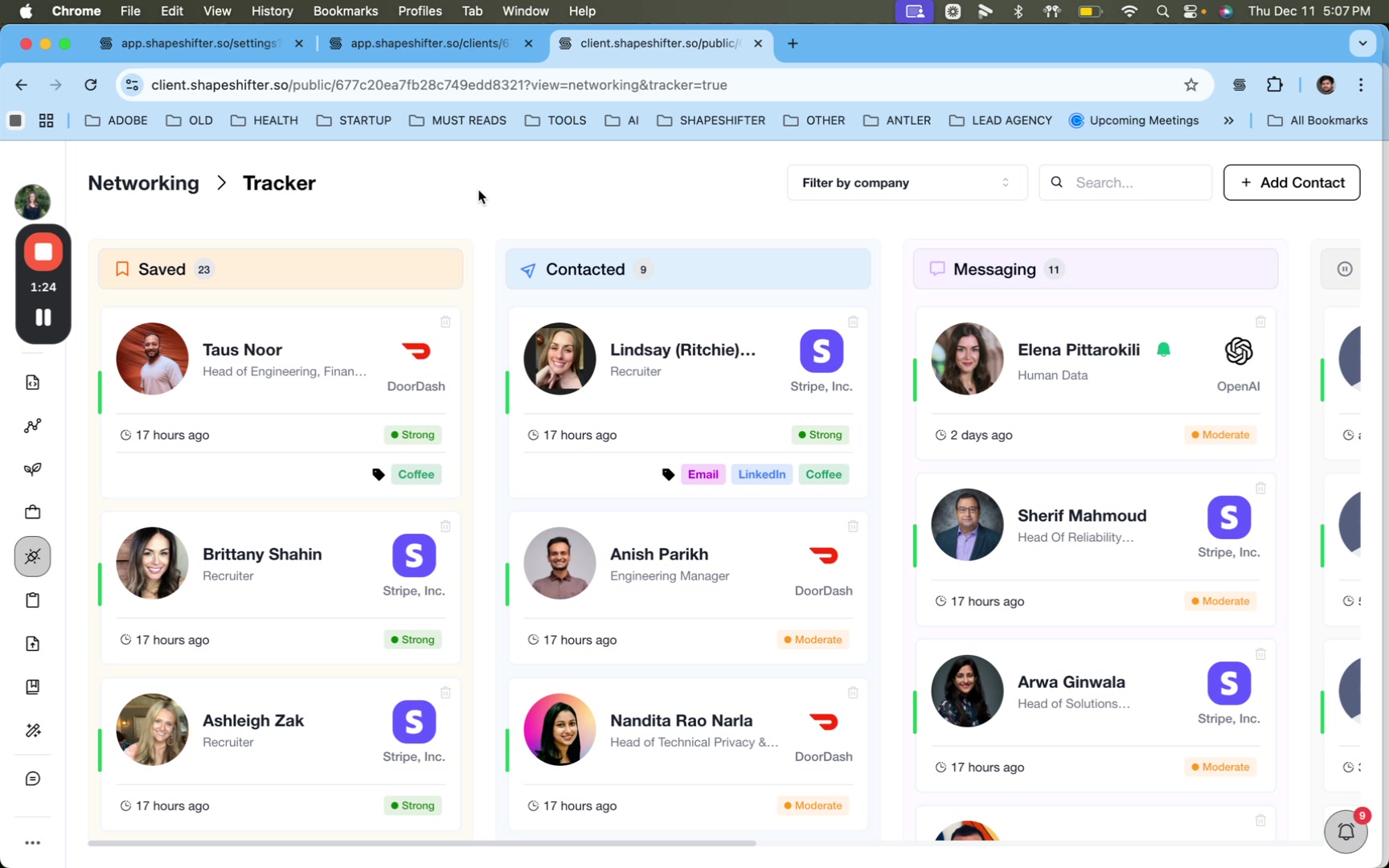
Custom tags help you organize and track contacts in your Networking tracker and jobs in your Jobs tracker with flexible, color-coded labels. Use tags to mark outreach methods (Email, LinkedIn, Coffee), prioritize opportunities (Urgent), or create your own custom categories that fit your coaching workflow.
Tags are visible to both coaches and clients. You can create tags on-the-fly, or set up organization-level tags in Settings to standardize labels across your entire team and program.
Tagging Networking Contacts
Apply tags to contacts to track how you've connected with them, follow-up methods, or any custom categories that help you stay organized.
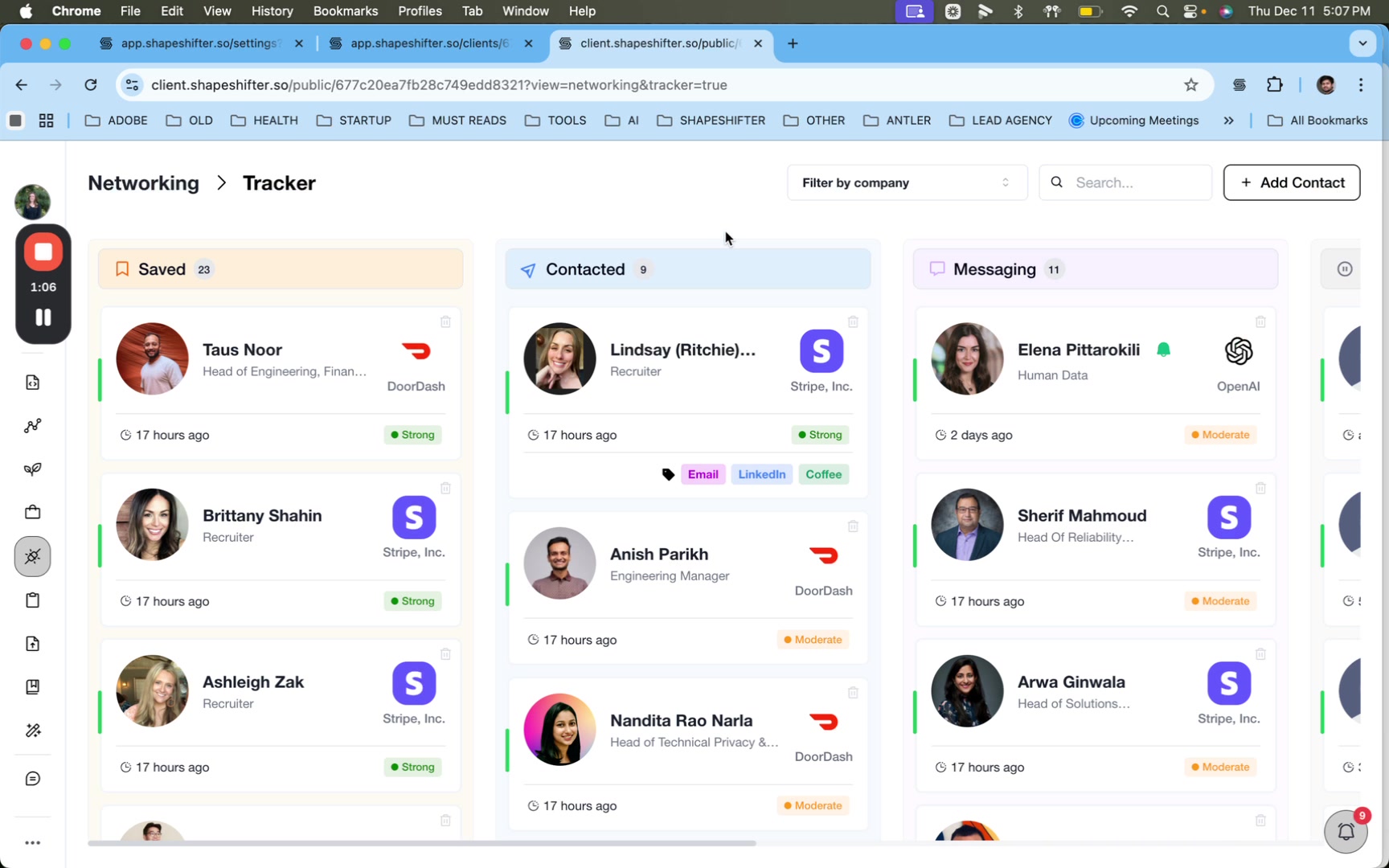
Adding Tags to a Contact
Open a contact card from your Networking tracker by clicking on any contact.
Locate the Add Tag button in the contact profile.
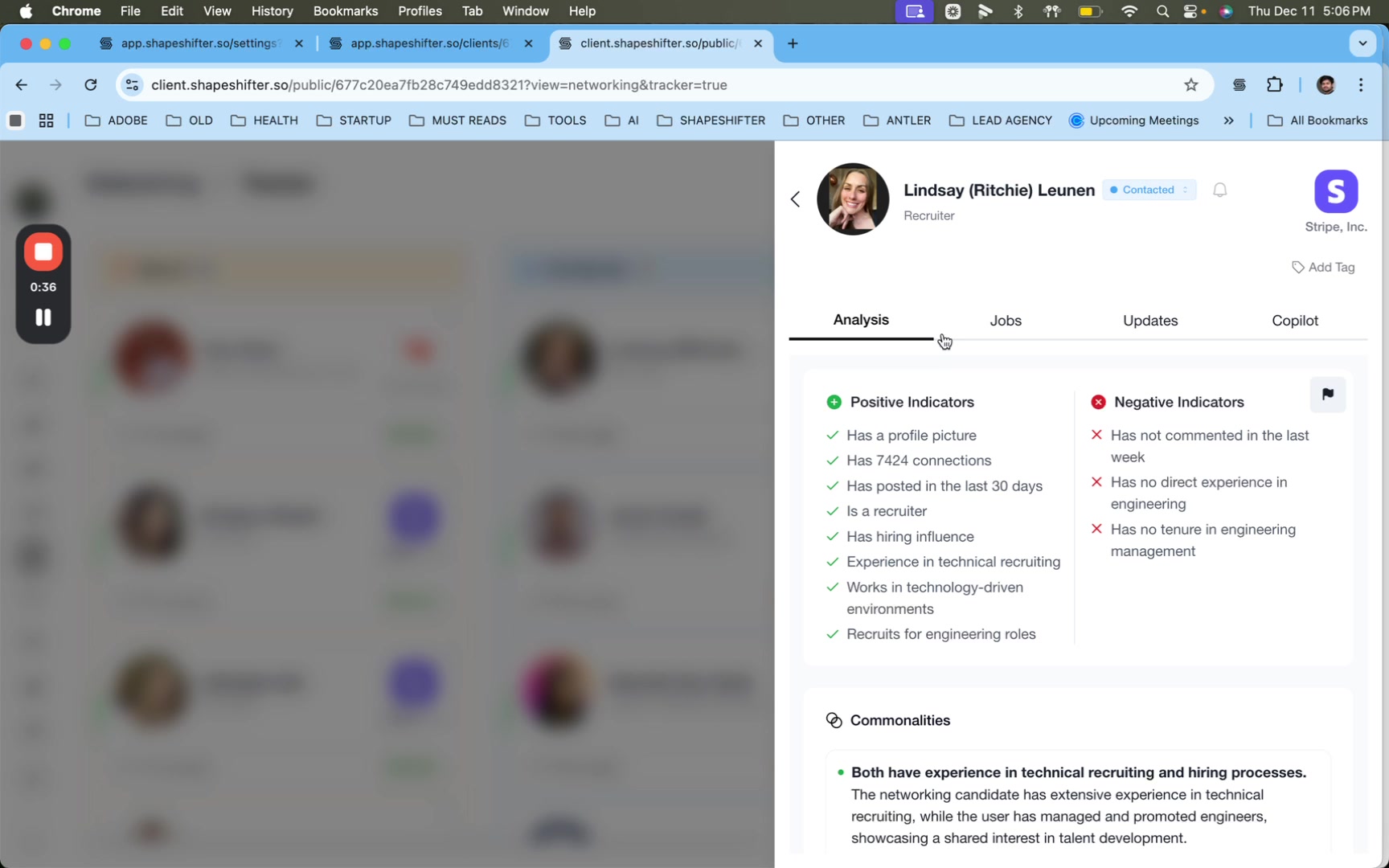
Click Add Tag to see existing tags or create a new one.
To apply an existing tag, simply click it from the dropdown list.
To create a new tag, type the tag name in the Create New Tag input field, select a color from the picker, and click + Create & Apply Tag.
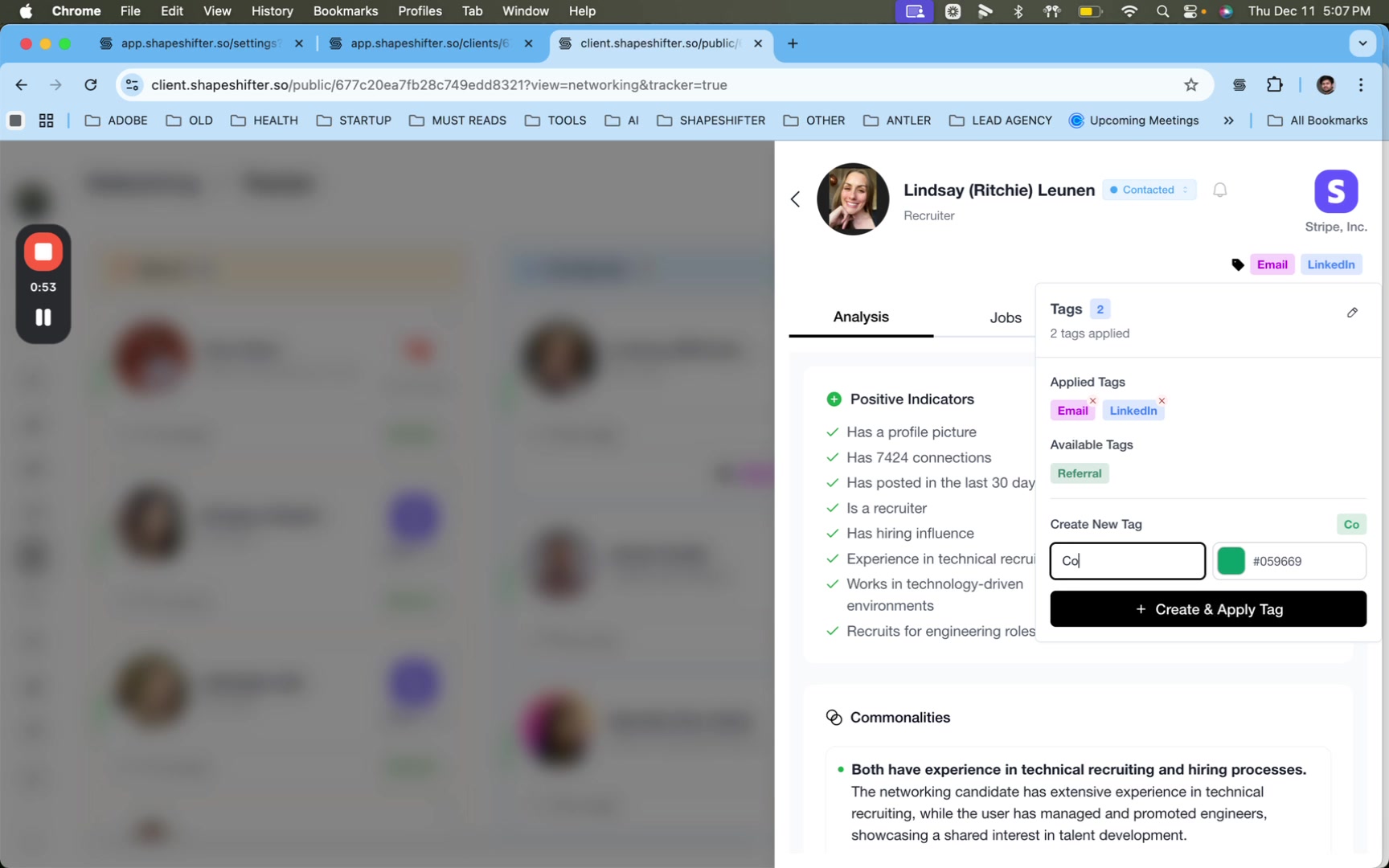
The tag is applied instantly and appears as a colored badge on the contact card.
You can apply multiple tags to a single contact. Tags appear both in the detailed contact view and on contact cards in your dashboard list view, making it easy to scan and identify contacts at a glance.
Tagging Jobs
Use the same tagging system to organize jobs in your Jobs tracker. Common use cases include marking urgent applications, referral opportunities, or jobs requiring specific follow-up actions.
Adding Tags to a Job
Open a job card from your Jobs tracker.
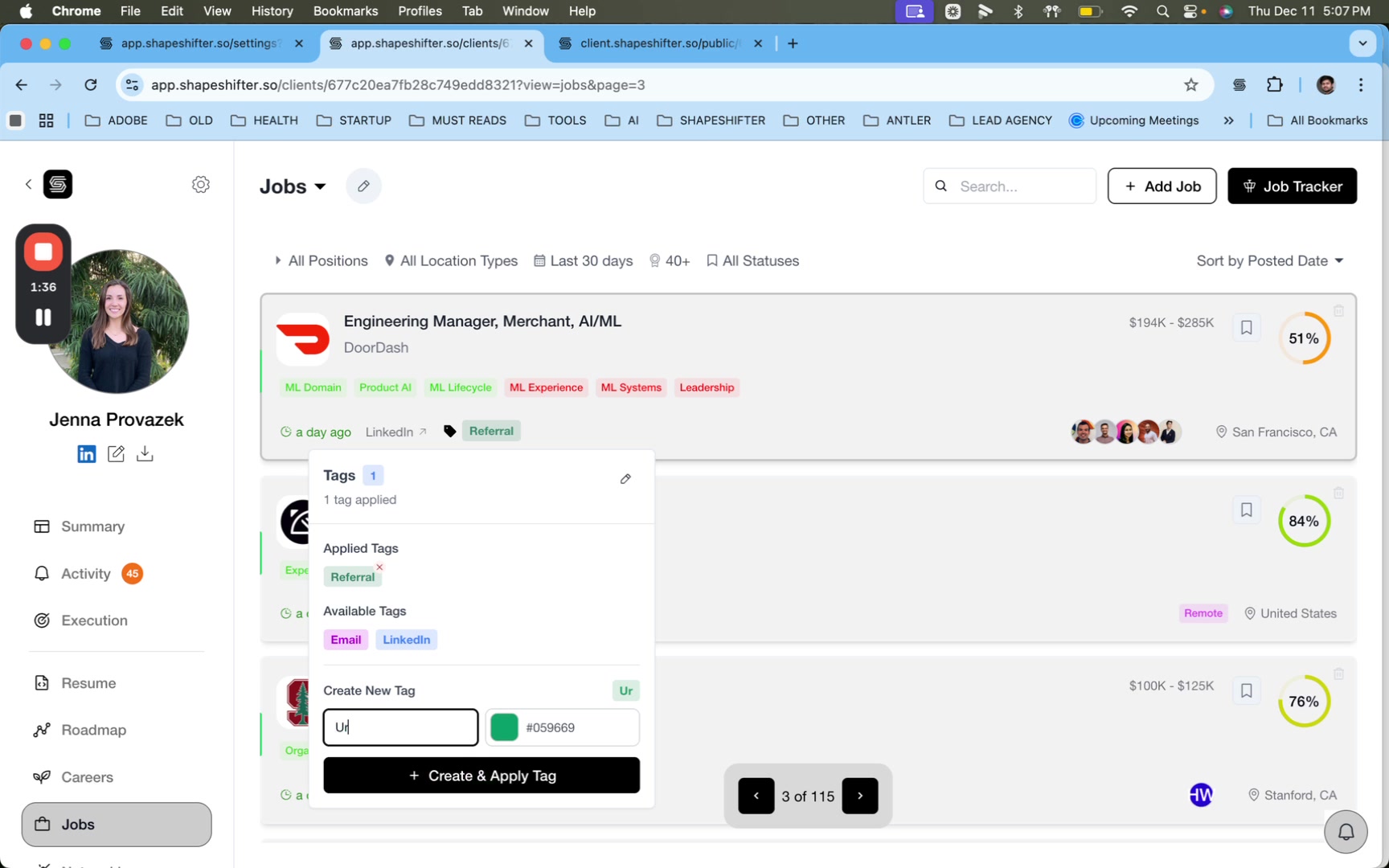
Click Add Tag on the job card.
Select an existing tag or create a new one using the same process as for contacts: type the tag name, choose a color, and click + Create & Apply Tag.
The tag appears immediately on the job card in your dashboard.
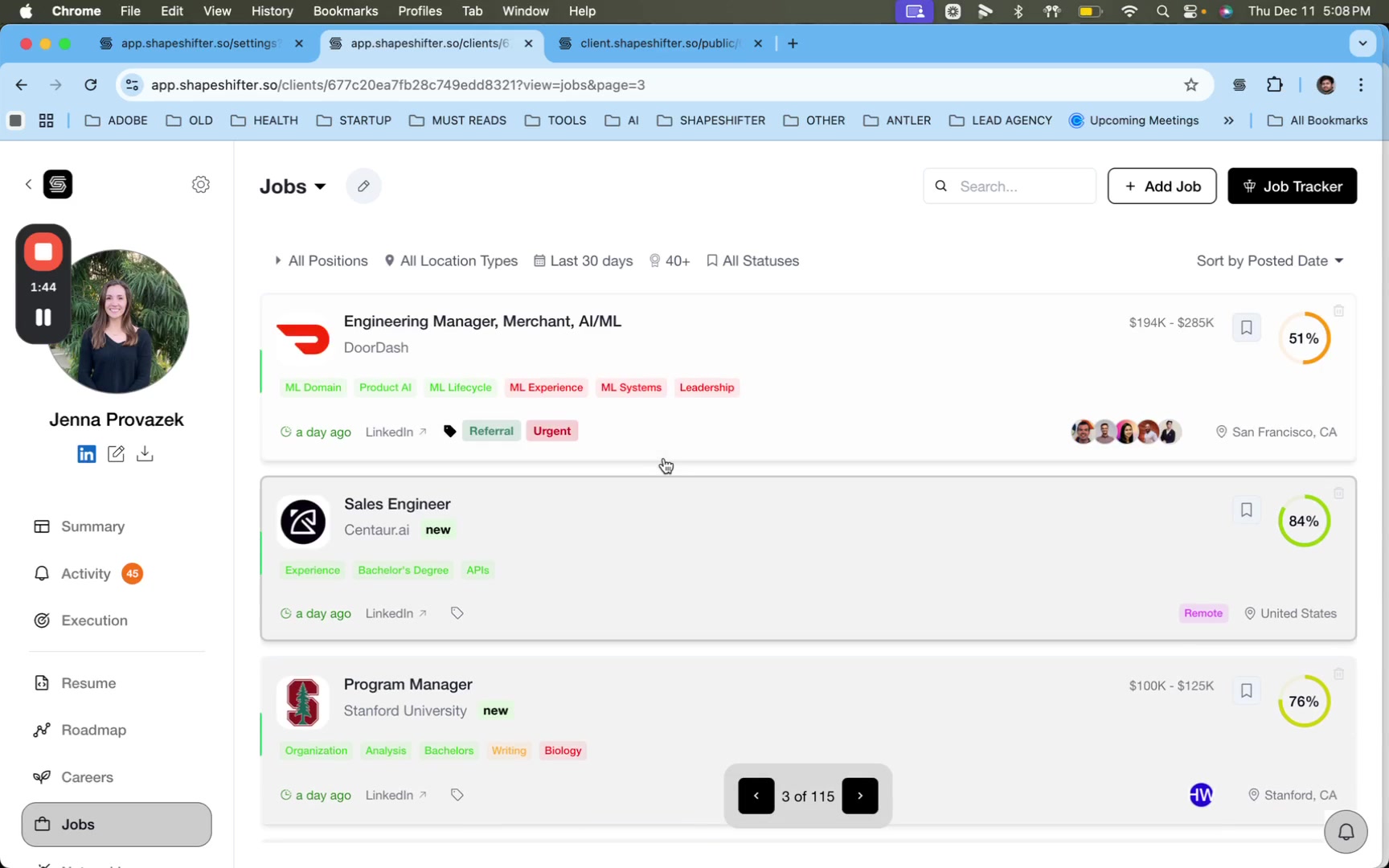
Use bright colors like red for high-priority tags (e.g., "Urgent") to make them stand out visually in your dashboard. This helps you and your clients quickly identify important items that need immediate attention.
Managing Organization-Level Tags
To maintain consistency across your coaching program and team, you can create organization-level tags that standardize nomenclature and restrict clients from creating random labels.
Setting Up Org-Level Tags
Navigate to Settings from the left sidebar.
Click the Tags tab.
Click + Add Tag to create a new organization-level tag.
Enter the tag name, select a color, and save.
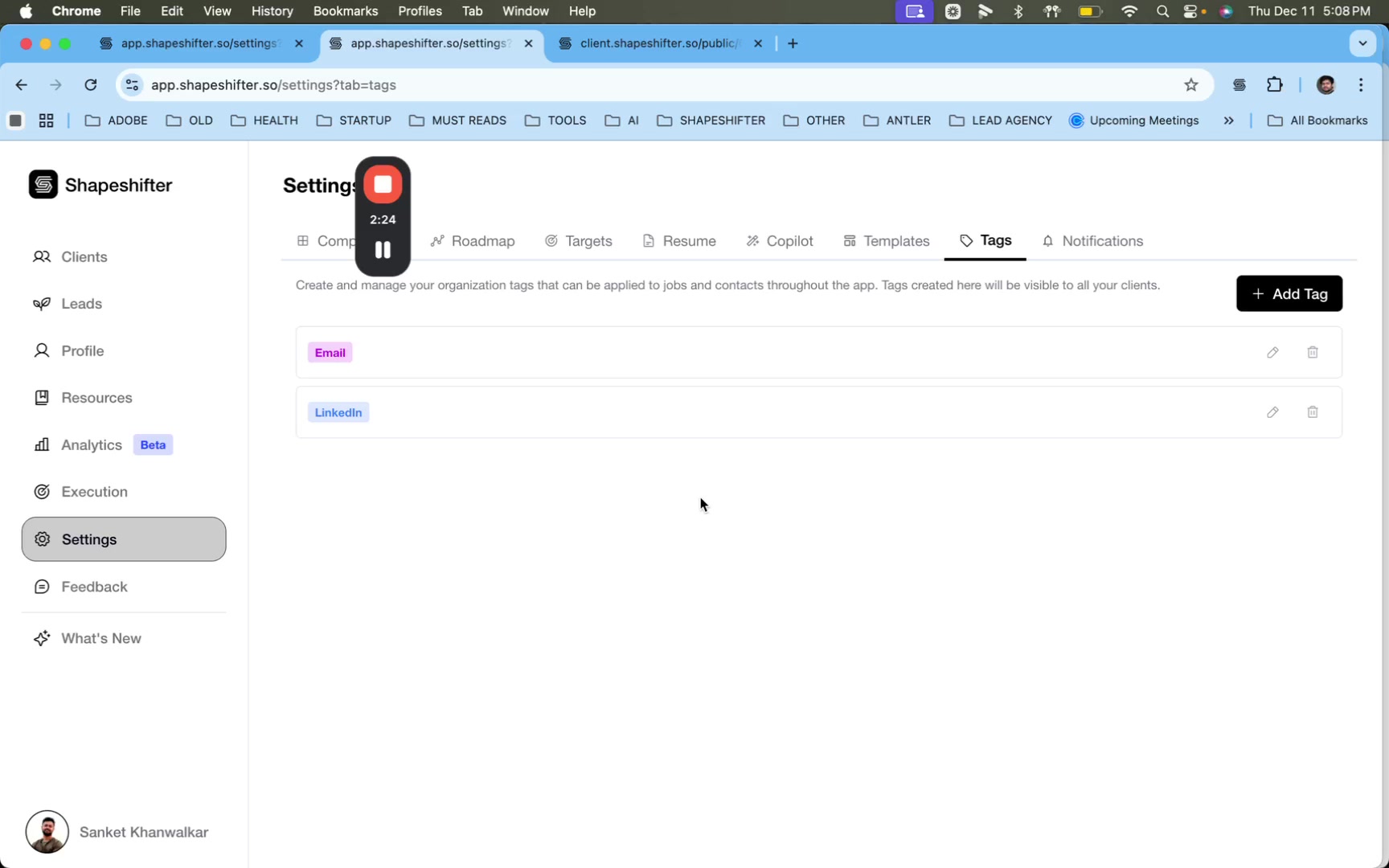
Organization-level tags are available across your entire program and team. When you create tags here, they appear in the tag dropdown for all coaches and clients, helping maintain standard naming conventions and preventing tag sprawl.
Creating organization-level tags doesn't automatically prevent clients from creating their own tags. Use this feature to provide a standard set of recommended tags that encourage consistent usage across your program.
Best Practices for Using Tags
Keep tag names short and clear — Use concise labels like "Email," "Call," "Urgent" instead of lengthy descriptions.
Standardize colors — Use the same color for similar tag types (e.g., all outreach methods in blue, all priorities in red) to create visual patterns.
Limit the number of tags — Too many tags can create clutter. Focus on categories that genuinely help organize your workflow.
Create org-level tags early — If you're managing a team, set up standard tags before onboarding clients to encourage consistent usage from day one.
Review tags regularly — Remove or consolidate tags that aren't being used to keep your tagging system clean and effective.
Video Walkthrough
Watch the complete video demonstration of the custom tags feature: