
Integrating Slack for Notifications
Shapeshifter sends real-time Slack notifications when your clients take action, like moving a job to the interview stage or hitting milestones. You can receive notifications in your coach team channel and set up individual channels for each client.
This guide walks you through connecting Slack, configuring notification channels, and customizing what alerts you receive.
Before you begin: You'll need admin access to both Shapeshifter and the Slack workspace where you want to receive notifications.
Step 1: Navigate to Notifications Settings
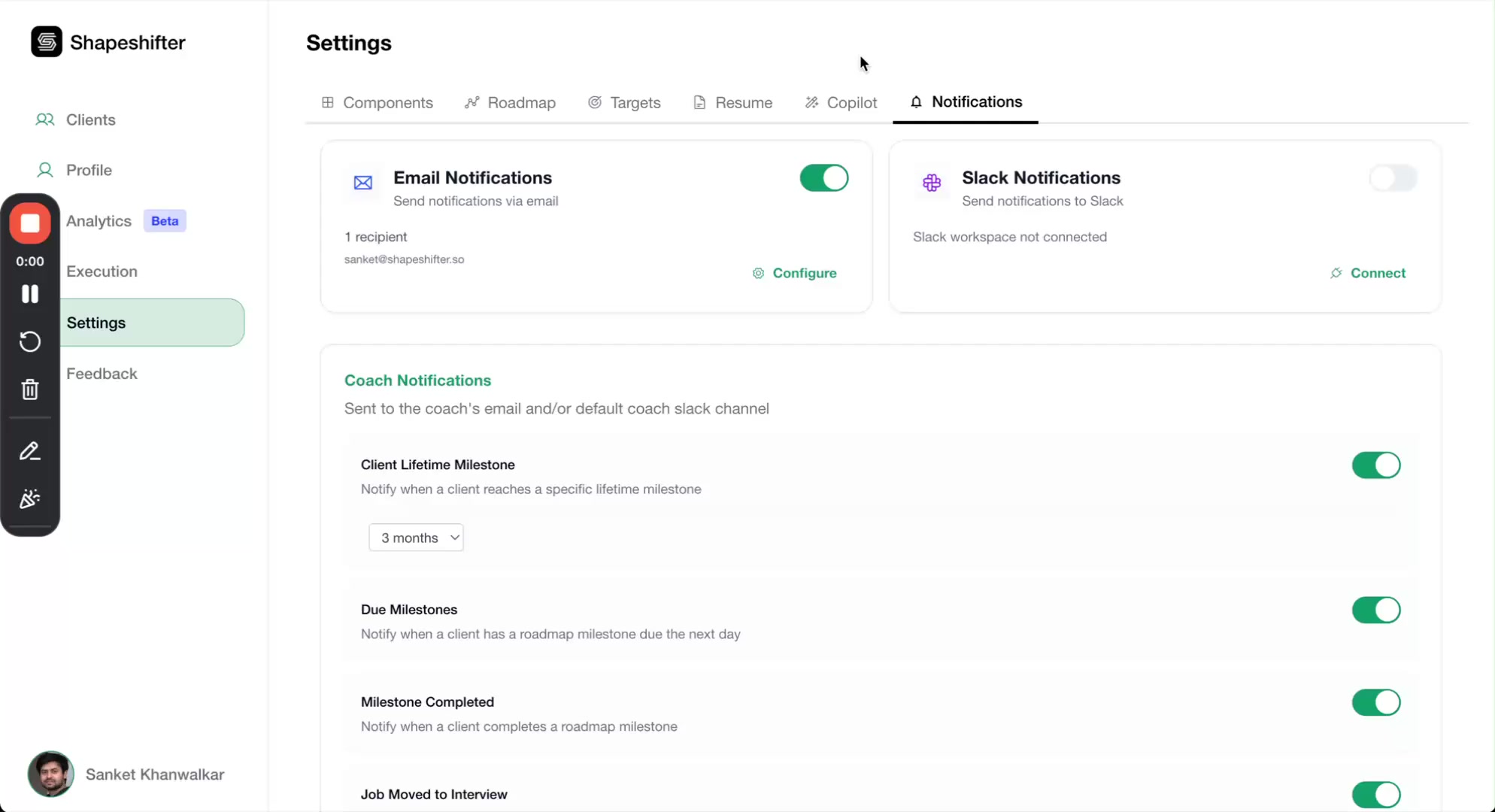
Go to Settings in your Shapeshifter dashboard and select the Notifications tab. You'll see options for both Email and Slack notifications.
Step 2: Connect Your Slack Workspace
In the Slack Notifications section, click the Connect button. A modal will appear prompting you to connect your workspace.
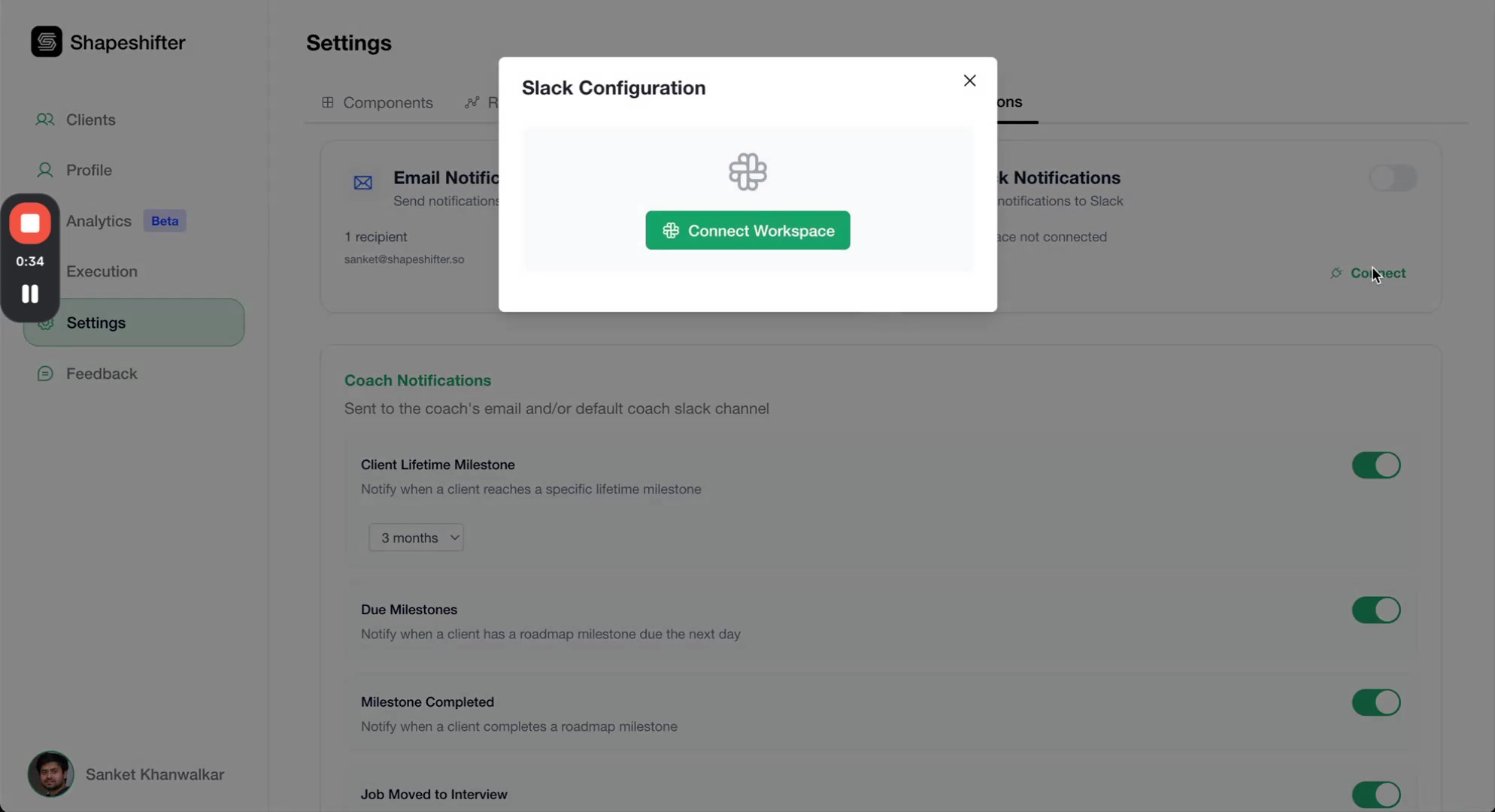
Click Connect Workspace and you'll be redirected to Slack's authorization page.
Step 3: Authorize Shapeshifter in Slack
On the Slack authorization page, select the workspace you want to connect (if you're part of multiple workspaces), then review the permissions. Shapeshifter needs access to view channel content and send messages.
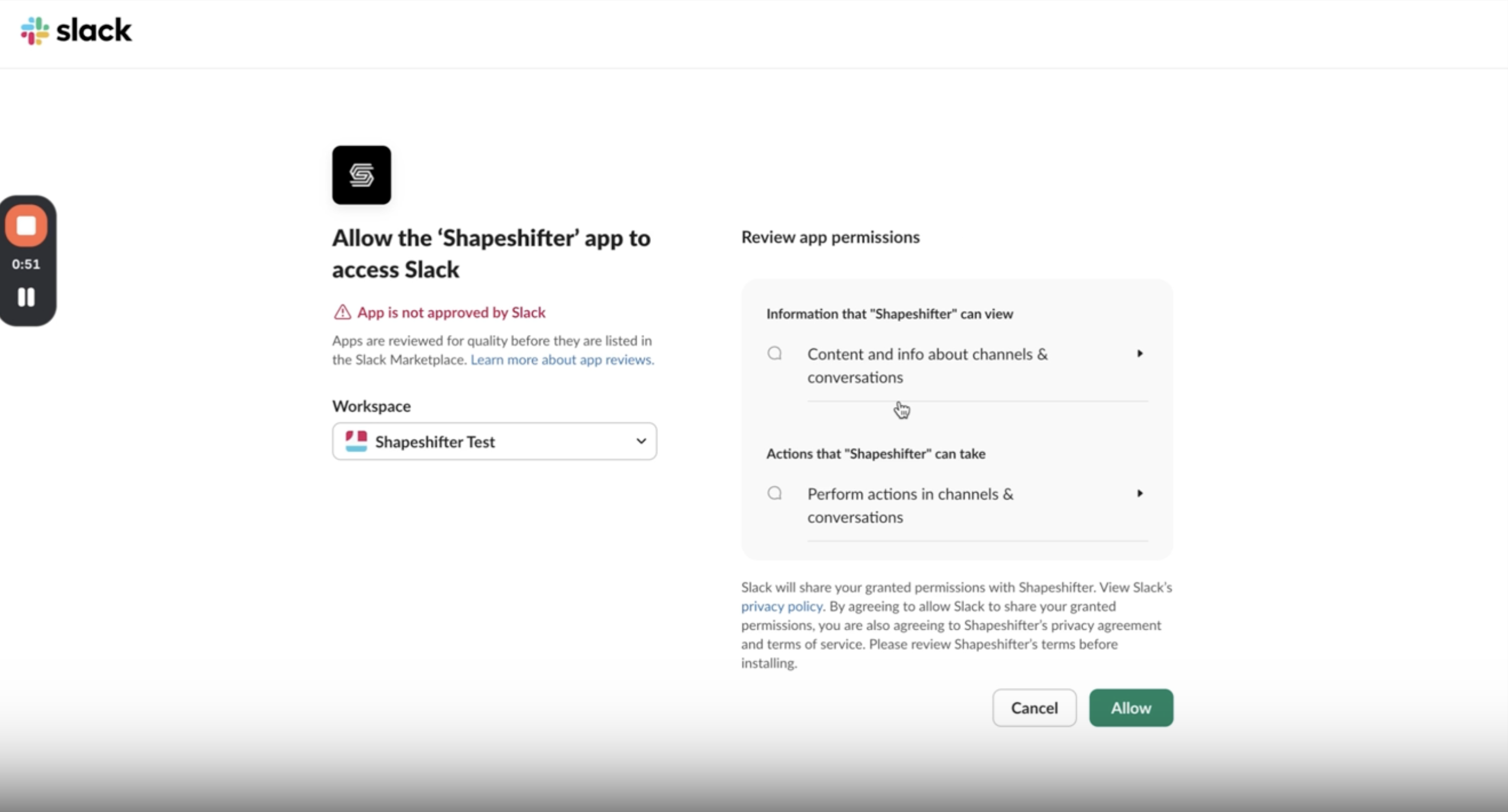
Click Allow to complete the connection. You'll be redirected back to Shapeshifter.
Choose the workspace where your coaching team and client collaboration channels live.
Step 4: Configure Notification Channels
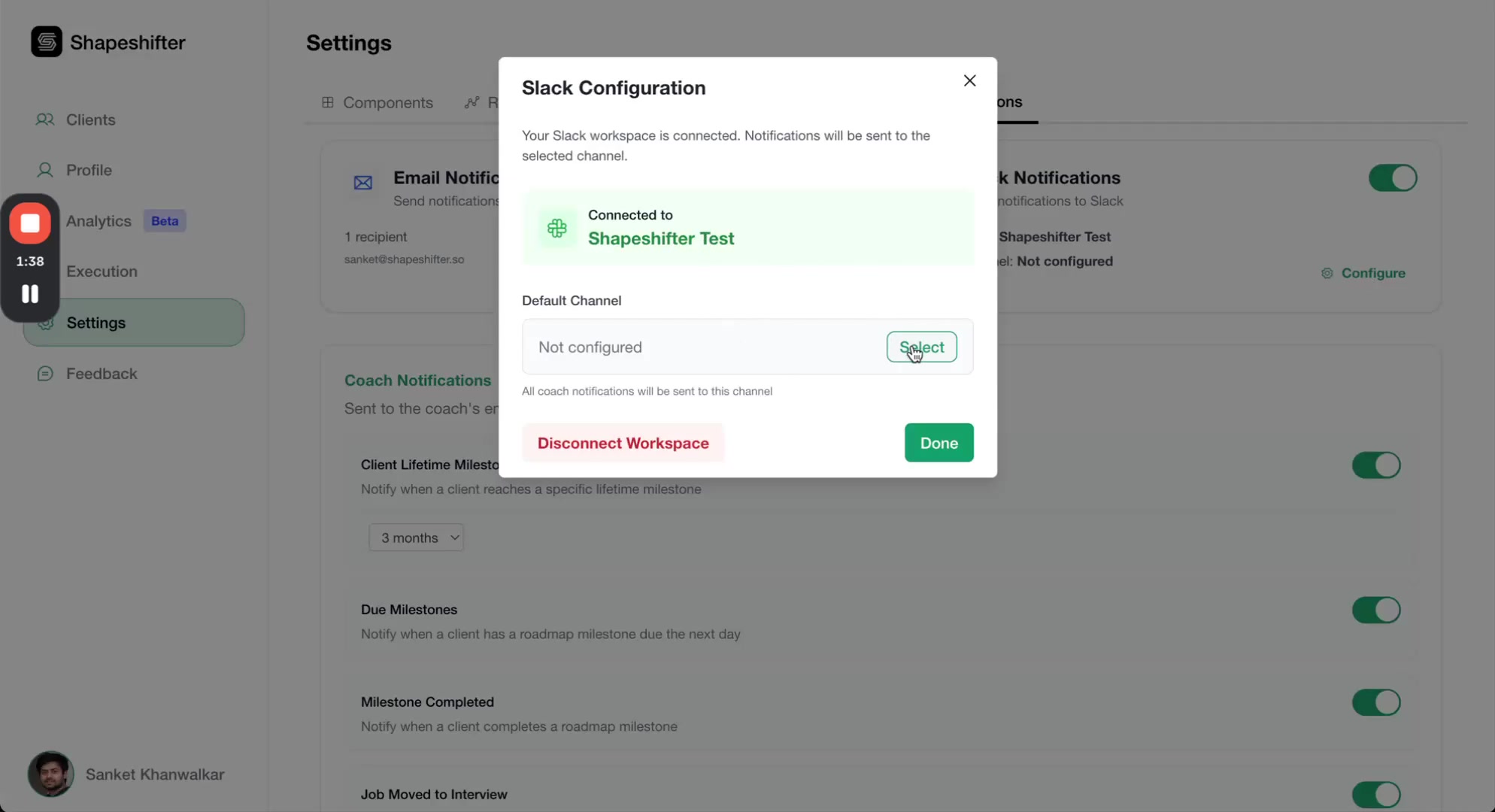
After connecting, you'll see that Slack is now linked, but the default channel isn't configured yet.
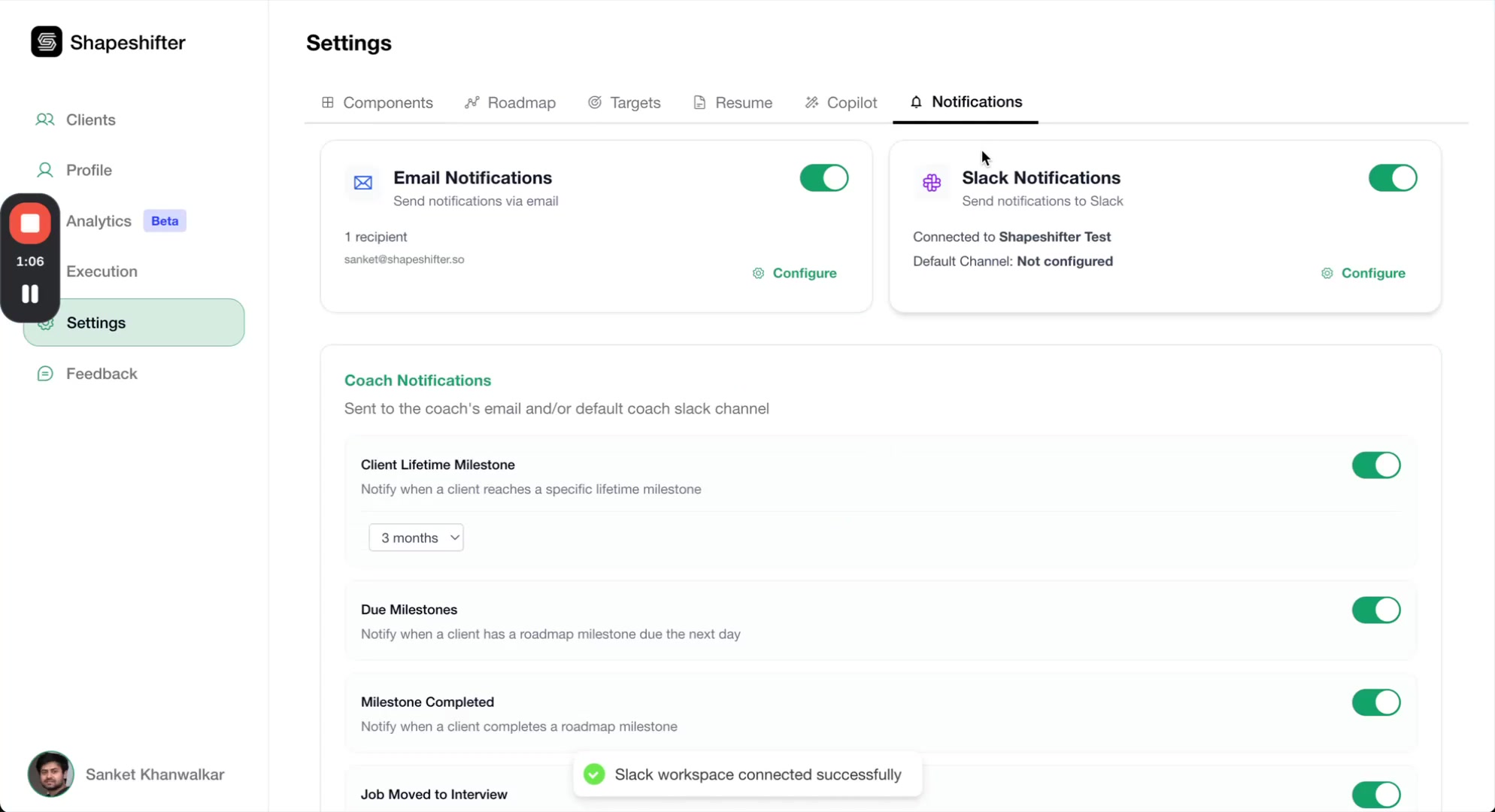
Important: Add the Shapeshifter Bot First
Before a channel will appear in the selection list, you must invite the Shapeshifter bot to that channel. In Slack, open the channel where you want notifications (for example, #test-coach-team), then type:
/invite @Shapeshifter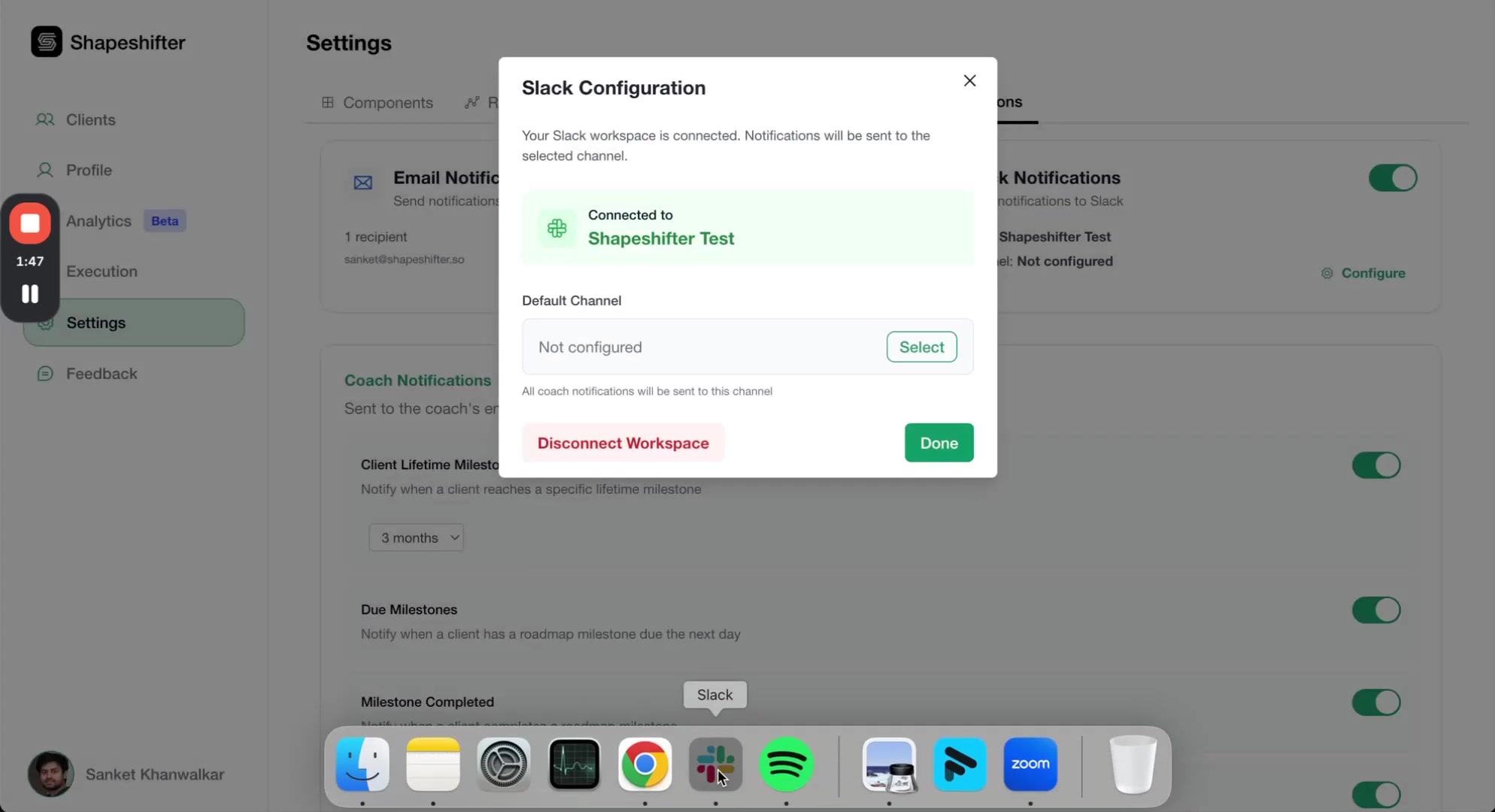
Channels won't appear in the Shapeshifter channel selector until the bot has been added. Repeat this step for every channel you want to use.
Set Your Default Coach Channel
Back in Shapeshifter, click Configure next to Default Channel. You'll see a list of all channels where the Shapeshifter bot has been added.
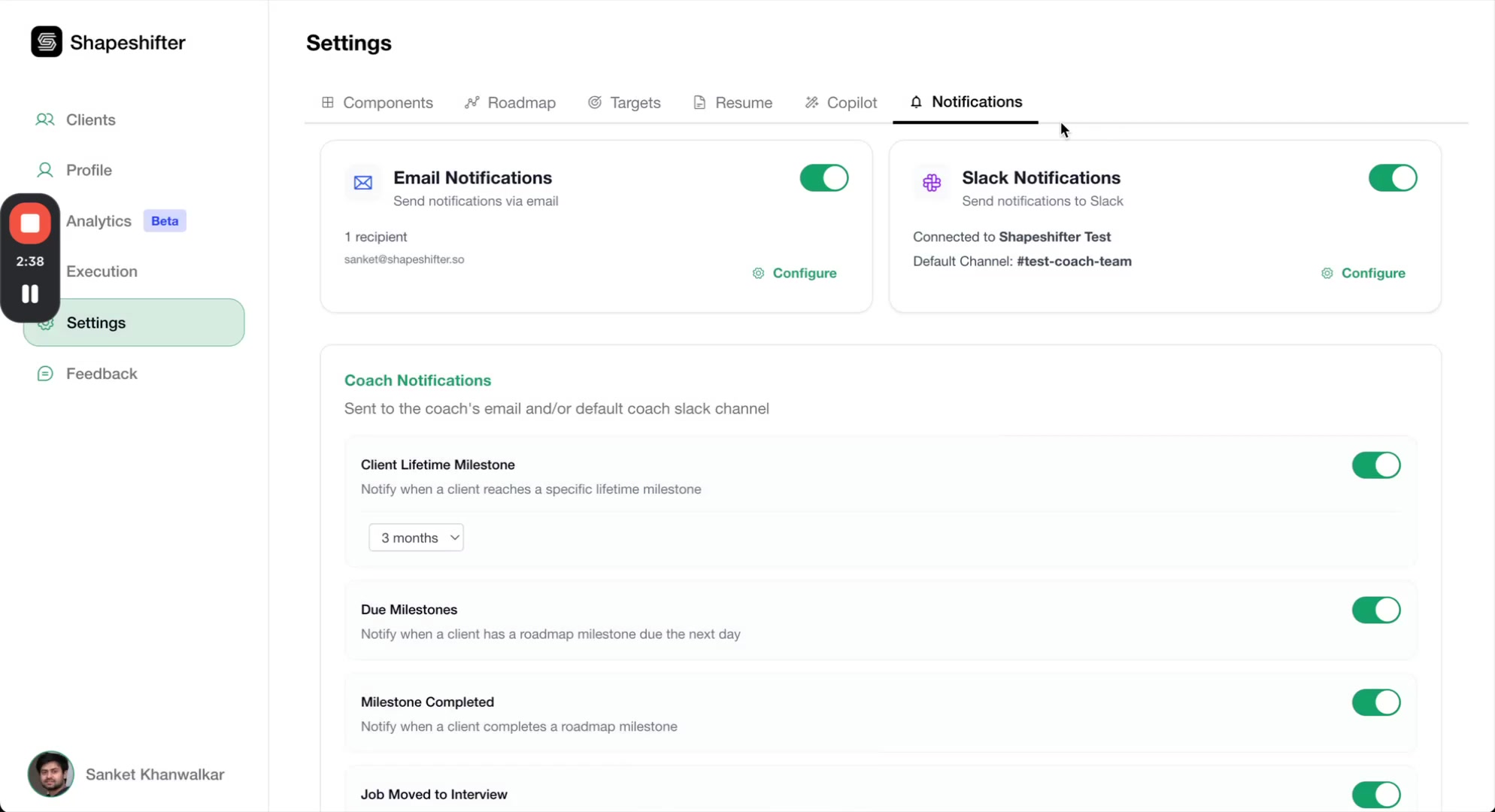
Select your main coach team channel - this is where you'll receive summaries, performance reports, and general coaching notifications. For example, #test-coach-team.
Set Client-Specific Channels
You can assign individual Slack channels to corresponding clients for personalized notifications.
Go to your Clients dashboard and find the client you want to configure. Click the Set Slack Channel icon next to their name.
A modal will appear where you can search for and select the channel dedicated to that client. Again, make sure you've already added the Shapeshifter bot to every client channel that you want to connect.
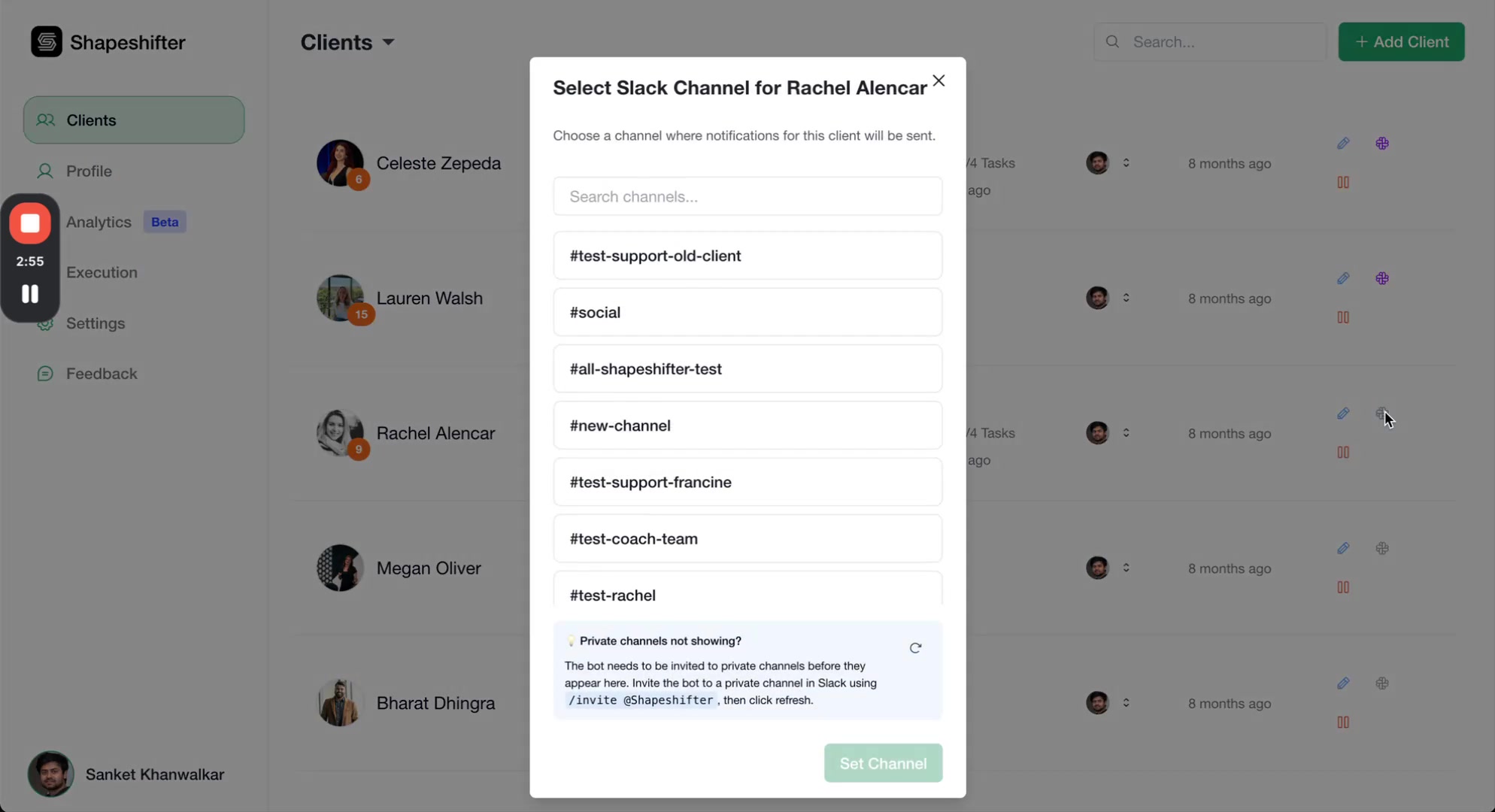
When a client channel is configured, all notifications related to that client (job applications, milestone updates, etc.) will go to their dedicated channel while the notifications relevant for the coach will continue to go to default coach channel.
Step 5: Customize Notification Preferences
Back in Settings > Notifications, you can toggle individual notification types on or off and configure their settings.
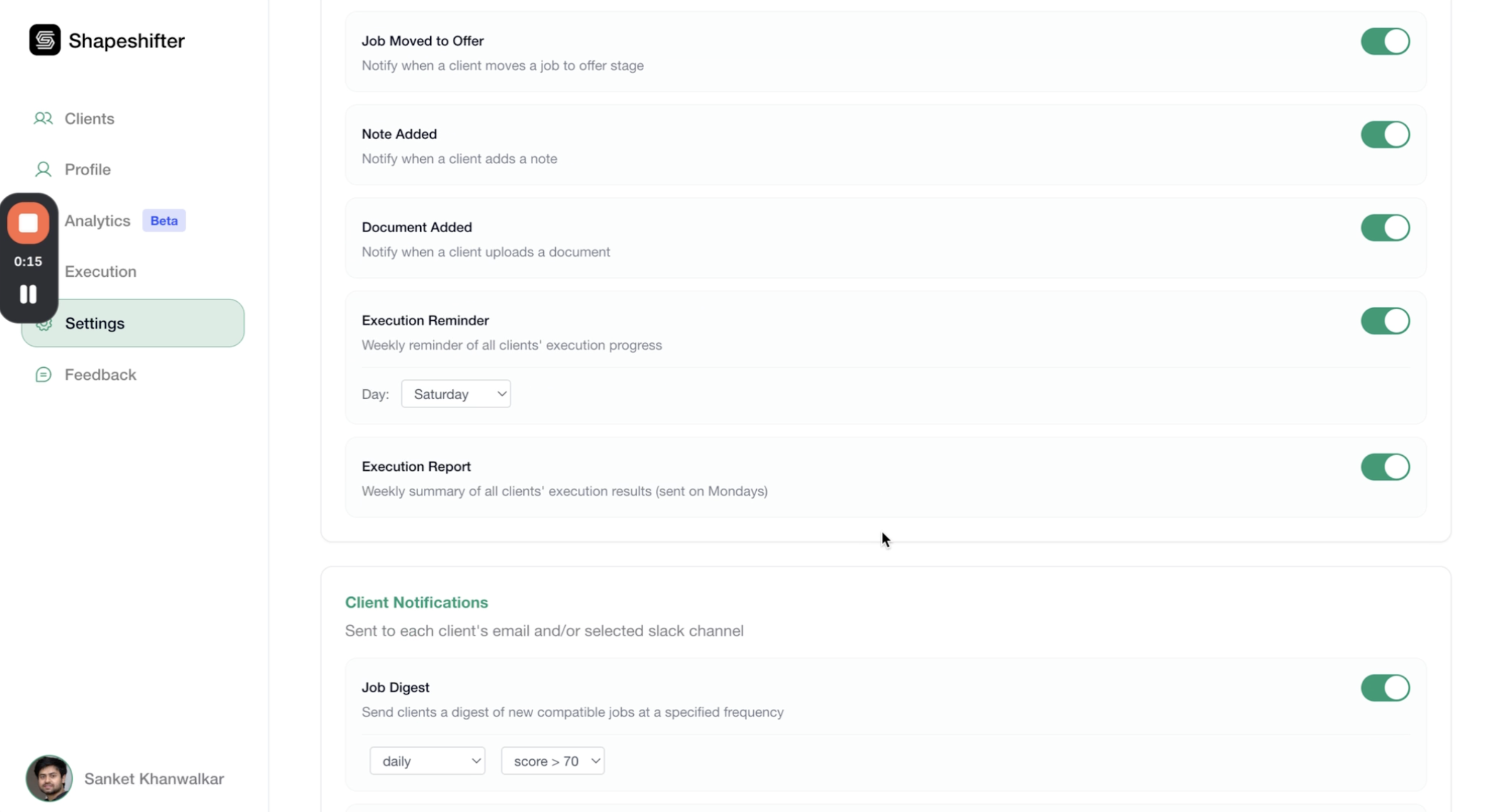
Coach Notifications
These notifications are sent to the default coach Slack channel.
Client Lifetime Milestone - Notify when a client reaches a specific lifetime milestone. Choose from: 1 month up to 6 months.
Due Milestones - Send daily reminders when a client has a milestone due, starting from: on the day, 1 day before, 2 days before, or 3 days before.
Milestone Completed - Notify when a client completes a roadmap milestone.
Job Moved to Interview - Notify when a client moves a job to interview stage.
Job Moved to Offer - Notify when a client moves a job to offer stage.
Note Added - Notify when a client adds a note.
Document Added - Notify when a client uploads a document.
Execution Reminder - Weekly reminder of all clients' execution progress. Choose any day between Monday to Sunday
Execution Report - Weekly summary of all clients' execution results (sent on Mondays).
Client Notifications
These notifications are sent to each client's corresponding Slack channel.
Job Digest - Send clients a digest of new compatible jobs at a specified frequency and score threshold. Choose a frequency: daily or every 2 to 7 days. Then choose a minimum score between 60 to 100
Execution Reminder - Notify client about their weekly execution progress. Choose any day between Monday to Sunday
Execution Achieved - Notify immediately when client achieves their weekly targets.
Execution Report - Notify client about their weekly execution result (sent on Mondays).
Due Milestones - Send daily reminders when a milestone is due, starting from: on the day, 1 day before, 2 days before, or 3 days before.
You can configure different preferences for coach vs. client notifications. For example, you might want execution reminders on Fridays for coaches to review all clients' progress, but send client execution reminders on Sundays to prepare them for the week ahead.
Step 6: Test Your Integration
To verify everything is working, have a client take an action that triggers a notification. For example, when a client moves a job to the "Interviewing" stage in their Job Tracker:
Within seconds, you should receive a notification in the configured Slack channel:
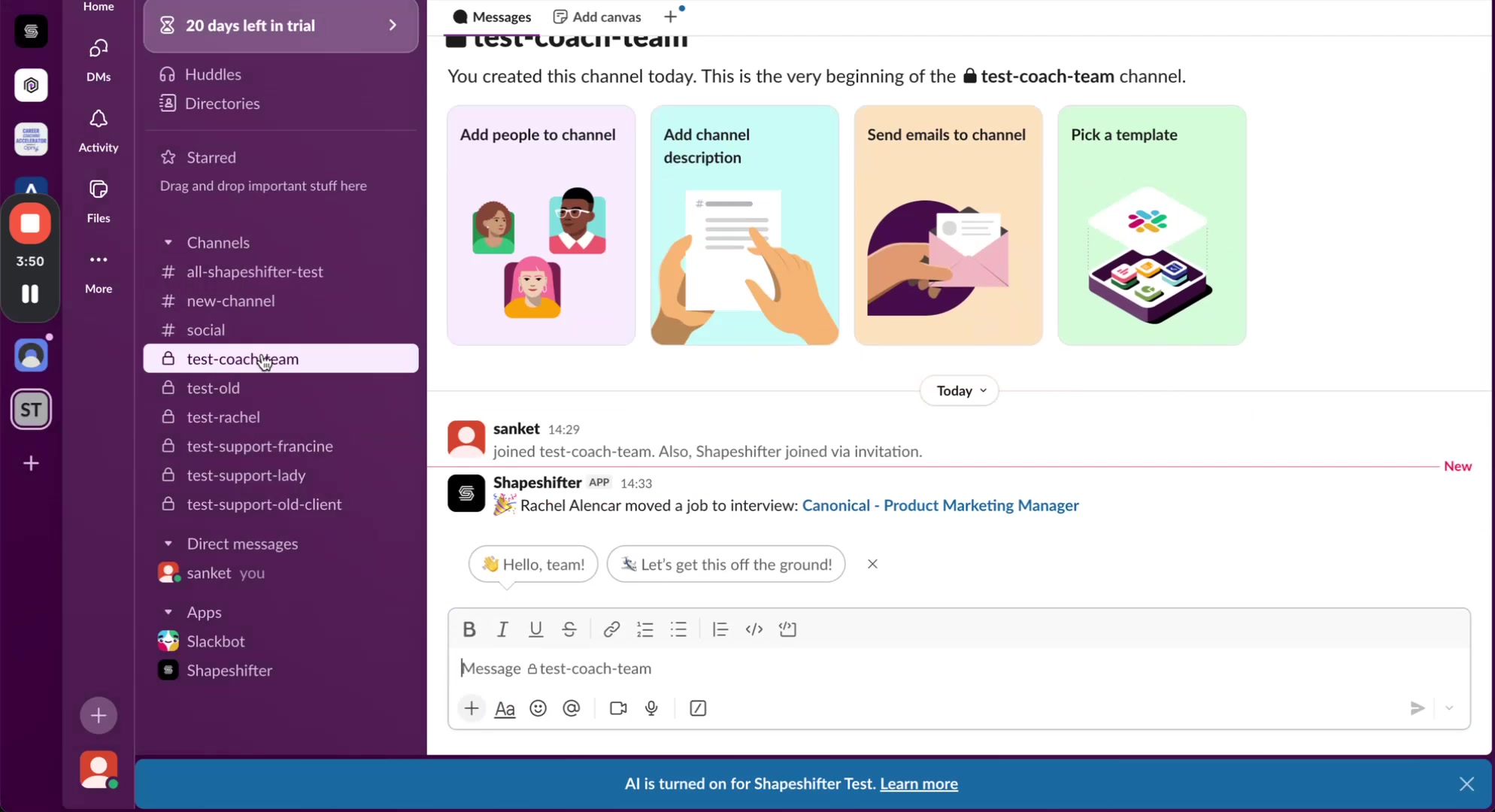
The notification is clickable and will take you directly to the relevant details in Shapeshifter.
Clients access their portal via a passcode-protected branded page. Test the integration by simulating client actions in their account or ask a client to update their job tracker.
Troubleshooting
Channel Not Appearing in Selector
If a channel doesn't show up when trying to configure it, make sure you've invited the Shapeshifter bot to that channel using /invite @Shapeshifter in Slack.
Not Receiving Any Notification
Check that:
The Shapeshifter bot is still a member of the channel
The correct channel is configured (default or client-specific)
The notification type is toggled ON in Settings > Notifications
Your Slack workspace connection hasn't been revoked
Not Receiving Some Notifications
As a coach if you simulate progress on behalf of the client (eg: moving their job across columns), that will not trigger a notification. The client will have to actually make progress to trigger client-based notifications.
Disconnecting and Reconnecting
If you need to disconnect Slack, go to Settings > Notifications and click the disconnect option next to your workspace name. You can reconnect at any time by following the steps above.
Video Walkthrough
Watch the complete setup process in this video tutorial: