
Setting up Branding
Customize your organization's name, logo, and color theme to create a professional, white-labeled experience for your coaching clients. These settings control how your brand appears throughout the client-facing interface.
You'll need admin or owner access to customize organization settings.
Access Organization Settings
Navigate to your Profile page by clicking Profile in the left sidebar. Scroll down to the Organization section where you'll see all customization options.
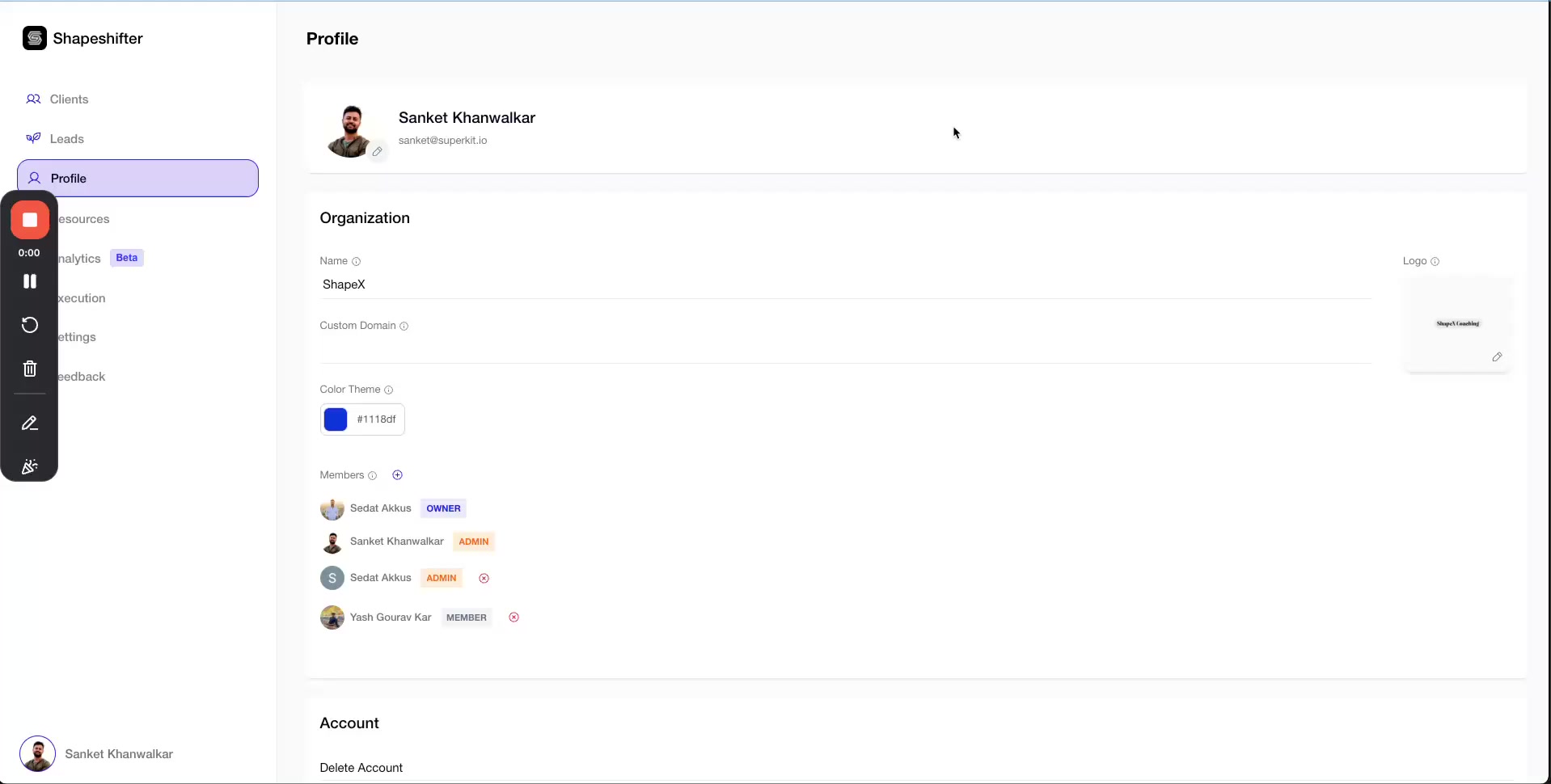
Update Organization Name
Your organization name appears throughout the client-facing interface, including login screens and dashboard headers.
Click into the Name field under the Organization section
Type your desired organization name (e.g., "Acme Coaching")
The name will be used across all client touchpoints
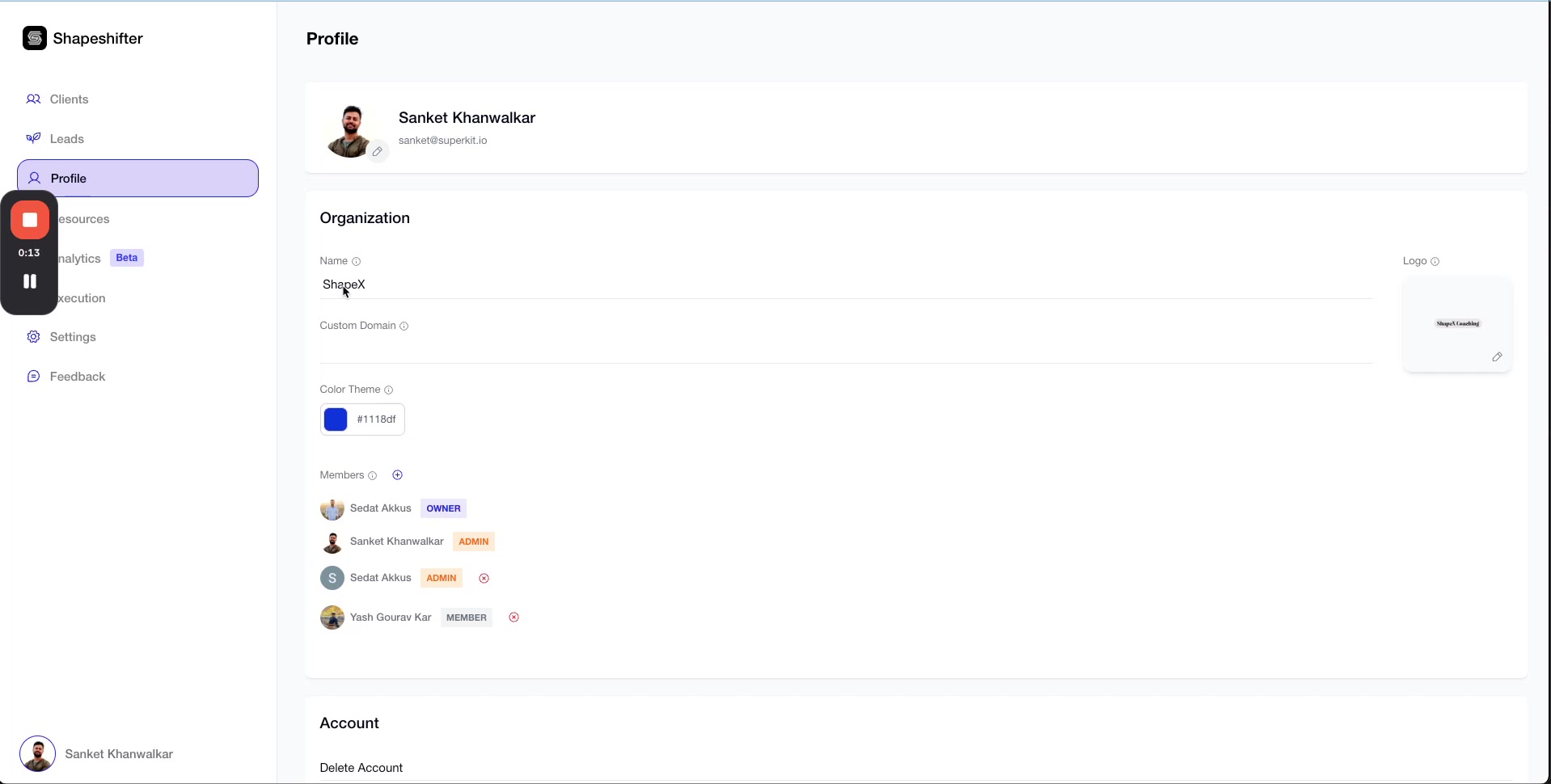
Customize Color Theme
Choose a brand color that matches your coaching business. This color will be applied to buttons, accents, and other interface elements throughout the client dashboard.
Click the Color Theme field to open the color picker
Select a color from the palette or enter a specific hex/RGB value
Preview how the color looks in the interface
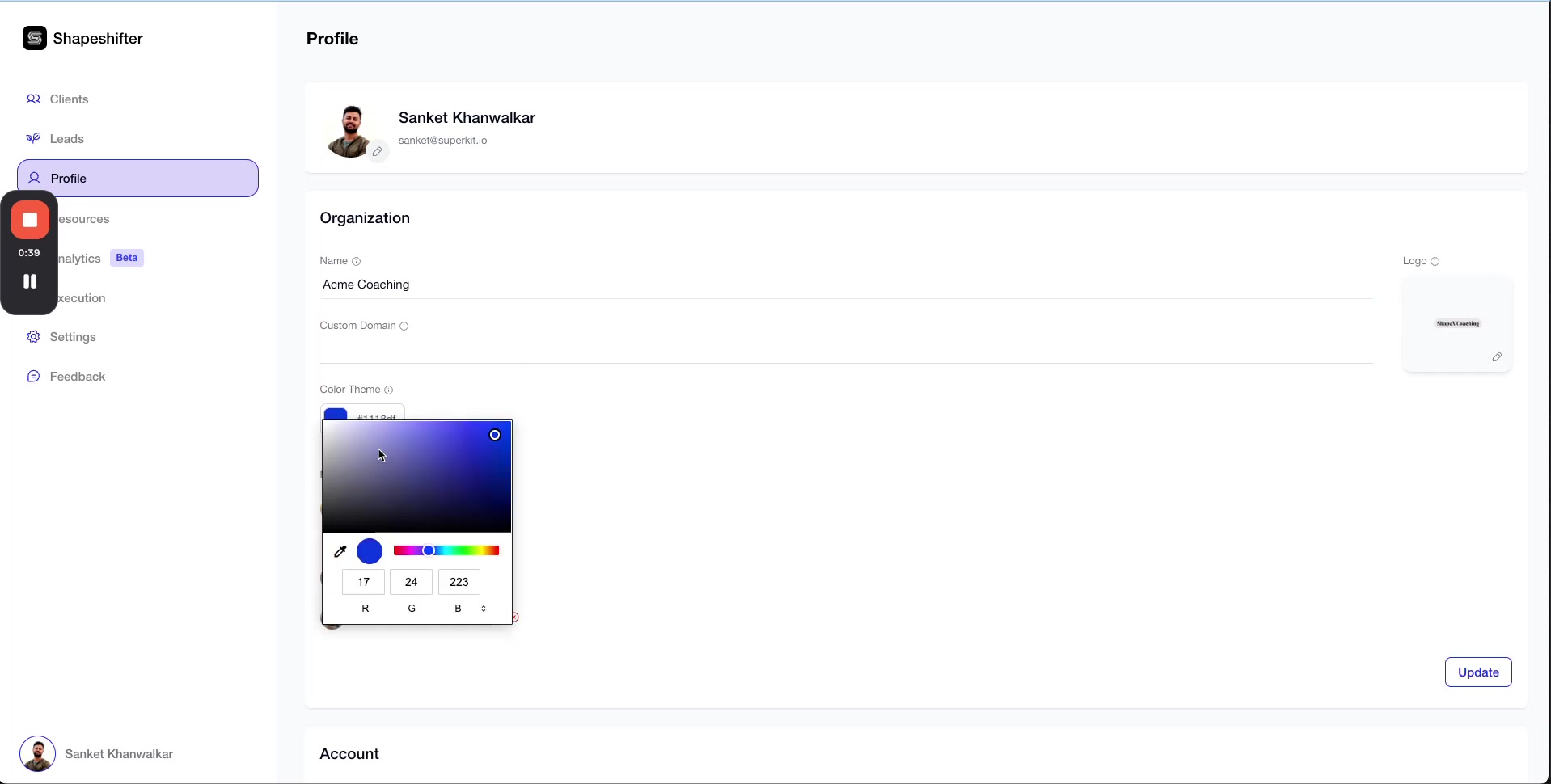
You can change to any color that aligns with your brand. For example, switching to a dark green (#084e3d) creates a professional, earthy tone.

Save Your Changes
After updating your organization name and color theme, click the Update button at the bottom right of the Organization section to save all changes.
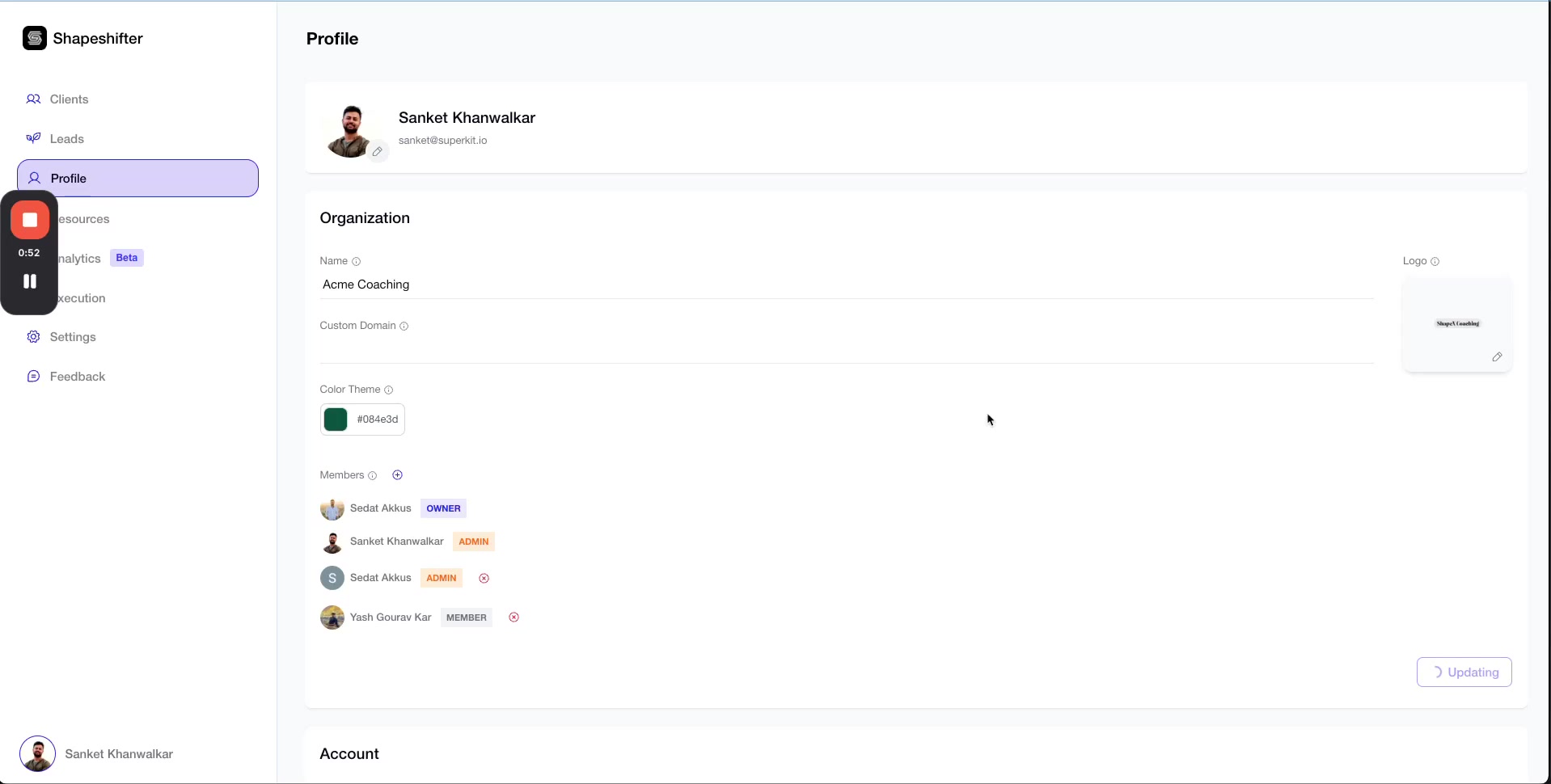
Changes are saved immediately and will be reflected across all client-facing interfaces.
Test Your Branding
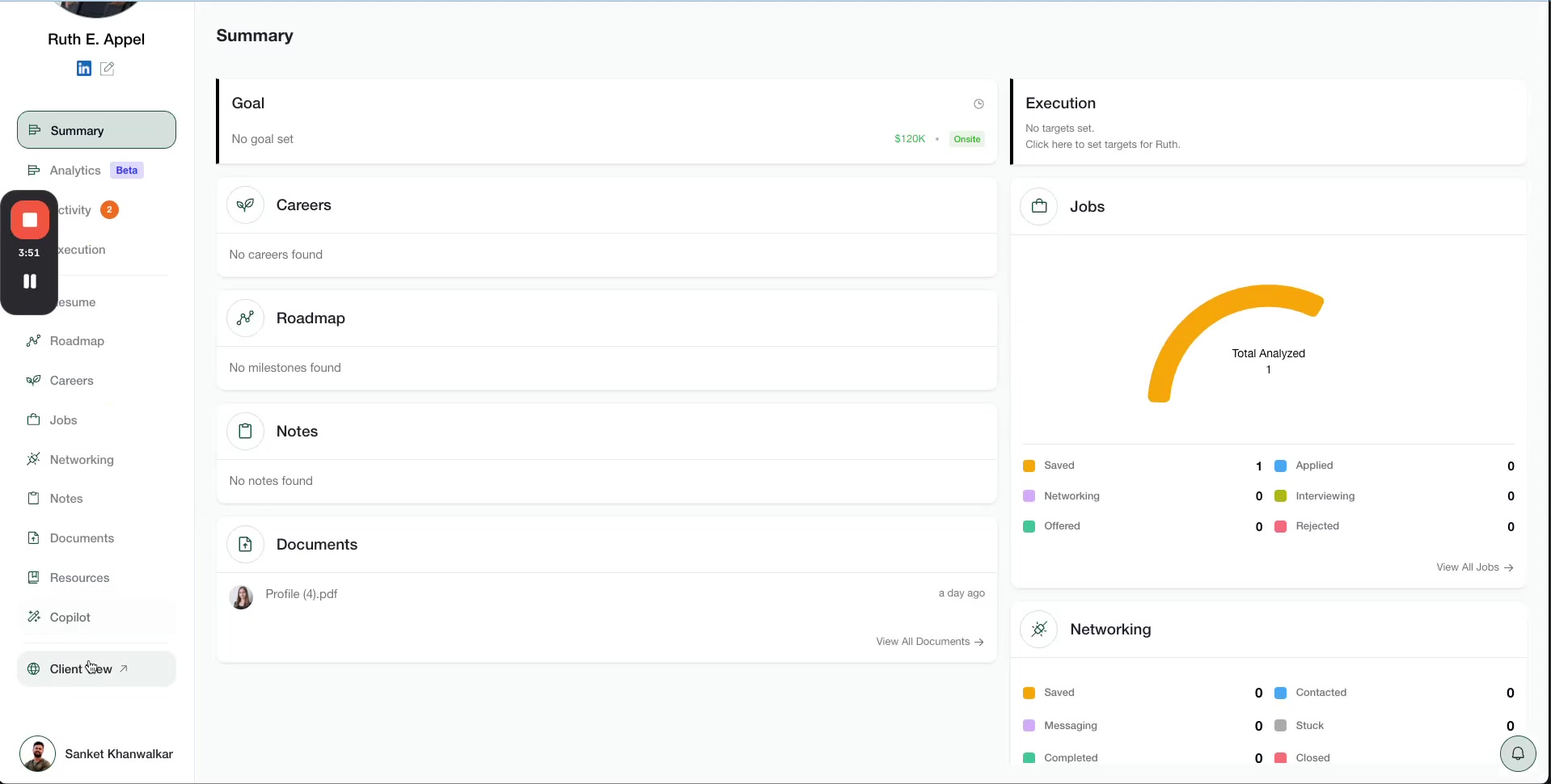
Once you've configured everything, test how your branding appears to clients by using the Client View feature.
Navigate to a client's profile in Shapeshifter
Click Client View to generate a test link
Copy the link and passcode provided
Open the link in an incognito/private browser window
Verify Client Login Screen
The login screen will display your custom organization name (e.g., "Welcome to Acme Coaching!") with your chosen color theme.

Verify Client Dashboard
After logging in with the passcode, you'll see the full client dashboard with your custom branding applied — your organization name, logo, and color theme throughout the interface.
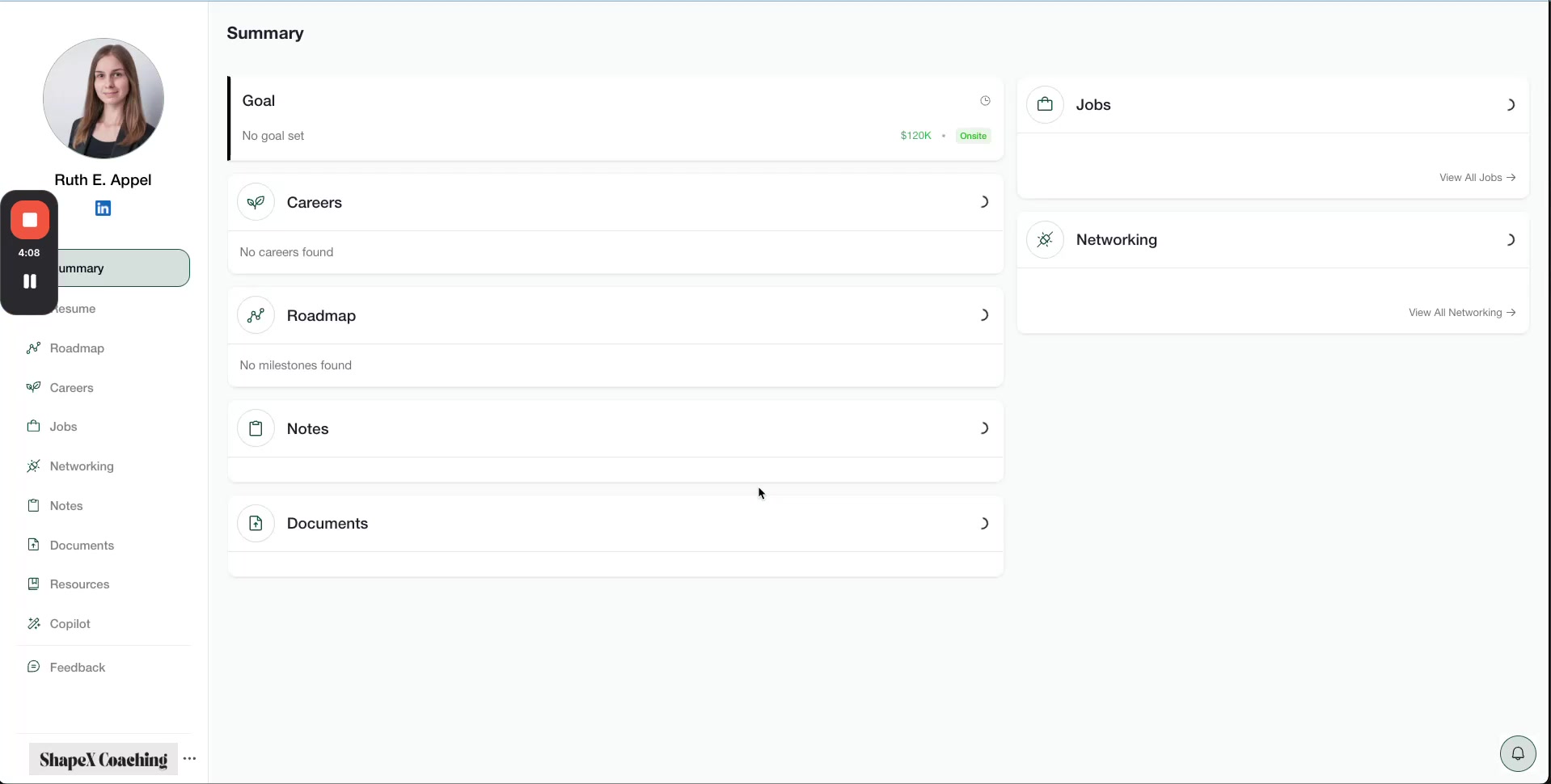
Your clients will now experience a fully white-labeled coaching platform that reflects your brand identity, building trust and professionalism.
Video Walkthrough
For a complete visual walkthrough of the entire branding setup process, watch this video: