
Setting Up Custom Execution Targets
Custom execution targets allow you to track client activities beyond the default metrics like job applications and networking contacts. You can create organization-wide targets such as attending meetups, coffee chats, or industry events and customize weekly goals for individual clients.
Before you begin: You'll need coach-level access to Settings. Clients cannot edit targets; they can only log activities against targets you've set.
Creating a Global Target
Global targets apply as defaults to all clients in your organization. Start by adding a new target in your Settings.
Step 1: Navigate to Settings in the left sidebar, then click the Targets tab. You'll see your existing targets listed here.
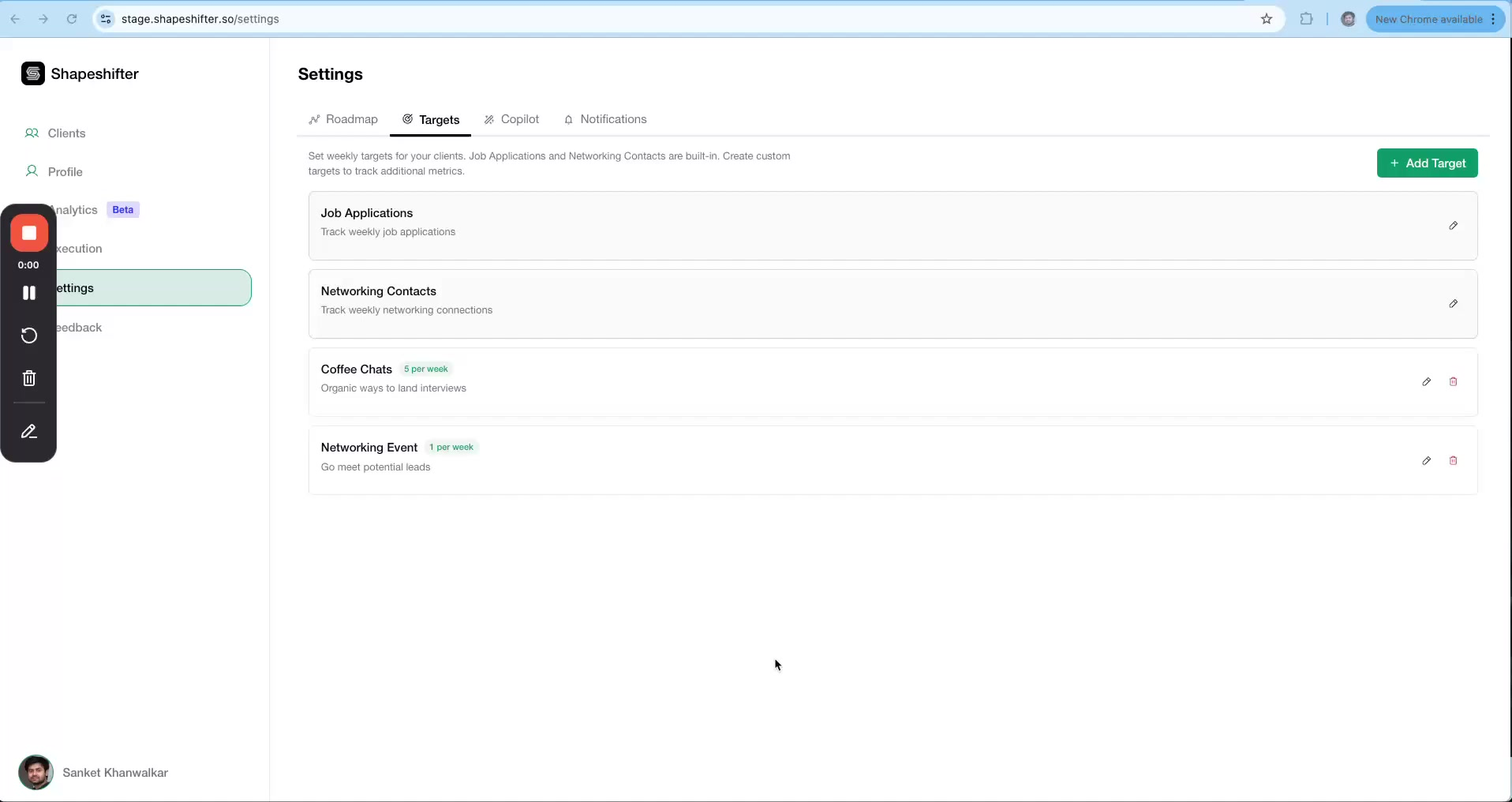
Step 2: Click the green + Add Target button in the upper right corner. A modal will appear with three fields:
Target Name: Enter a short, descriptive name (e.g., "Attending Meetups").
Description: Add context for clients (e.g., "Relevant meetups can enhance networking opportunities").
Weekly Goal: Set the default number of times per week clients should complete this activity (e.g., 1).
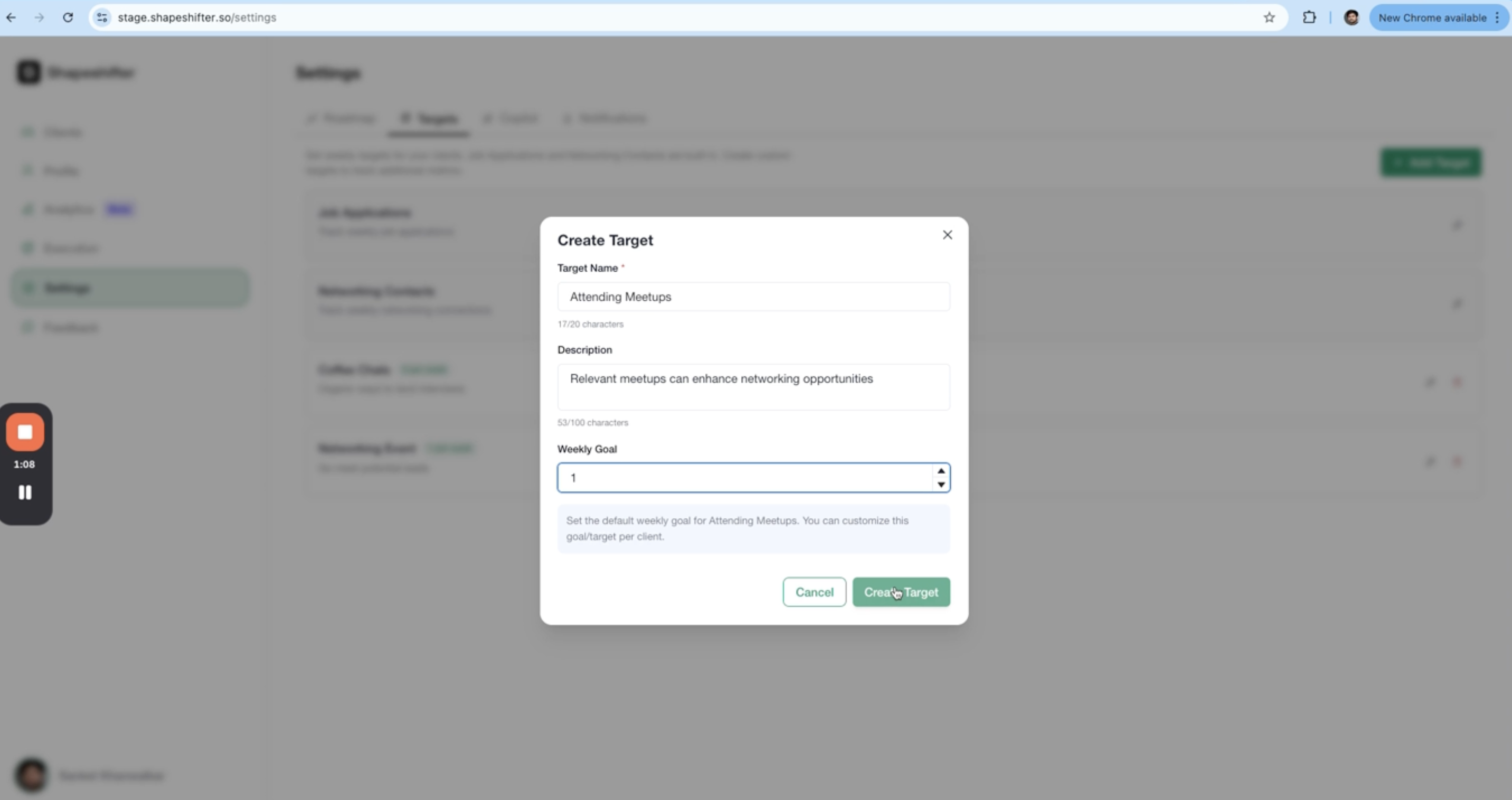
Step 3: Click Create Target. Your new target will appear in the list with edit and delete icons next to it.
Your new target is now available globally and will appear for all clients. You can edit or delete it at any time from the Targets settings page.
Customizing Targets for Individual Clients
Once global targets are created, you can adjust weekly goals for specific clients based on their unique needs.
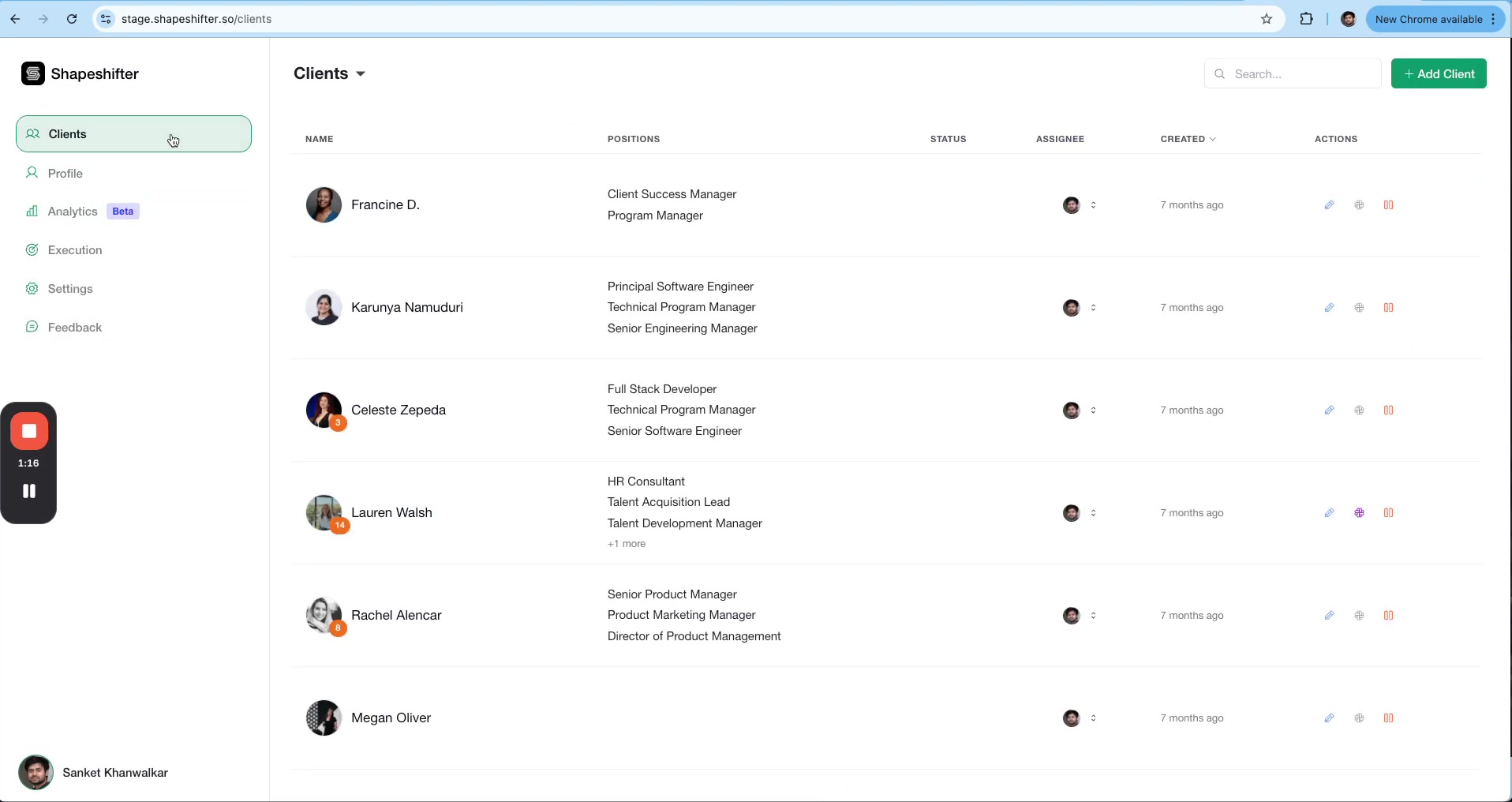
Step 1: Go to the Clients page and select the client you want to customize.
Step 2: On the client's Summary page, scroll to the Execution section on the right. You'll see progress bars for all active targets.
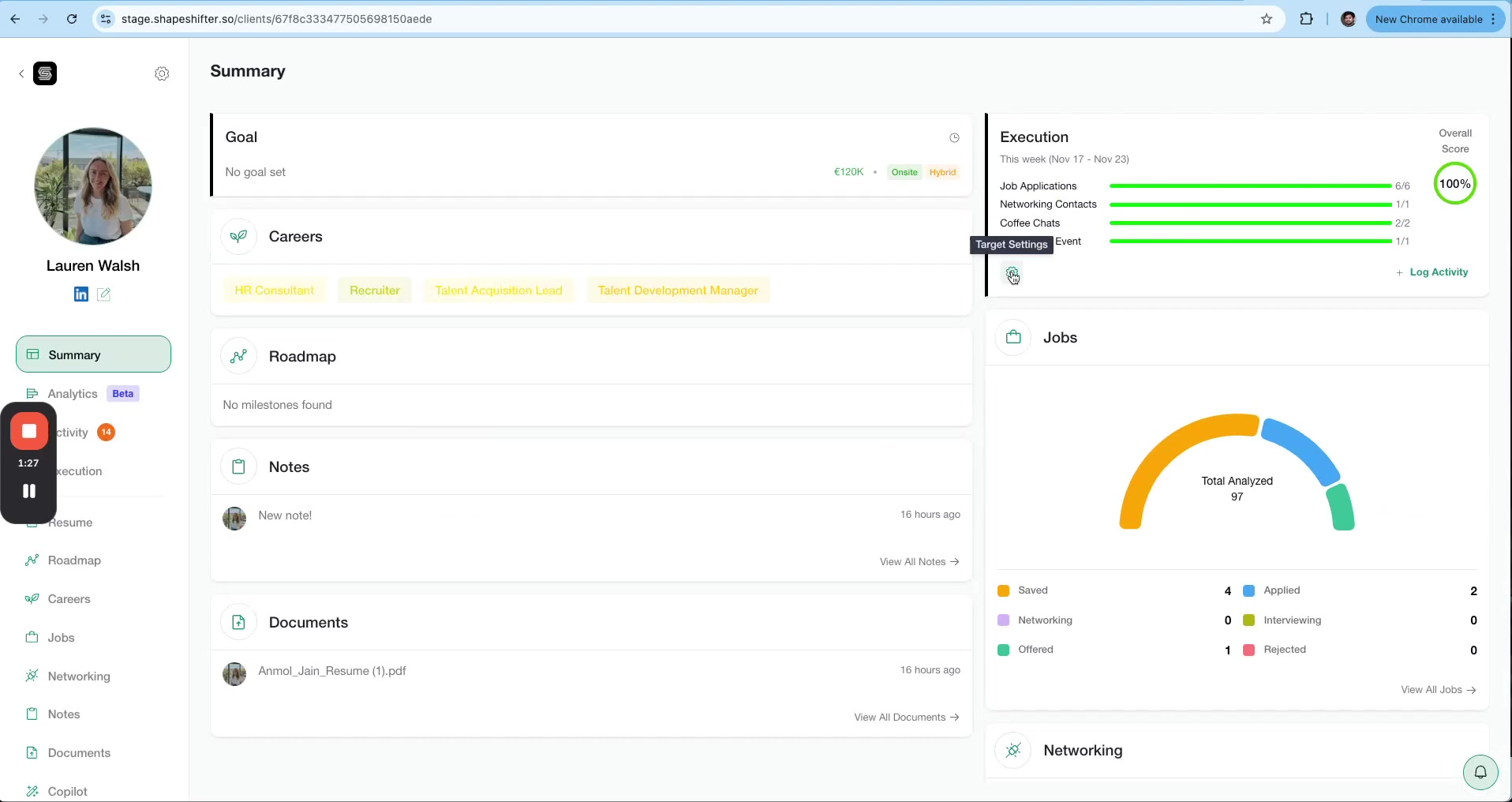
Step 3: Click Set Targets in the Execution section. A modal will open showing all available targets with their current weekly goals. Adjust the numbers for this client (e.g., increase "Attending Meetups" to 2 per week if they need more networking exposure), then click Save.
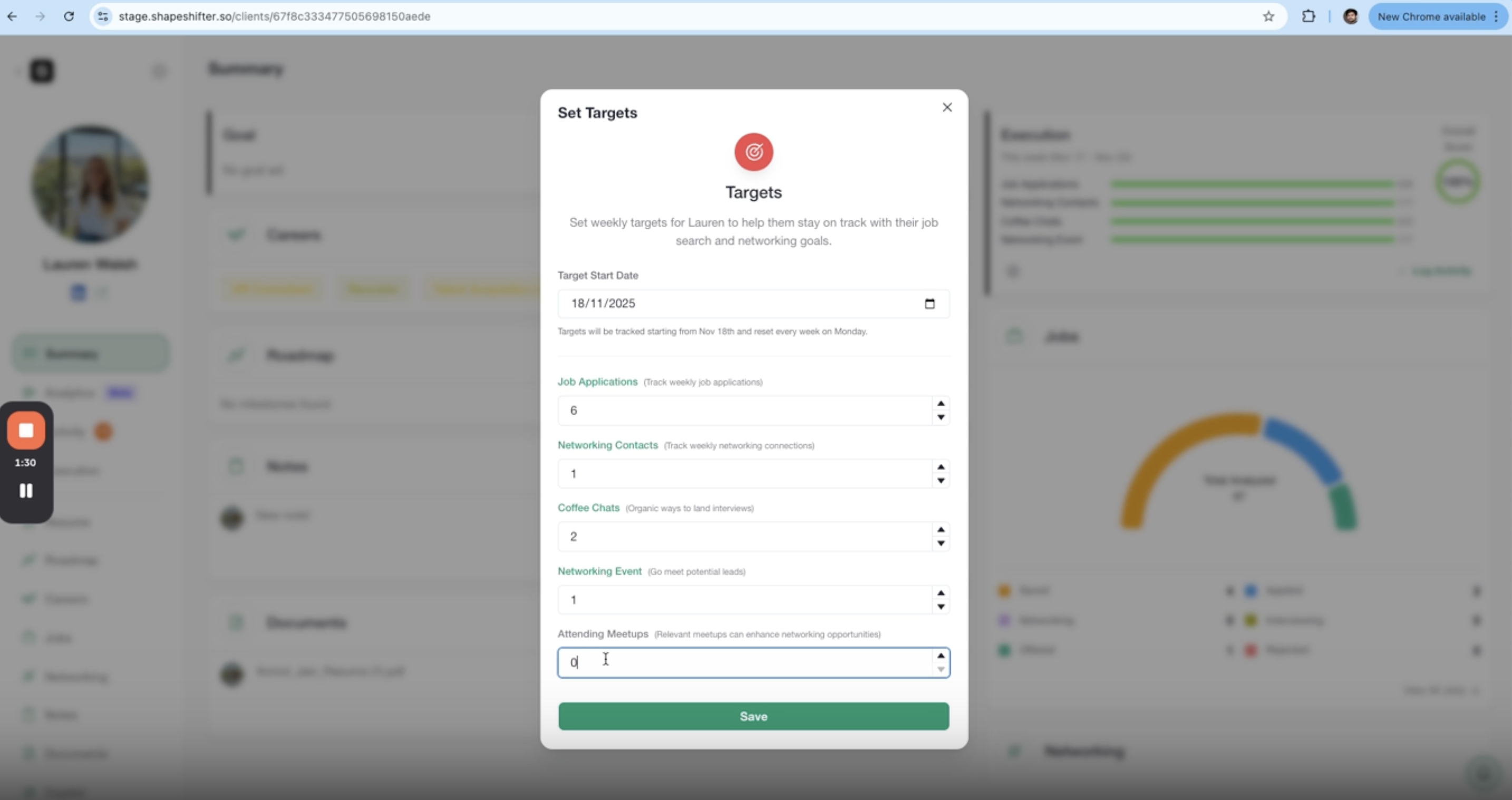
Customizing targets per client won't affect the global defaults. Other clients will still use the original weekly goals you set in Settings.
Video Walkthrough
Watch the full demonstration of creating and using custom execution targets: