
Creating and Managing Client Roadmaps
Roadmaps help you structure your clients' job search journey by creating milestones and tasks. You can build custom roadmaps for each client, import templates from your organization settings, or copy roadmaps from other clients to save time.
Before you begin: Navigate to a client's profile and select the Roadmap tab from the sidebar.
Understanding the Roadmap Interface
When you first access a client's Roadmap page, you'll see three options for adding milestones:
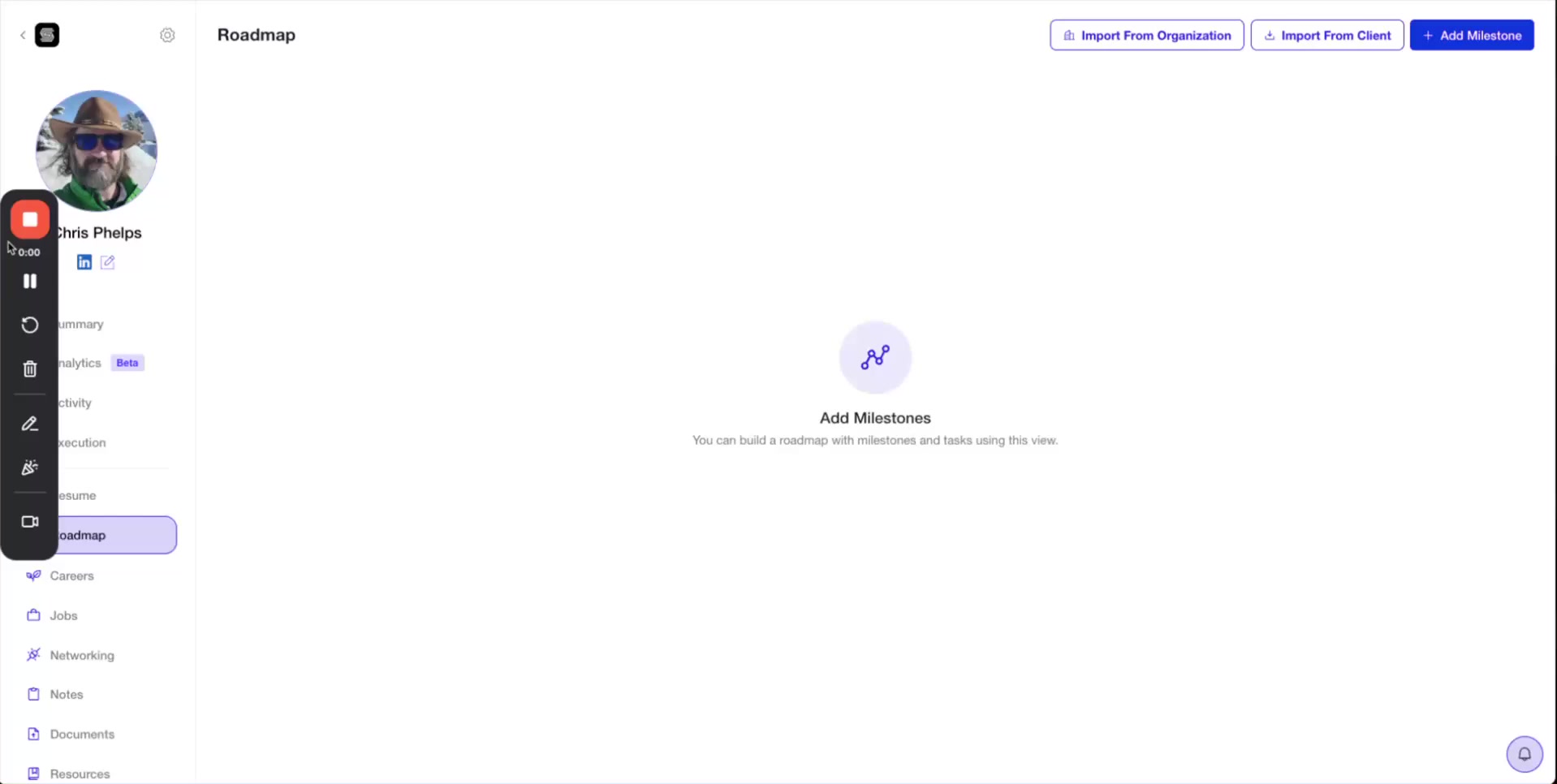
Add Milestone - Create individual milestones manually
Import From Organization - Use pre-built templates you've created in Settings
Import From Client - Copy an existing roadmap from another client
Method 1: Creating Milestones Manually
This approach gives you complete control to build a custom roadmap from scratch.
Add a Milestone
Click + Add Milestone
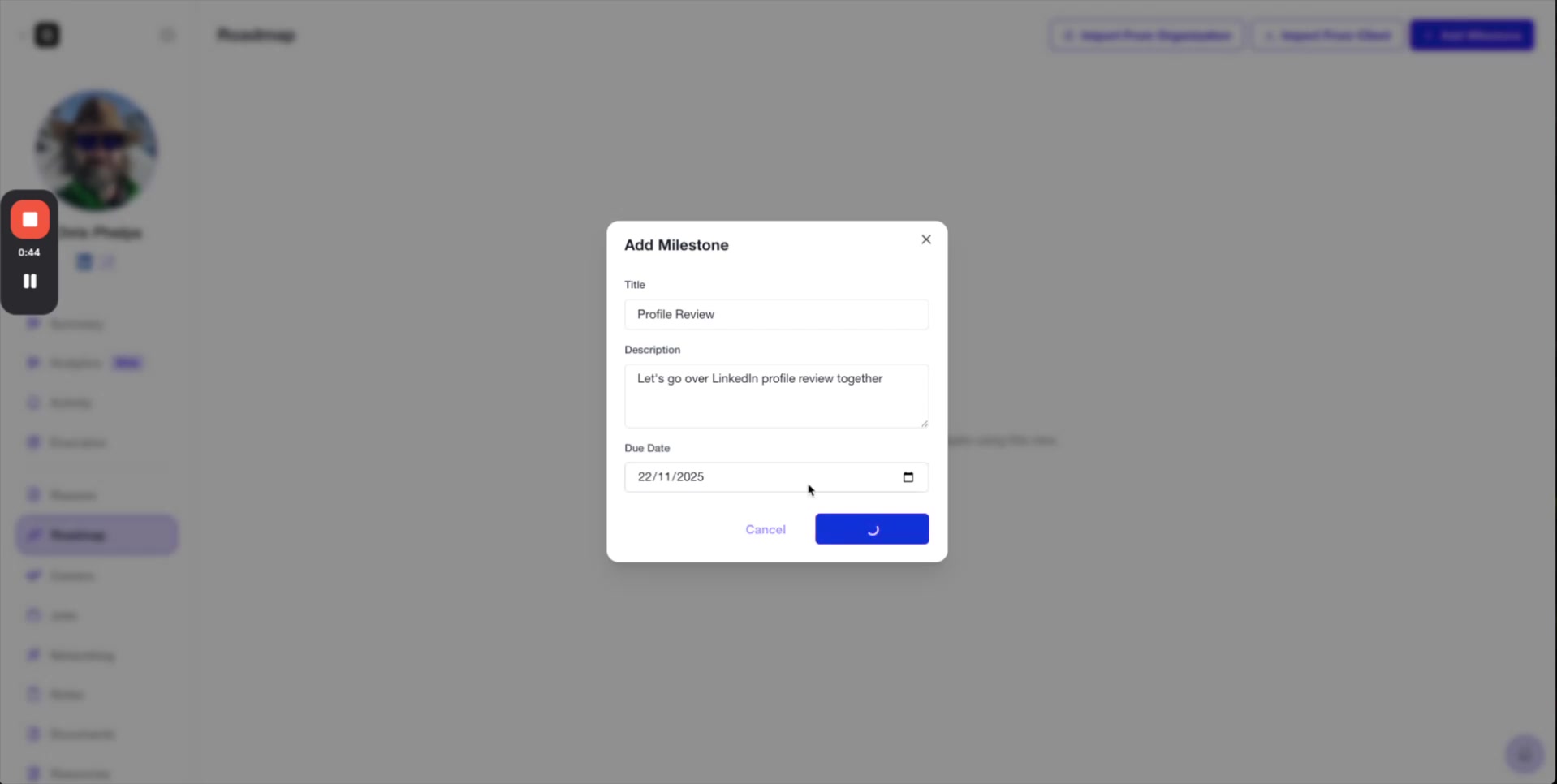
Fill in the milestone details:
Title - Name your milestone (e.g., "Profile Review")
Description - Add context for the milestone (e.g., "Let's go over LinkedIn profile review together")
Due Date - Select a target date from the calendar picker
Click Save
Add Tasks to Your Milestone
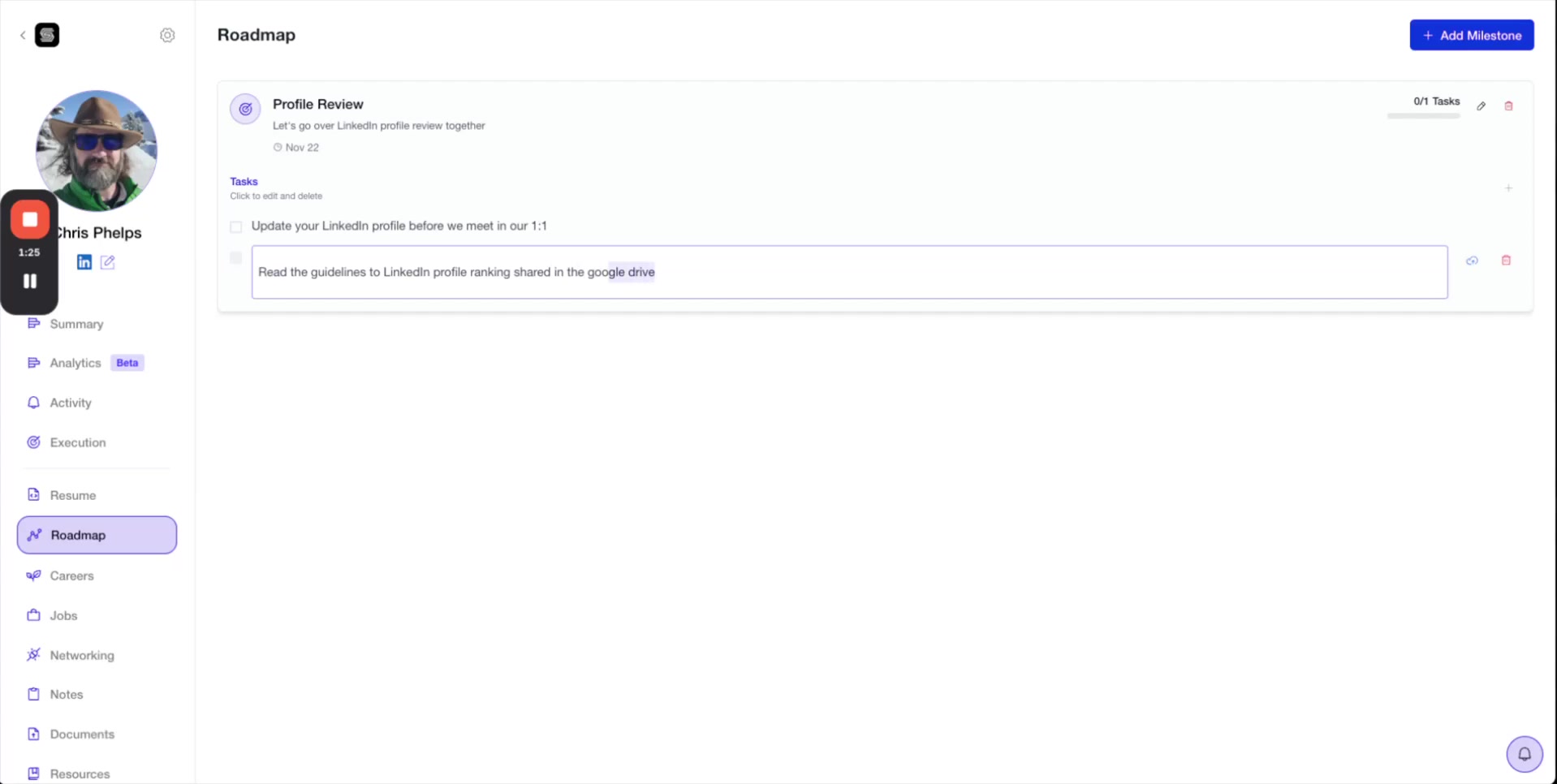
Once you've created a milestone, expand it to add actionable tasks:
Click on the milestone to expand it
Enter task details in the text input field (e.g., "Update your LinkedIn profile before we meet in our 1:1")
Press Enter to add additional tasks
Adding Links to Tasks
You can hyperlink resources directly in task descriptions:
Highlight the text you want to link (e.g., "guidelines to LinkedIn profile ranking")
Click the link icon in the formatting toolbar
Enter the URL (e.g., your Google Drive link)
Press Enter to save the link
Link to resources like Google Drive documents, articles, or templates to give your clients easy access to materials they need.
Method 2: Import From Organization Templates
Save time by creating reusable templates in your organization settings and importing them for each client.
Set Up Organization Templates
Go to Settings from the main navigation
Select the Roadmap tab
Click + Add Milestone to create organization-wide templates
Build milestones and tasks that you'll use across multiple clients (e.g., "Onboarding", "Profile Optimization", "Job Search")

Import Templates to a Client
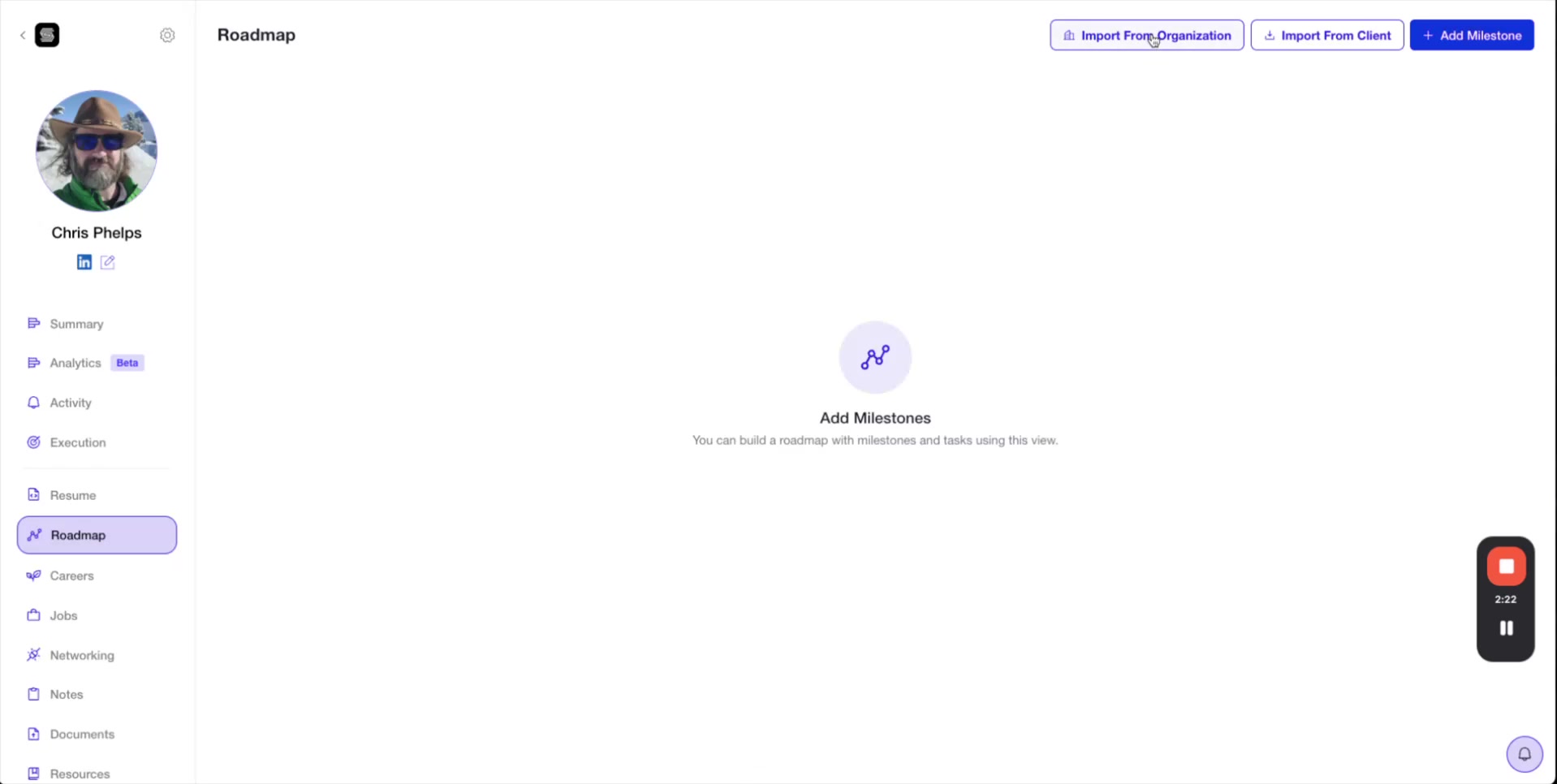
Navigate to your client's Roadmap page
Click Import From Organization
All your organization templates will automatically populate the client's roadmap
Edit, add, or remove milestones and tasks as needed for this specific client
This method is ideal when you have a standardized process for clients with similar profiles or ideal candidate profiles (ICPs).
Method 3: Import From Another Client
If you've already built a detailed roadmap for one client, you can copy it to another client with similar needs.
Navigate to the new client's Roadmap page
Click Import From Client
Select the client whose roadmap you want to copy from the dropdown menu
Click to confirm - the entire roadmap will be imported
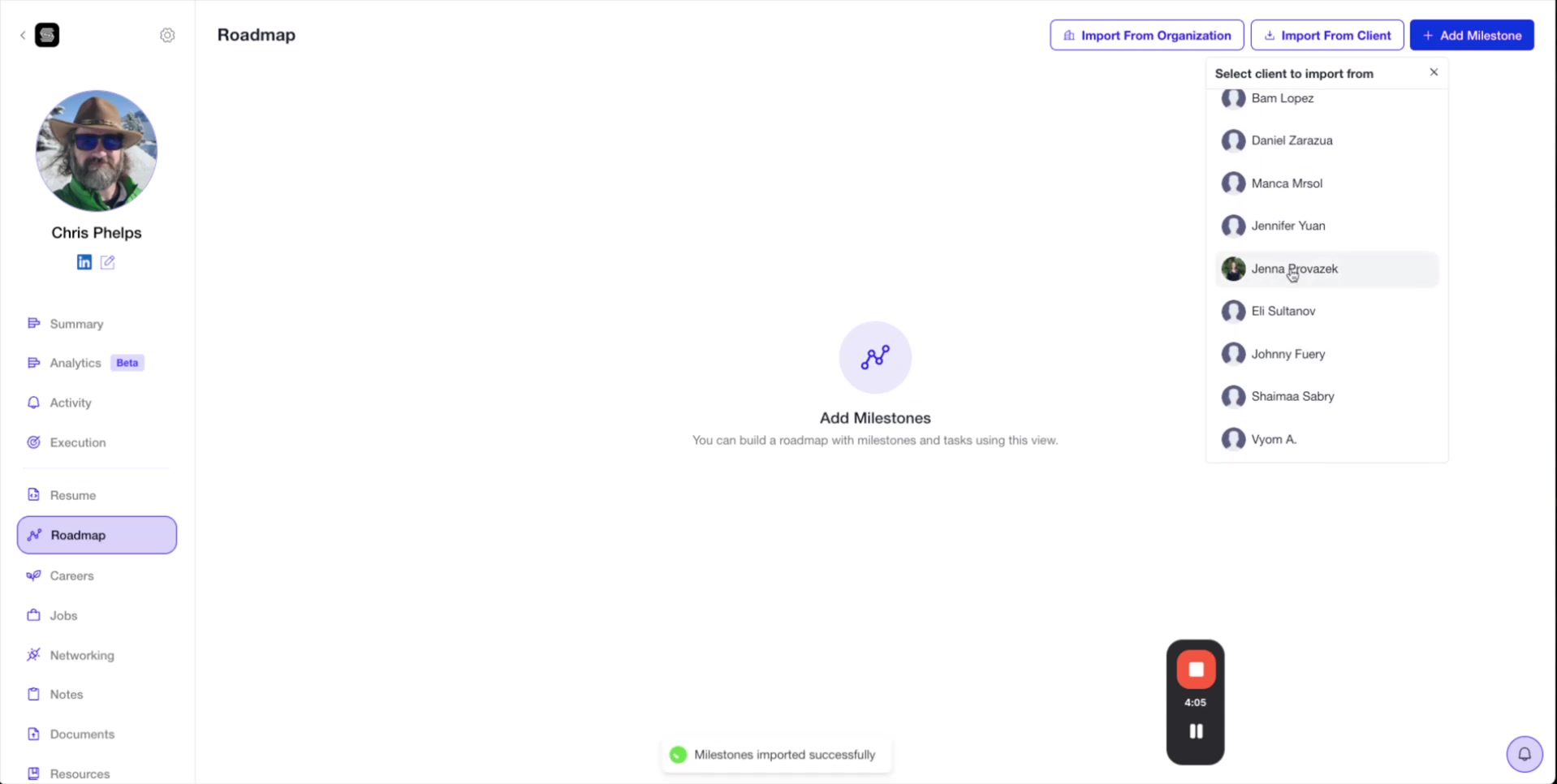
This is perfect for coaches working with different ICPs (e.g., fresh graduates vs. executives). Build once for your first client in each category, then import for similar clients.
Editing and Managing Roadmaps
After importing or creating milestones, you have complete flexibility to customize:
Edit milestones - Click on any milestone to update the title, description, or due date
Add or remove tasks - Expand milestones and modify tasks as your client's needs evolve
Update descriptions - Make milestones more specific (e.g., "Profile is everything, let's hit the nail on its head!")
Delete milestones - Remove milestones that don't apply to a particular client
Deleting a Milestone
When you delete a milestone, you'll see a confirmation modal:
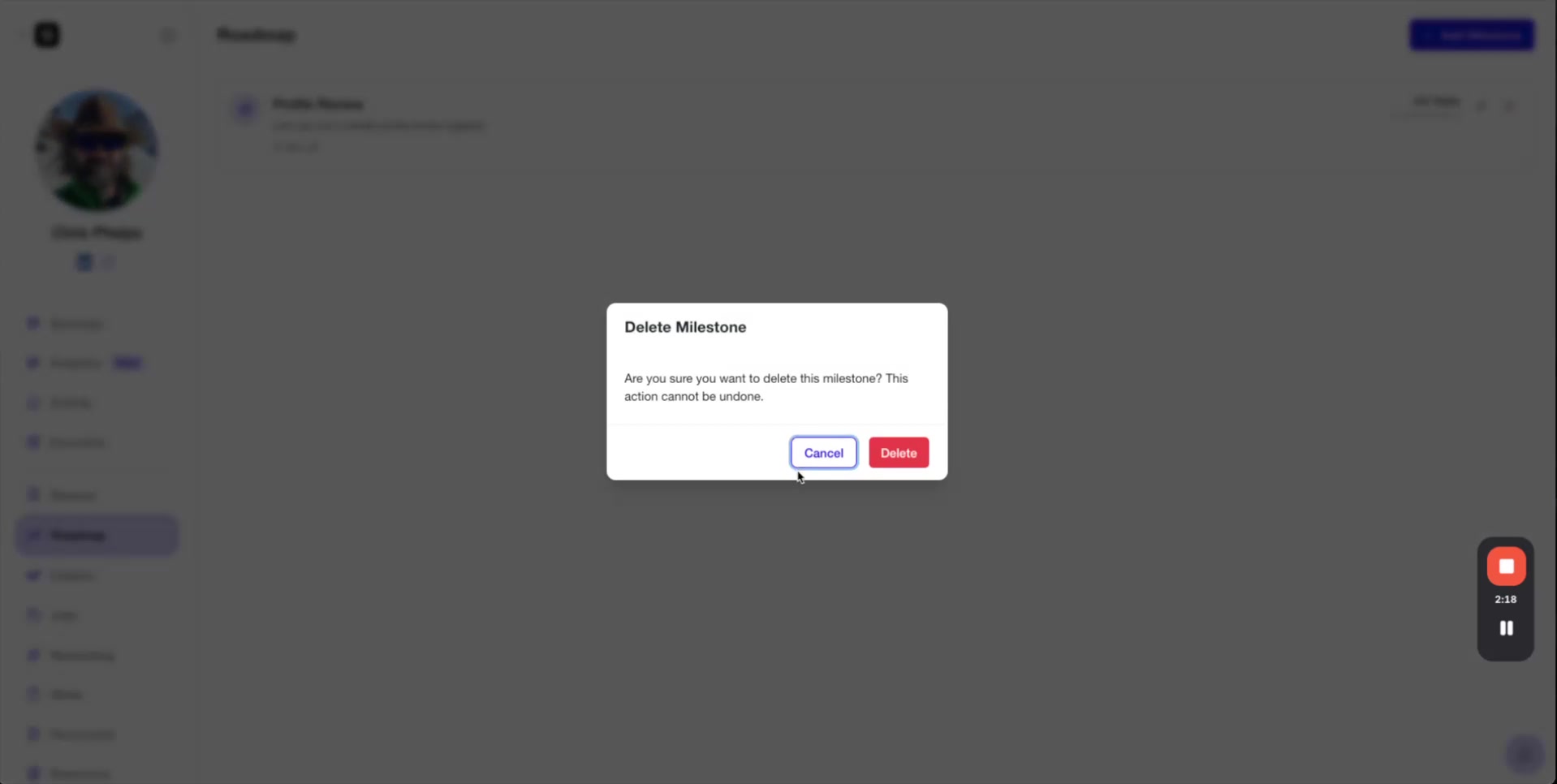
Deleting a milestone is permanent and cannot be undone. Make sure you want to remove it before confirming.
Best Practices
Create organization templates first - Build your standard coaching process in Settings > Roadmap before onboarding clients
Customize after importing - Templates are starting points. Adjust milestones and tasks to fit each client's unique situation
Use descriptive titles - Make milestone names clear so clients understand the purpose at a glance
Link external resources - Embed links to guidelines, templates, or shared documents directly in tasks
Set realistic due dates - Give clients achievable timelines to maintain momentum and accountability
Video Walkthrough
Watch the complete walkthrough of creating and managing roadmaps: