
Logging Custom Execution Activities
Once the coach has set up custom execution targets, client can track their progress by logging activities directly in the Execution dashboard. This helps clients' stay accountable and provide supporting material throughout their job search.
Before you begin: A coach must create execution targets first. A client cannot create or edit targets themselves, only log activities against the targets assigned to the coach.
How Clients Log Activity
Clients track their progress by logging activities directly in their Execution dashboard. Here's how it works from their perspective.
Step 1: Navigate to the Execution page and look for progress bars for each target showing current completion (e.g., 0/1 for "Attending Meetups").
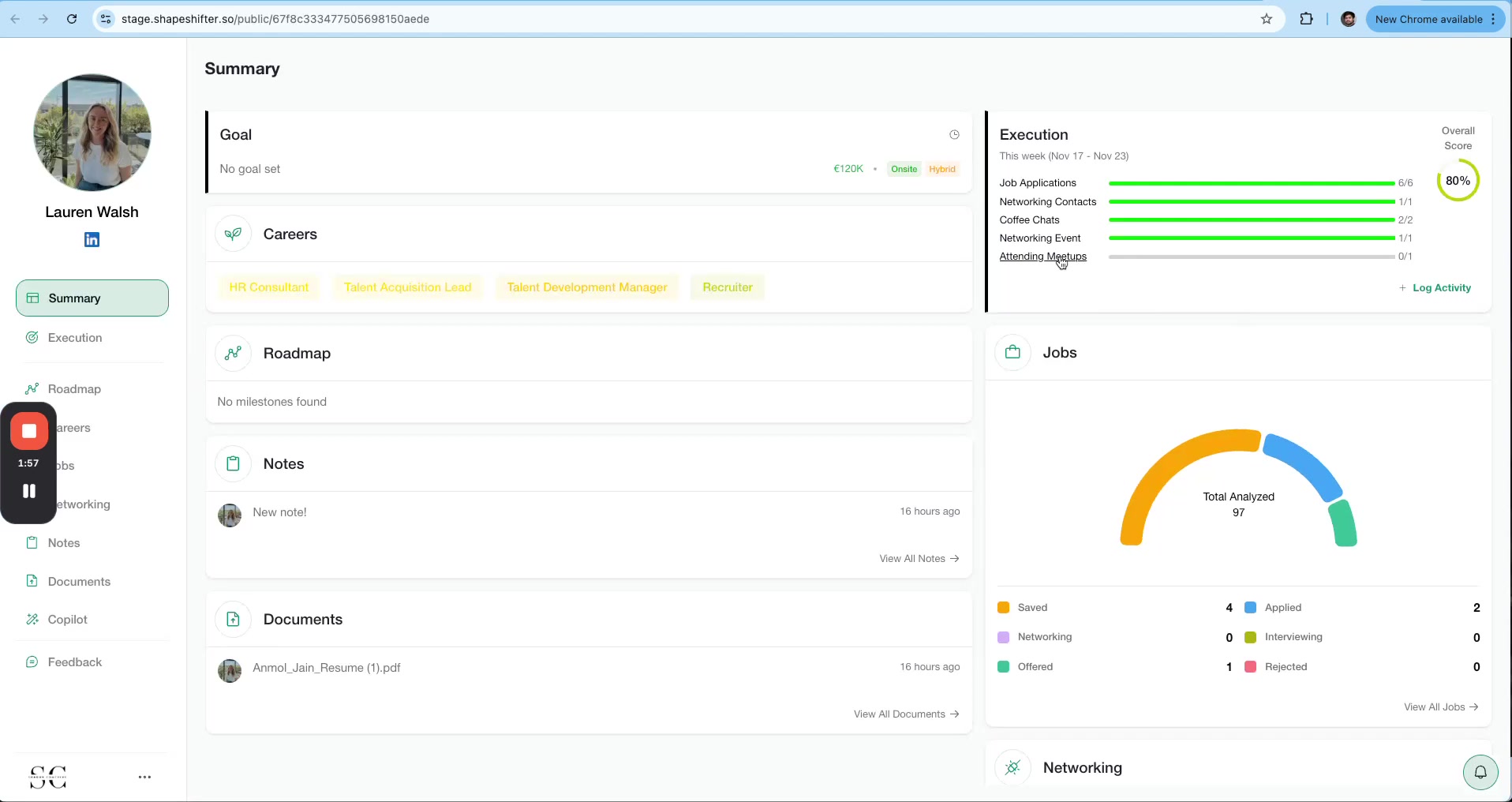
Step 2: Click Log Activity. A modal opens with the following fields:
Select Target: Choose the target from the dropdown (e.g., "Attending Meetups").
Proof: Add evidence or context (e.g., "eventbrite.com/engineer-commune" or "Met 3 engineers at local React meetup").
Upload Document (optional): Attach a screenshot, ticket, or other proof.
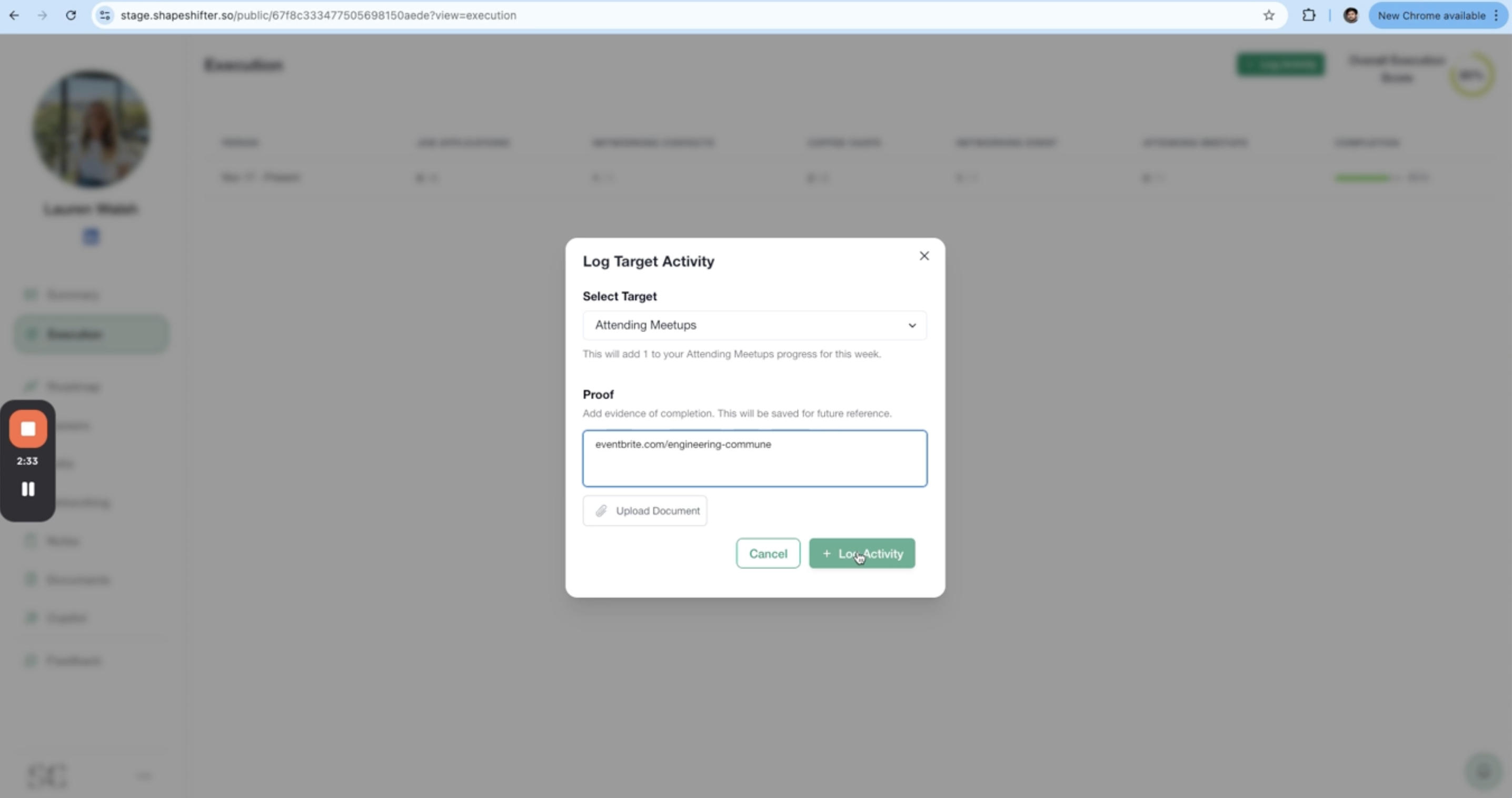
Step 3: Click + Log Activity. The progress bar updates immediately (e.g., from 0/1 to 1/1), and the overall execution score refreshes.
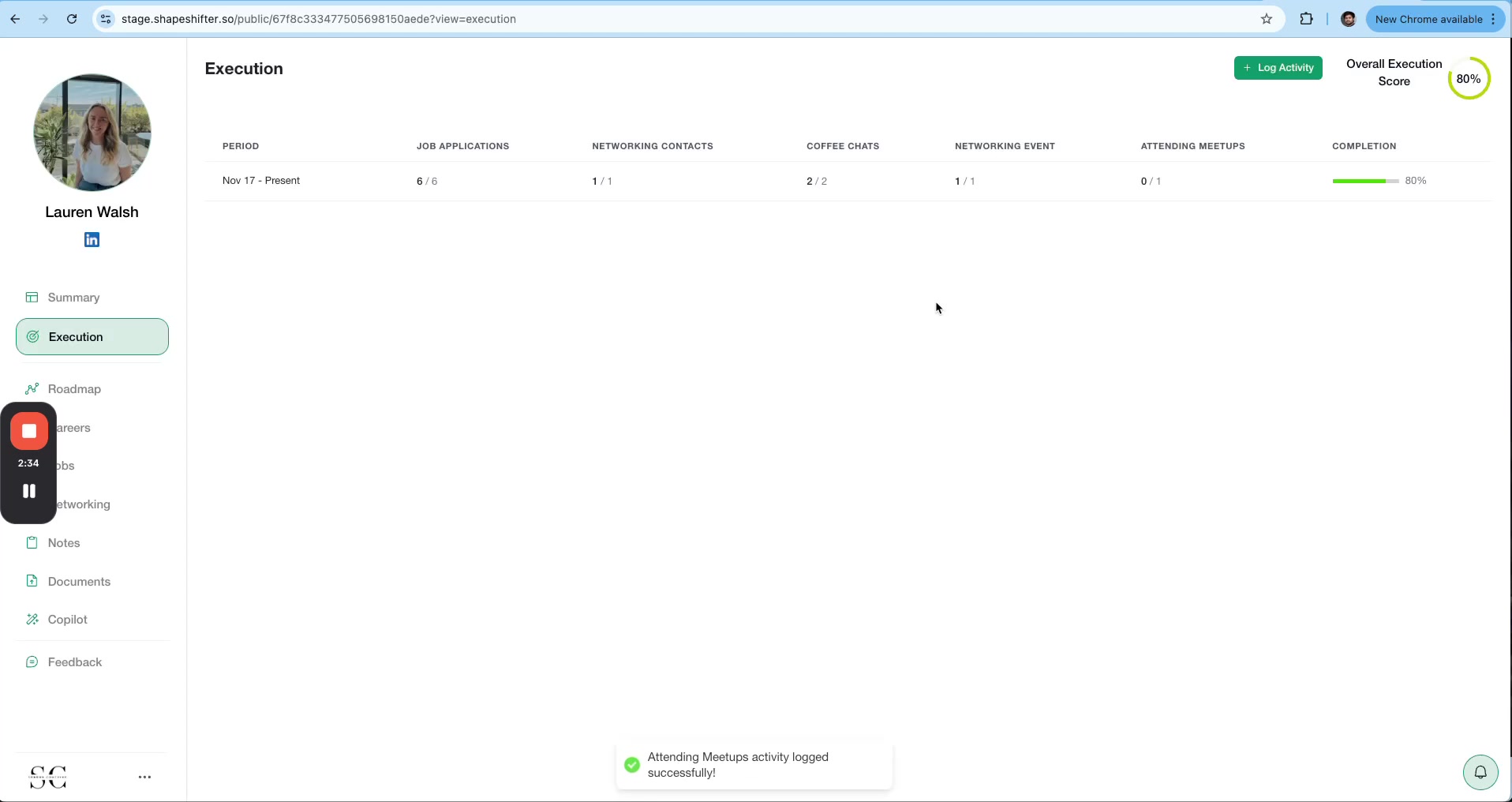
Activity logged successfully! You'll see a confirmation notification, and your coach can review the proof and notes to ensure accountability.
Best Practices
Provide clear proof: Include links, screenshots, or detailed notes that demonstrate completion of the activity.
Log activities promptly: Record progress as soon as an activity is completed to maintain accuracy and momentum.
Be specific in the notes: Instead of "attended meetup," write "Attended React developers meetup, connected with 3 engineers on LinkedIn."
Communicate with the coach: If a target feels too high or too low, discuss adjusting the weekly goals to match corresponding capacity.
Video Walkthrough
Watch the full demonstration of creating and using custom execution targets: