
How to Use the Chrome Extension
The Chrome extension lets your clients analyze and save jobs and networking contacts directly from any job board (LinkedIn, Indeed, popular ATS like Greenhouse, or private company sites) into their tracker. It auto-logs in with their app credentials and provides instant job compatibility scores, and networking insights without switching tabs.
Before you begin: Your client must be logged into their dashboard (link and passcode provided by the coach). The extension automatically syncs with their logged-in credentials.
Installing the Chrome Extension
Step 1: Go to the Chrome Extension
Alternatively, from inside the app, navigate to the Jobs section and click "Add Job." In the modal that appears, click the "Get Chrome Extension" button.
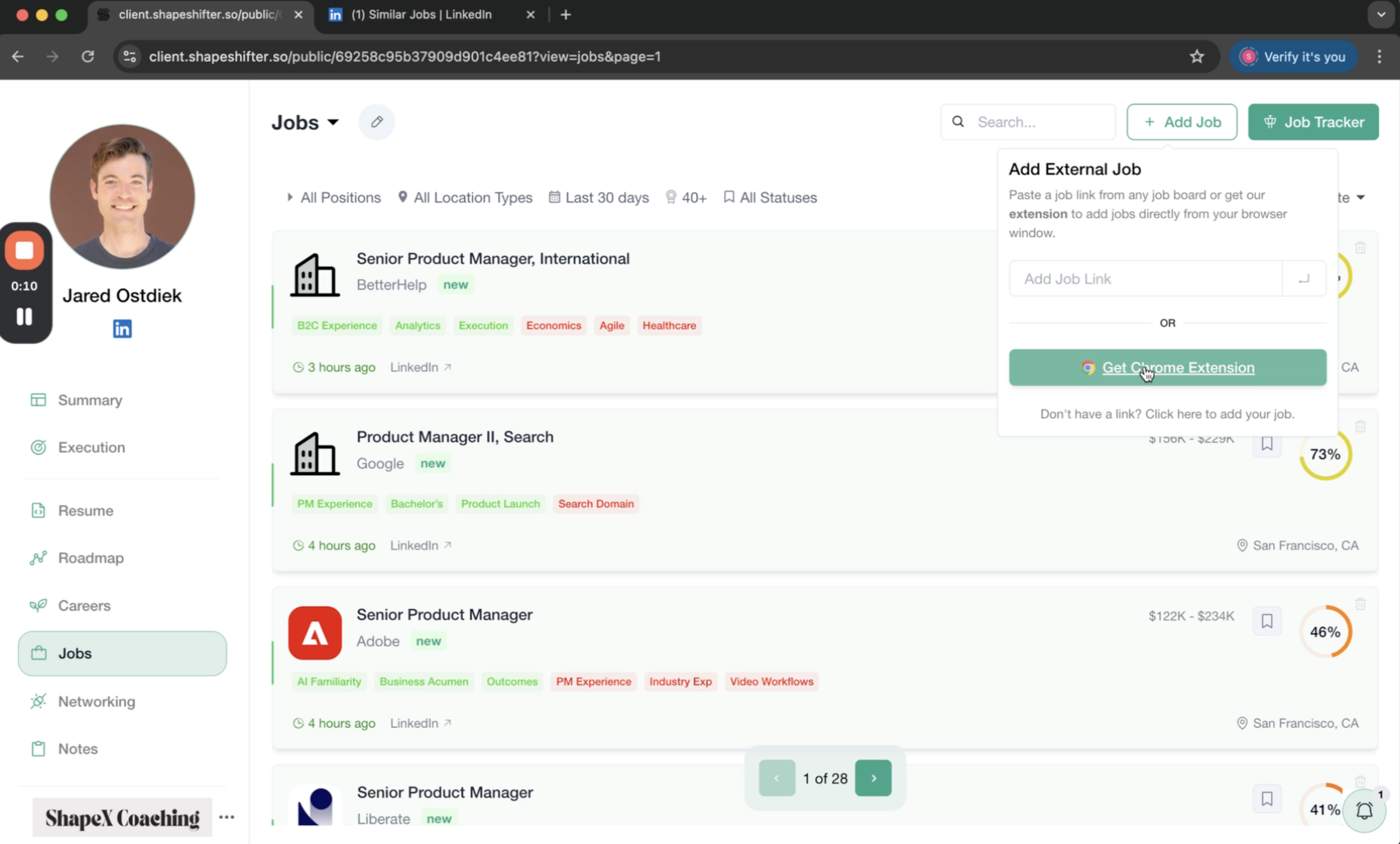
Step 2: Add the Extension from Chrome Web Store
You'll be redirected to the Chrome Web Store. Click "Add to Chrome" and confirm by clicking "Add extension" in the popup dialog.
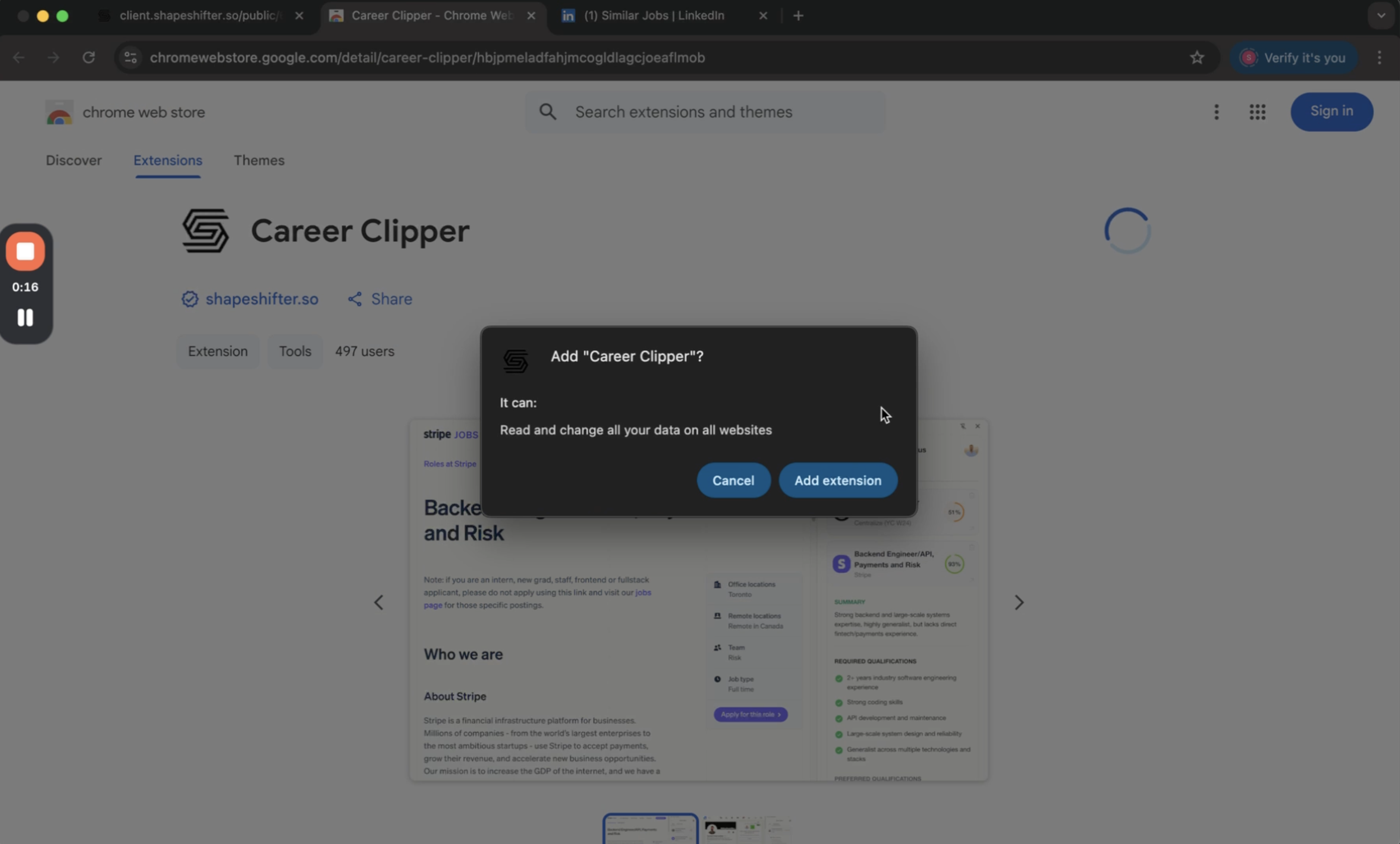
The extension is called "Career Clipper" and will request permission to read and change data on all websites. This is necessary for analyzing job pages and LinkedIn profiles across different job boards.
Step 3: Pin the Extension for Easy Access
After installation, click the puzzle icon in your Chrome toolbar, find Career Clipper in the list, and click the pin icon to keep it visible in your toolbar.
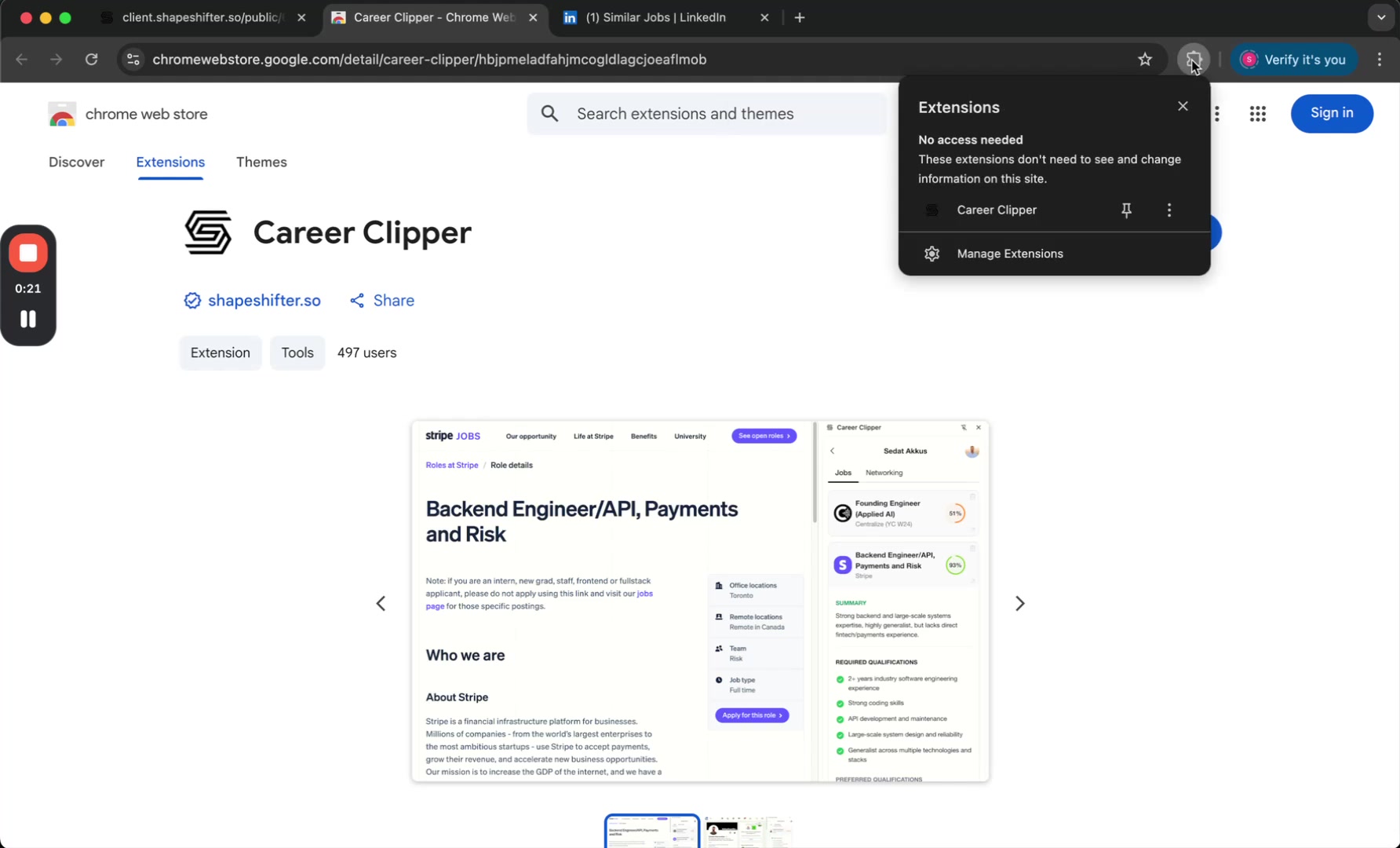
Using the Extension to Analyze and Save Jobs
Step 4: Login to Extension Panel
Open your dashboard (link and passcode provided by coach) and then open the Chrome extension by clicking on the icon pinned to the toolbar. It will automatically log you in to the Chrome extension.
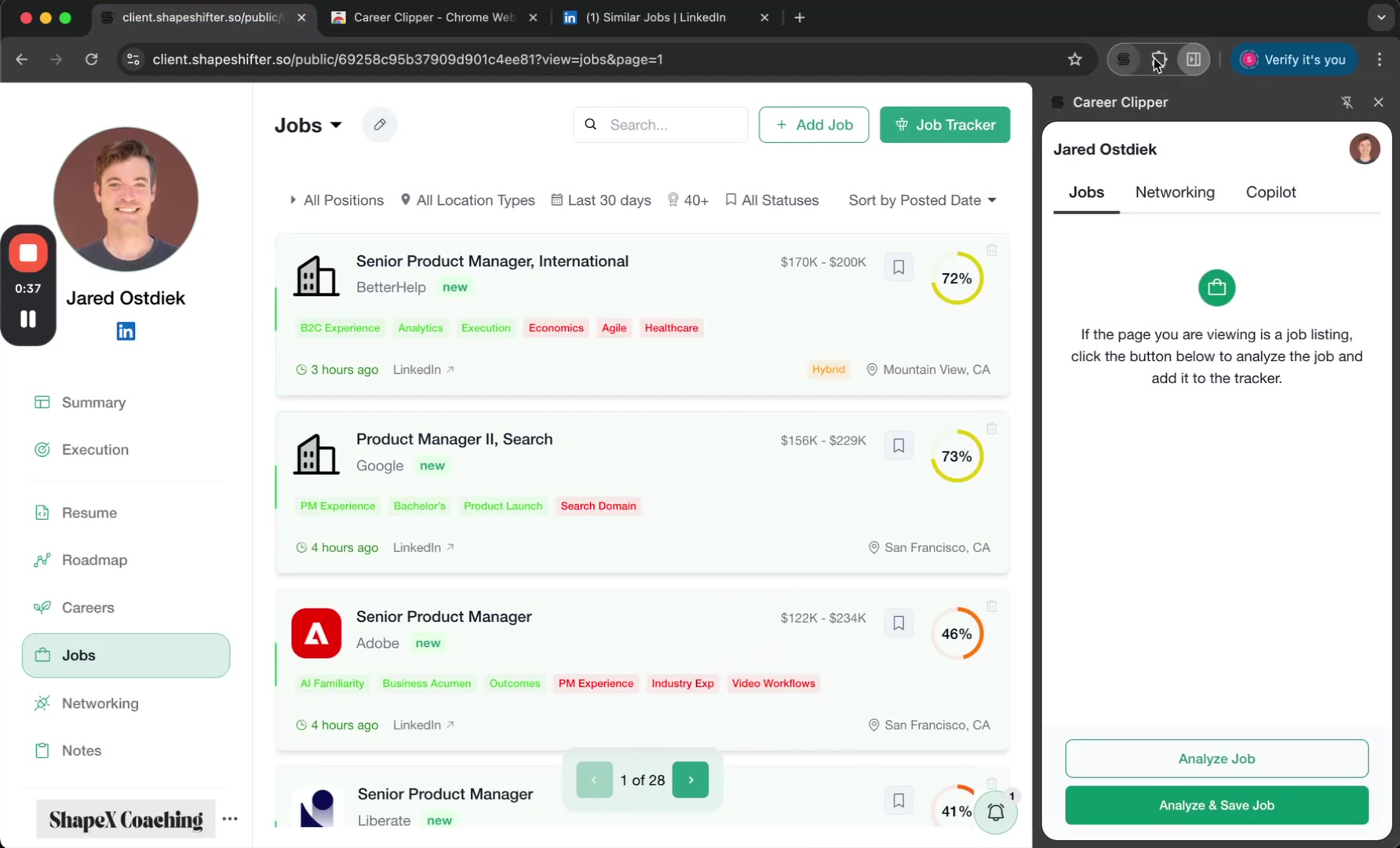
Step 5: Open the Extension Panel
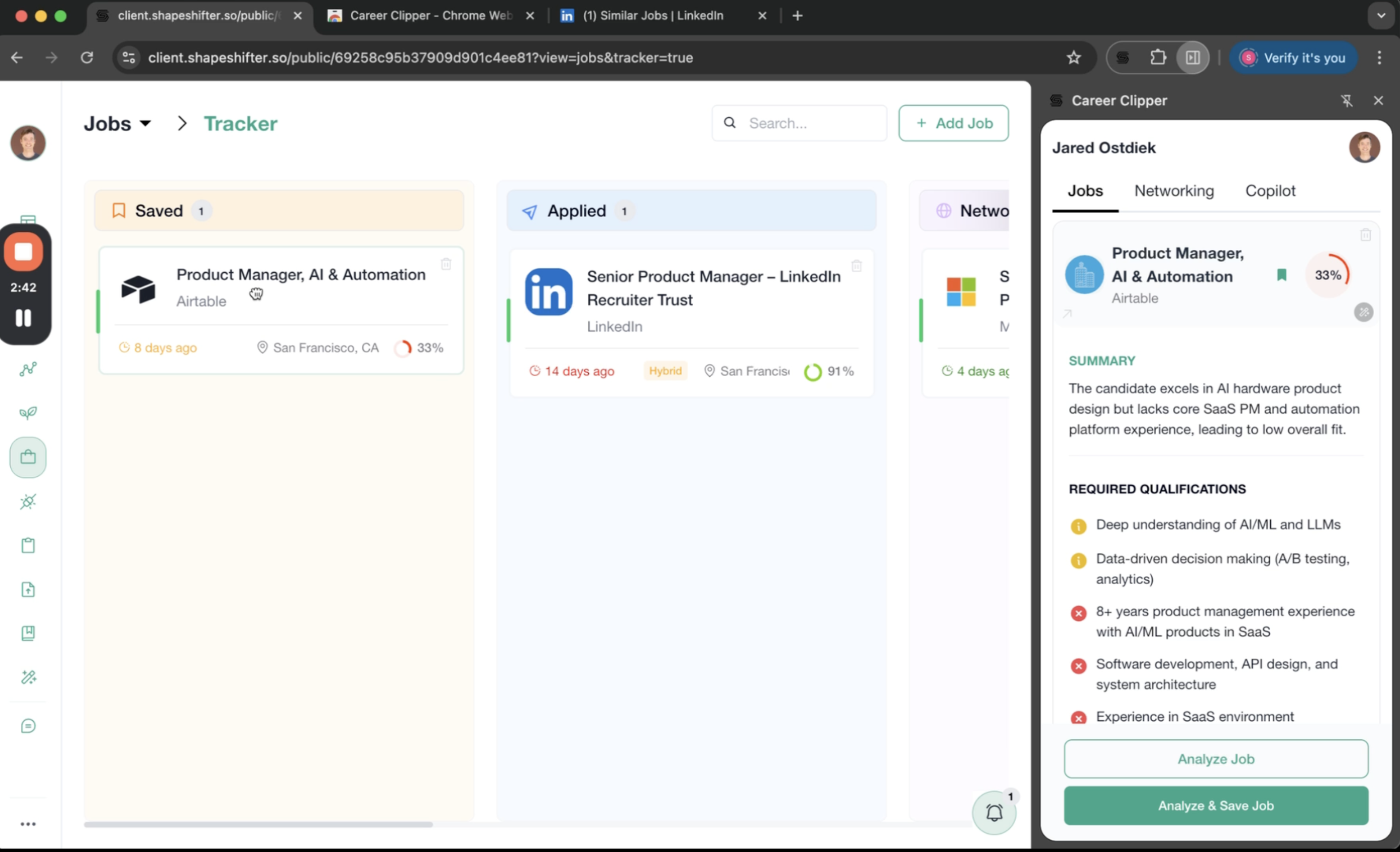
Navigate to any job posting on LinkedIn, Indeed, or a company's career page. Click the Career Clipper icon in your toolbar. The extension has three tabs: Jobs, Networking, and Copilot.
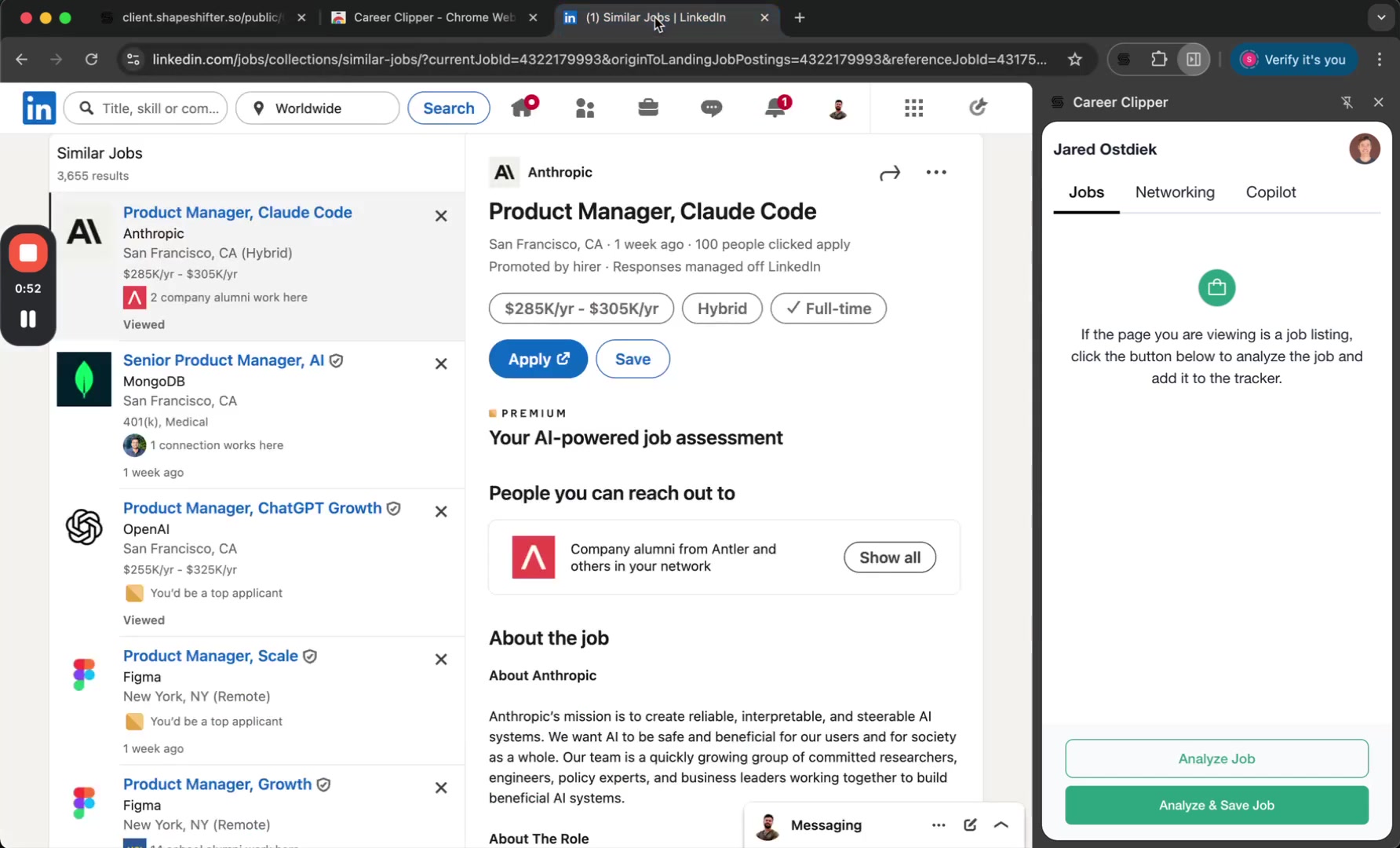
Step 6: Analyze a Job Posting
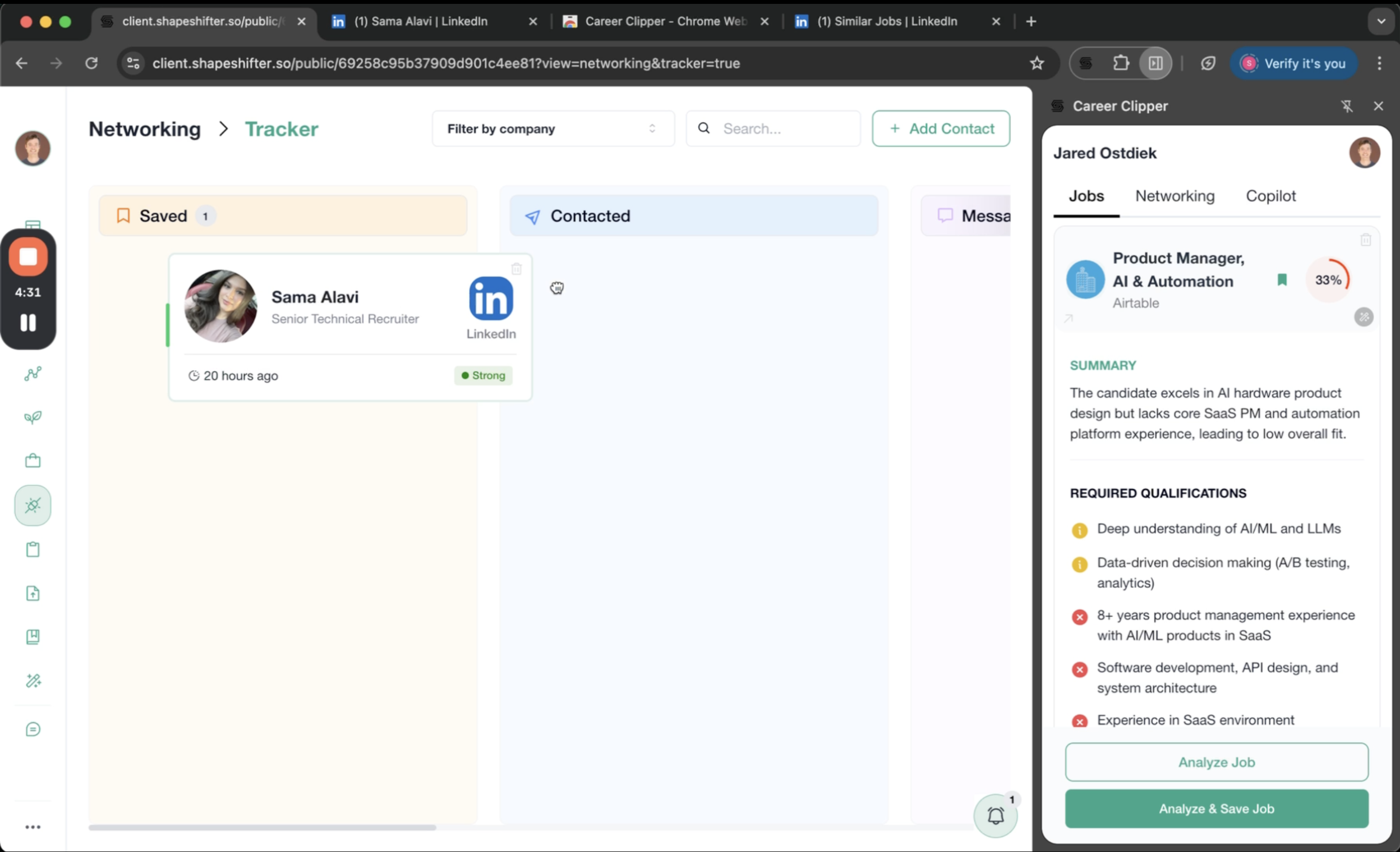
With a job page open, click either "Analyze Job" (to view results without saving) or "Analyze & Save Job" (to analyze and add to tracker in one step). The analysis takes approximately 30 seconds.
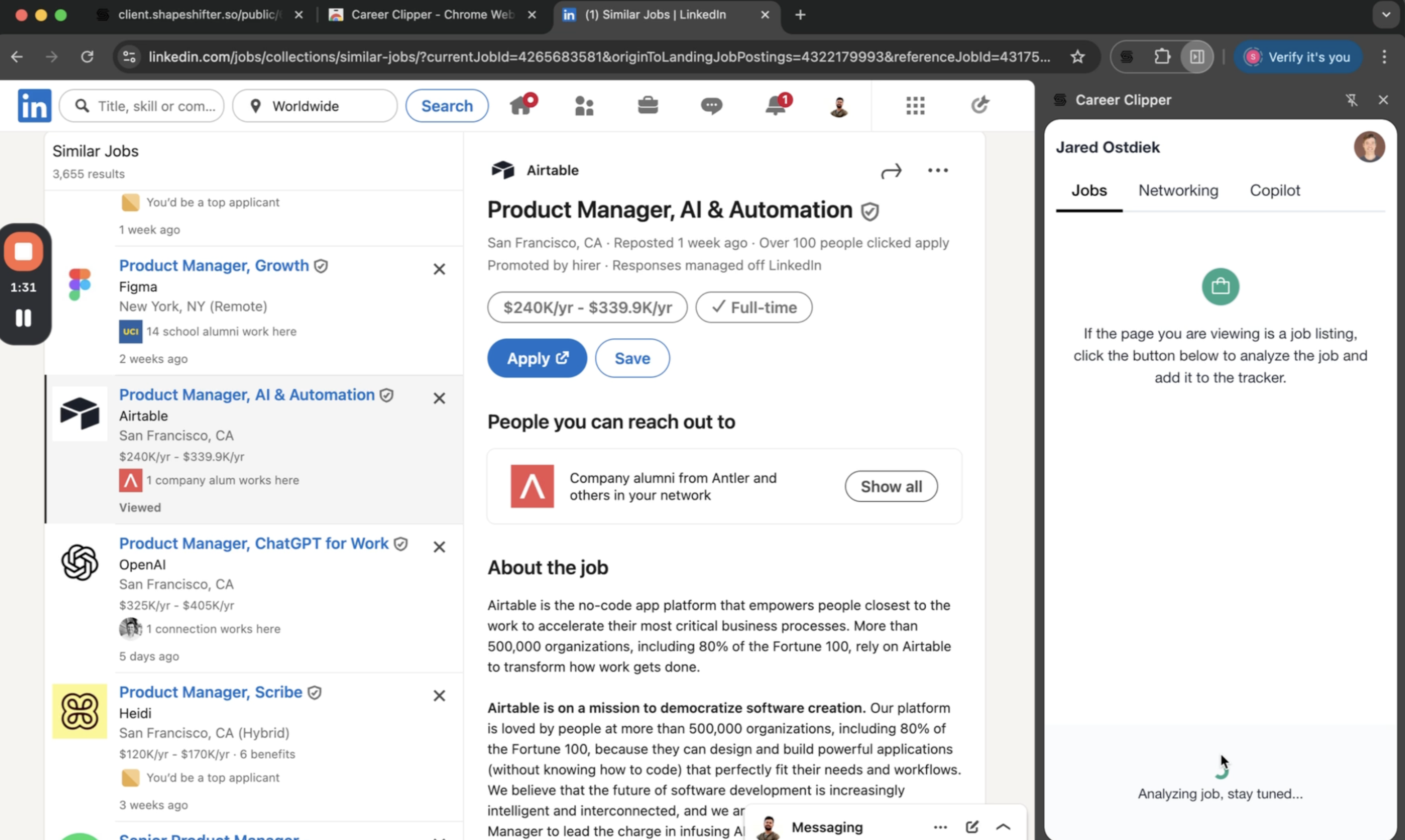
Step 7: Review the Compatibility Score and Analysis
The extension displays a compatibility score (e.g., 33%, 91%) along with detailed breakdowns including:
Summary of fit based on the client's resume and experience
Required qualifications with checkmarks or X marks showing matches
Preferred qualifications
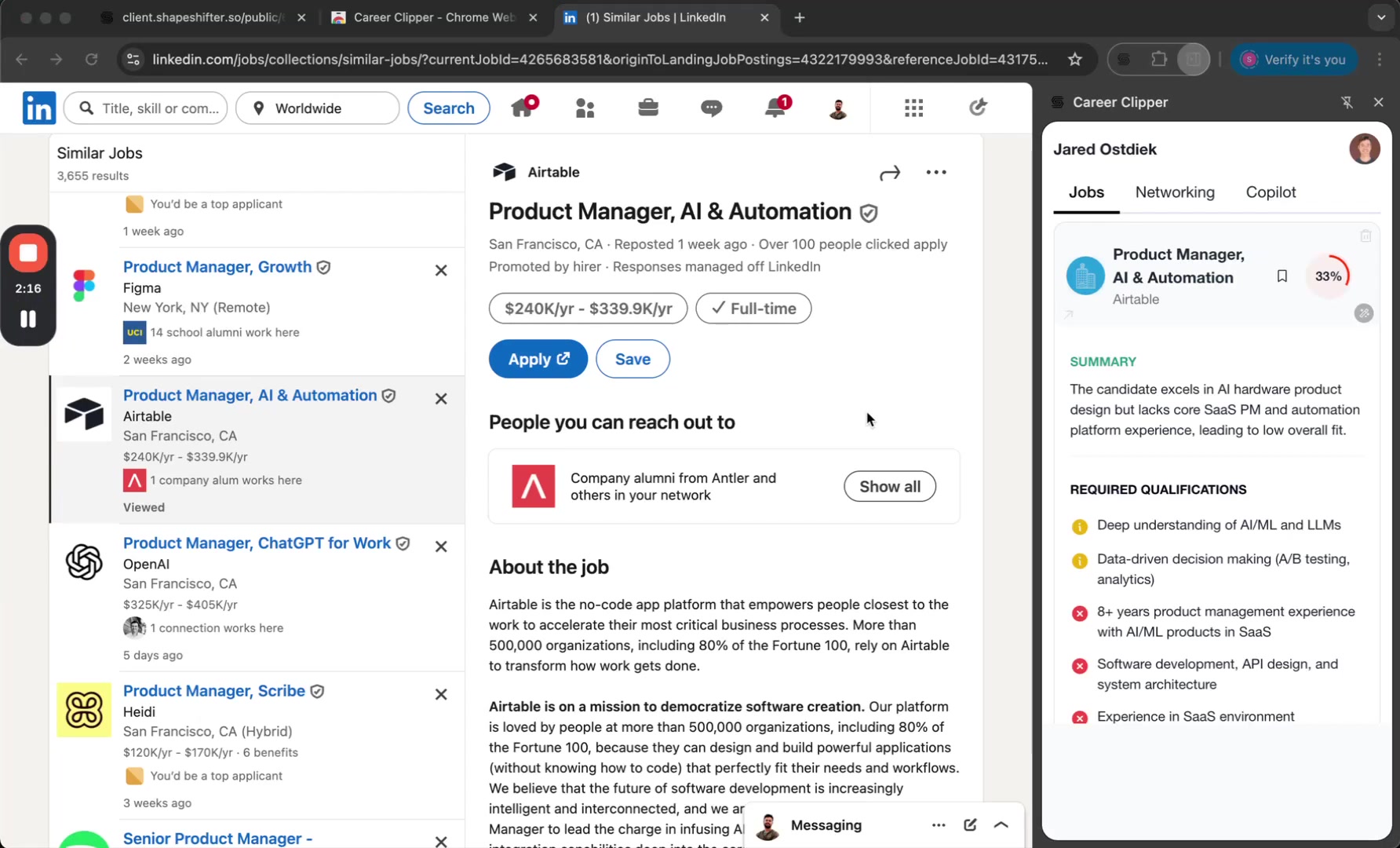
Even if a job shows a low compatibility score, clients can still add it to their tracker if they want to pursue it. The score is a guide, not a restriction.
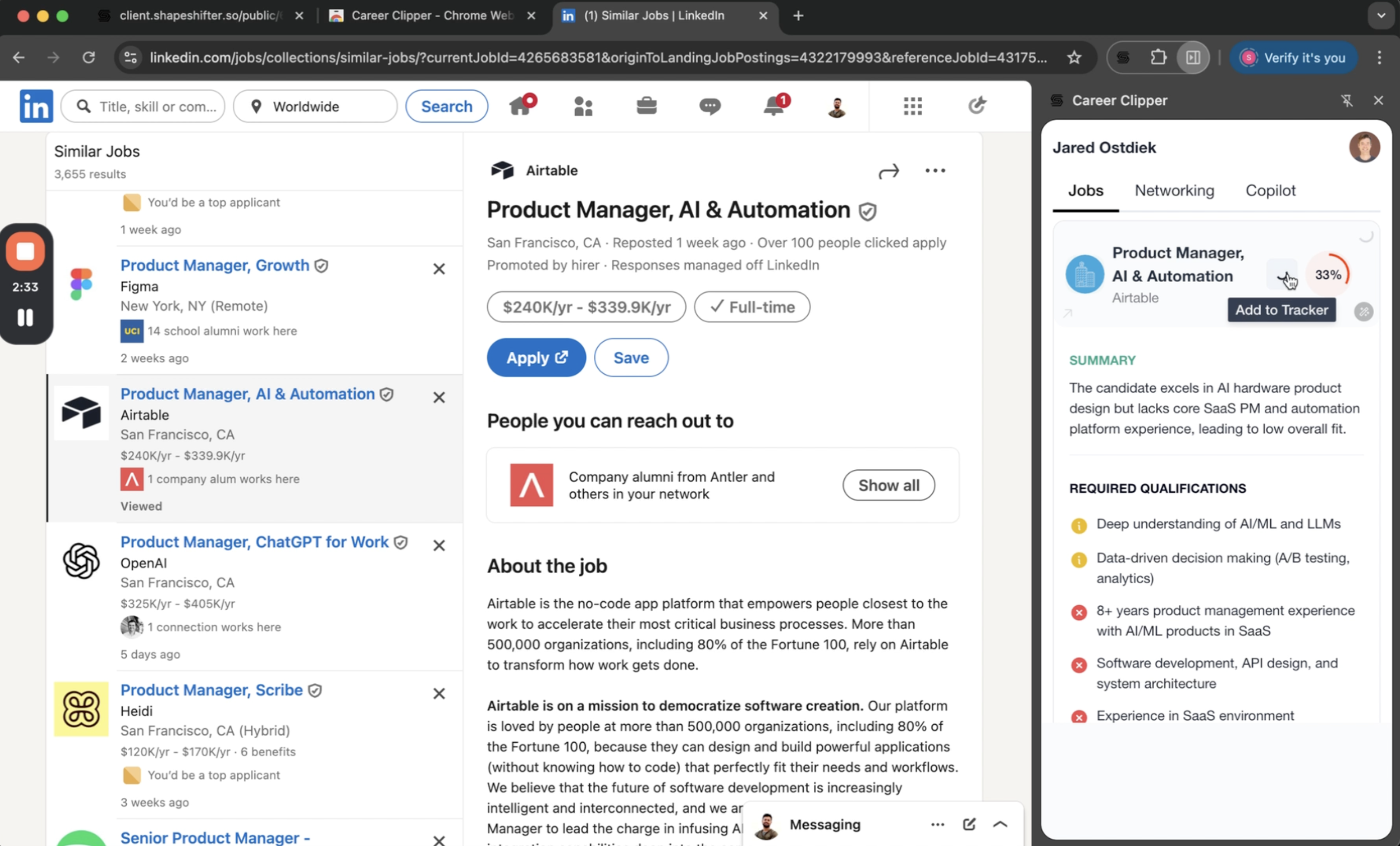
Step 8: Add the Job to the Tracker
If you used "Analyze Job," click the "Add to Tracker" button (looks like a bookmark icon) after reviewing the results. The job will instantly appear in the client's Jobs tracker inside their dashboard.
Step 8: View and Update Job Status in the App
The saved job appears in the "Saved" column of the Jobs tracker. Clients can drag and drop it to "Applied" or other status columns as they progress through their job search.
Using the Extension to Analyze and Save Networking Contacts
Step 9: Find and Analyze LinkedIn Contacts
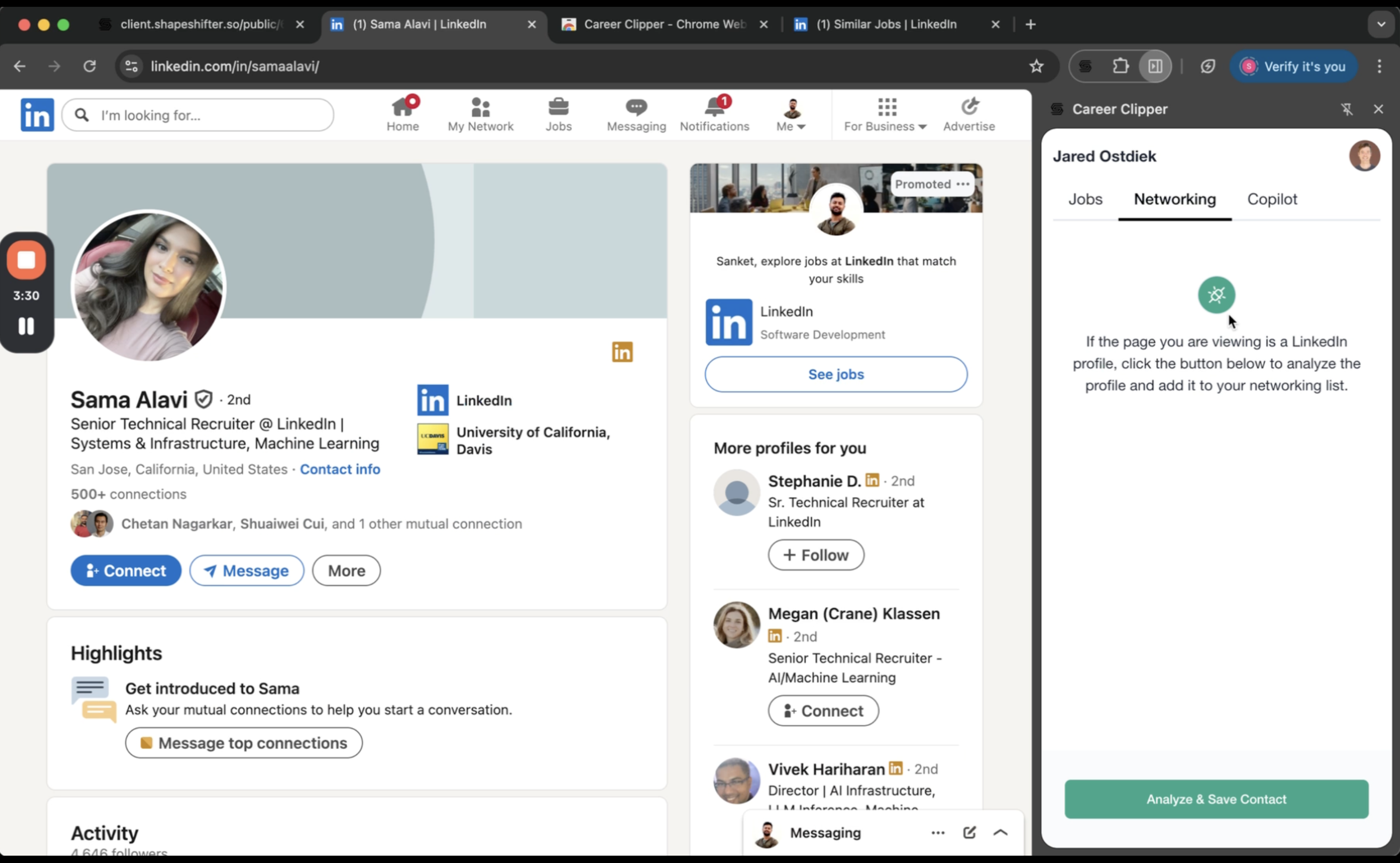
Search for relevant contacts at the target company on LinkedIn (e.g., search "Recruiter" + company name). Open their LinkedIn profile, then click "Analyze & Save Contact" in the Career Clipper extension.
Step 11: Review Contact Analysis and Messaging
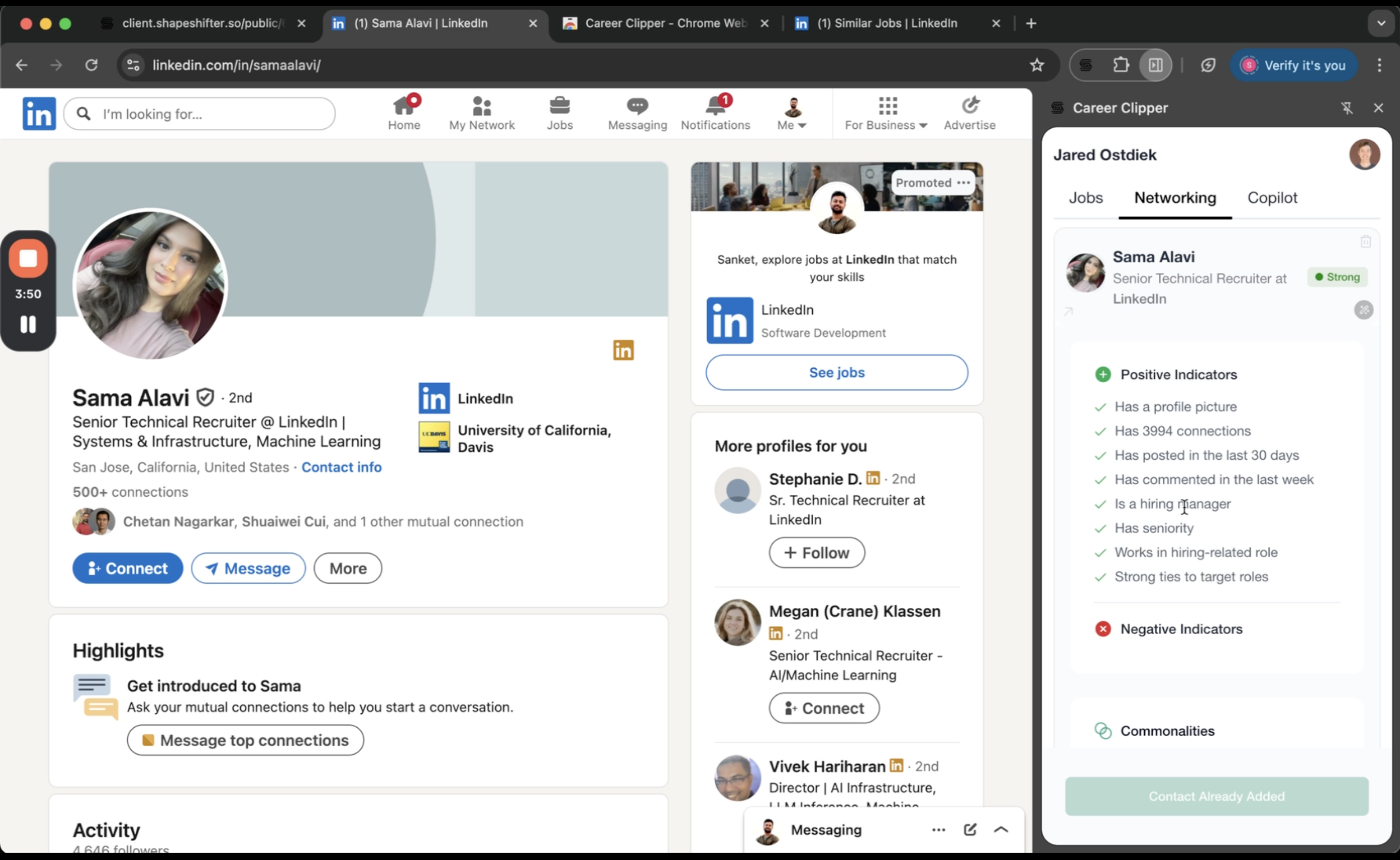
The extension analyzes the contact and provides:
Positive indicators (e.g., "Has hiring seniority," "Active on LinkedIn")
Negative indicators (e.g., "No hiring authority")
Commonalities with the client (shared connections, schools, interests)
A pre-written intro message you can copy and customize
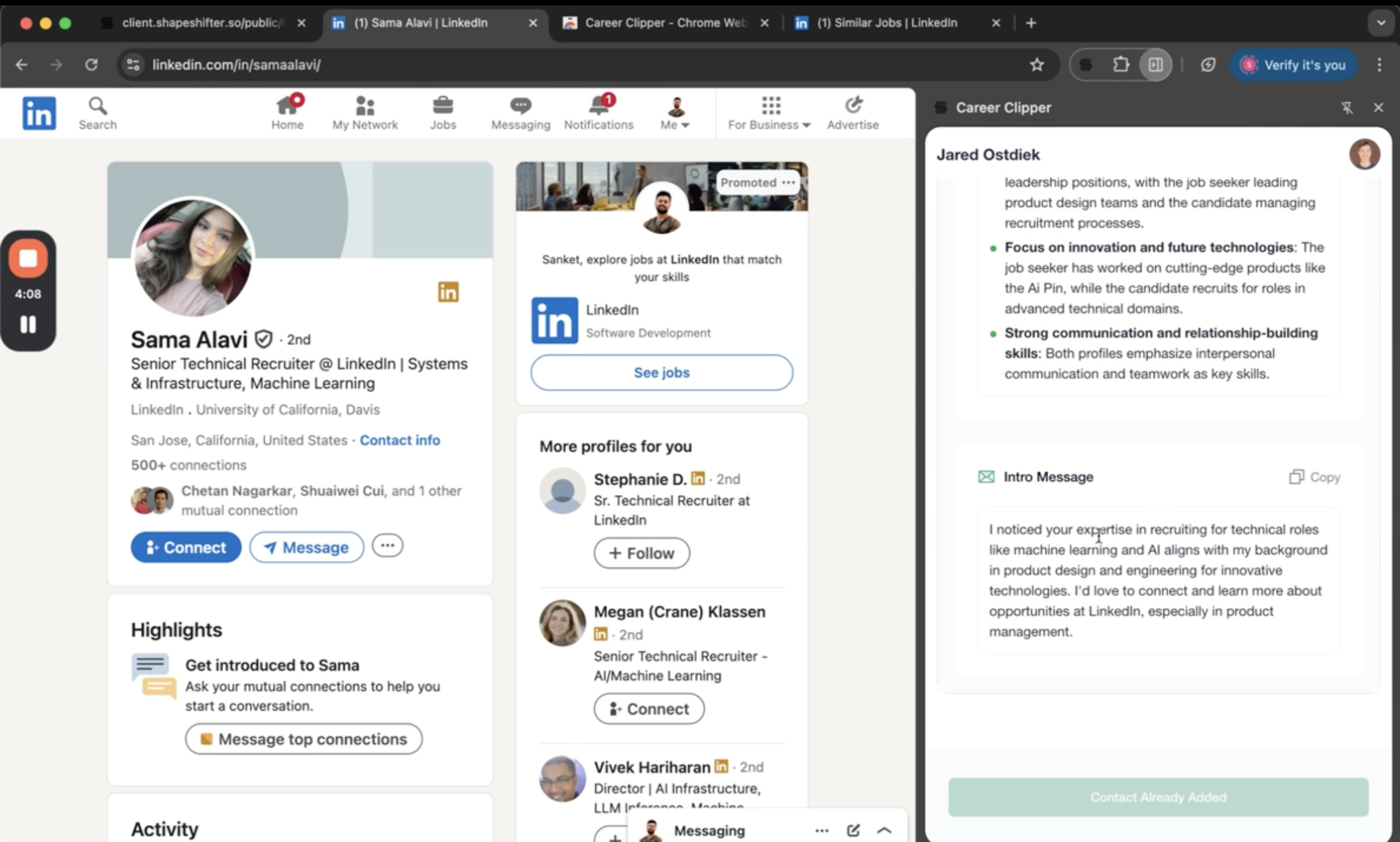
The intro message is automatically generated based on the client's background and the contact's profile. Clients should review and personalize it before sending.
Step 12: Track Networking Progress
Saved contacts automatically appear in the Networking tracker in the Shapeshifter app, linked to the related job. Clients can update the status from "Saved" to "Contacted" by dragging and dropping cards between columns.
Understanding the Copilot Tab
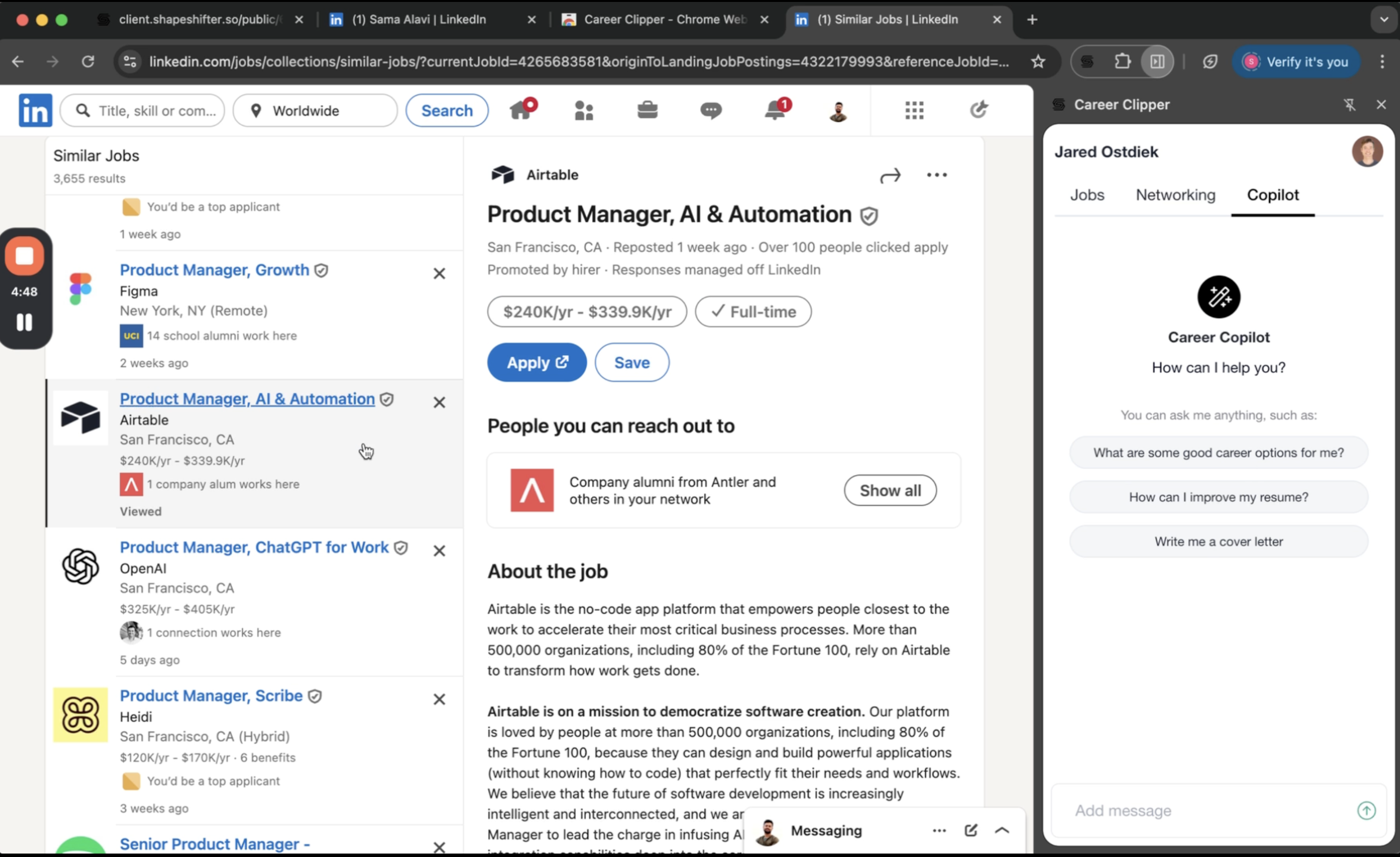
The Copilot tab provides a space for clients to ask general career-related questions (e.g., resume tips, interview advice). Currently, it offers generic guidance and is not context-aware. Future updates will integrate deeper contextual intelligence based on the client's specific job search data.
Key Benefits
Works on any job board: LinkedIn, Indeed, popular ATS like Greenhouse, or private company sites
Instant analysis: Less than 30-second processing time with the same backend analysis as the app
Auto-login: Syncs automatically with the client's dashboard
Seamless tracking: No need to copy and paste job links manually
Networking intelligence: Identifies the best contacts and provides conversation starters
The extension works only on LinkedIn for networking contacts. Job analysis is supported across all major job boards.
Video Walkthrough
Watch the complete demonstration of the Career Clipper Chrome extension: