
Show or Hide Components
Use Components settings to control which modules appear for clients and to fine-tune sub-features inside those modules. This guide separates module visibility from sub-feature permissions so it stays easy to maintain as new components are added.
Before you begin: You need organization admin access to change organization-wide components. Client-specific overrides require access to the client record.
Show or hide components for your organization
Open Settings and select the Components tab. This view lists all modules you can show or hide for your organization.
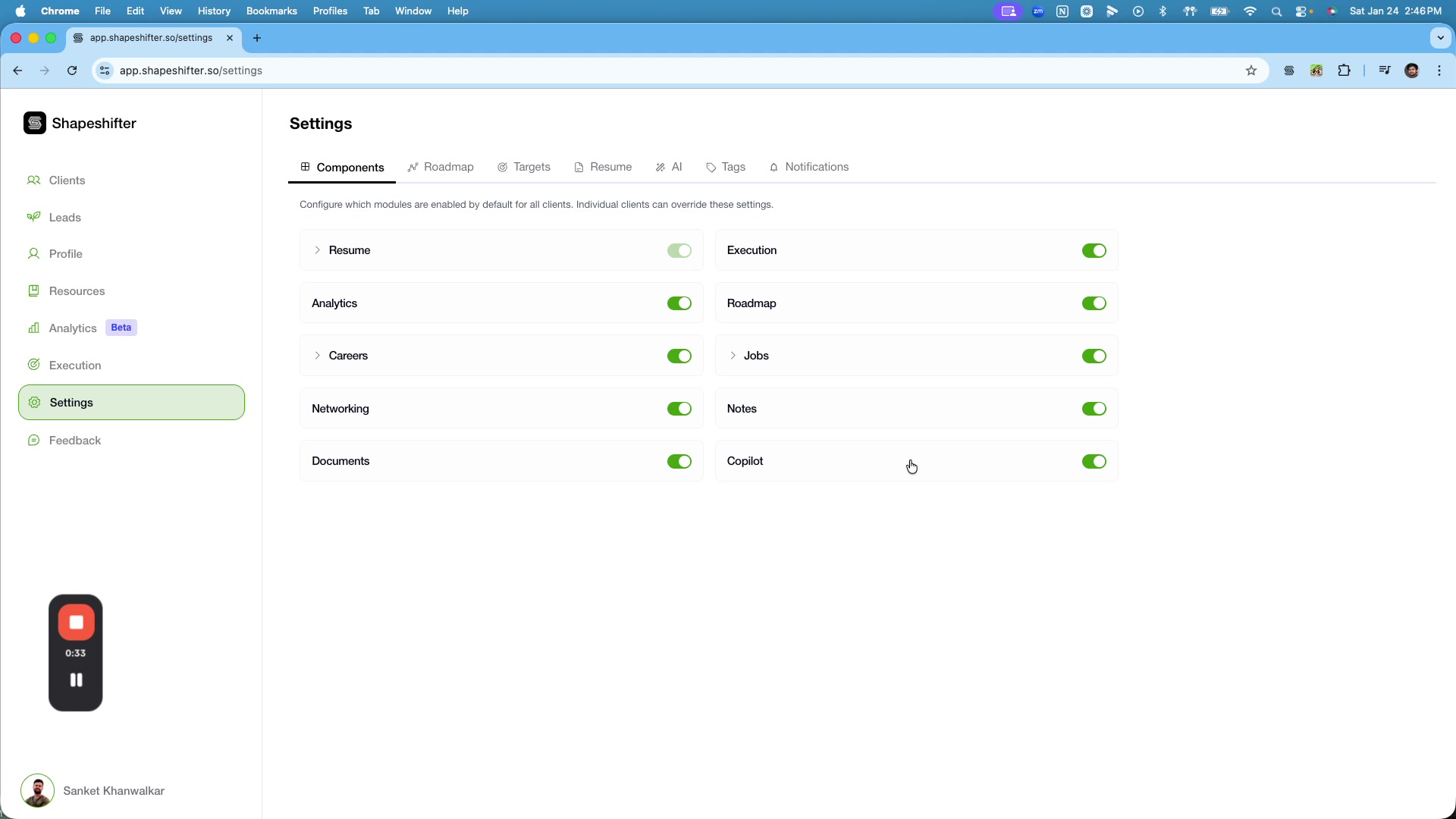
Turn off any modules you want to hide. For example, toggle Copilot off to remove it from the UI.
Save your changes. You should see a confirmation message indicating the module configuration was updated.
Use organization-level settings as your default experience. You can override modules for a specific client later.
Configure sub-features within a component
Some components include sub-feature permissions, such as what clients can view or add. Expand a component to configure these options.
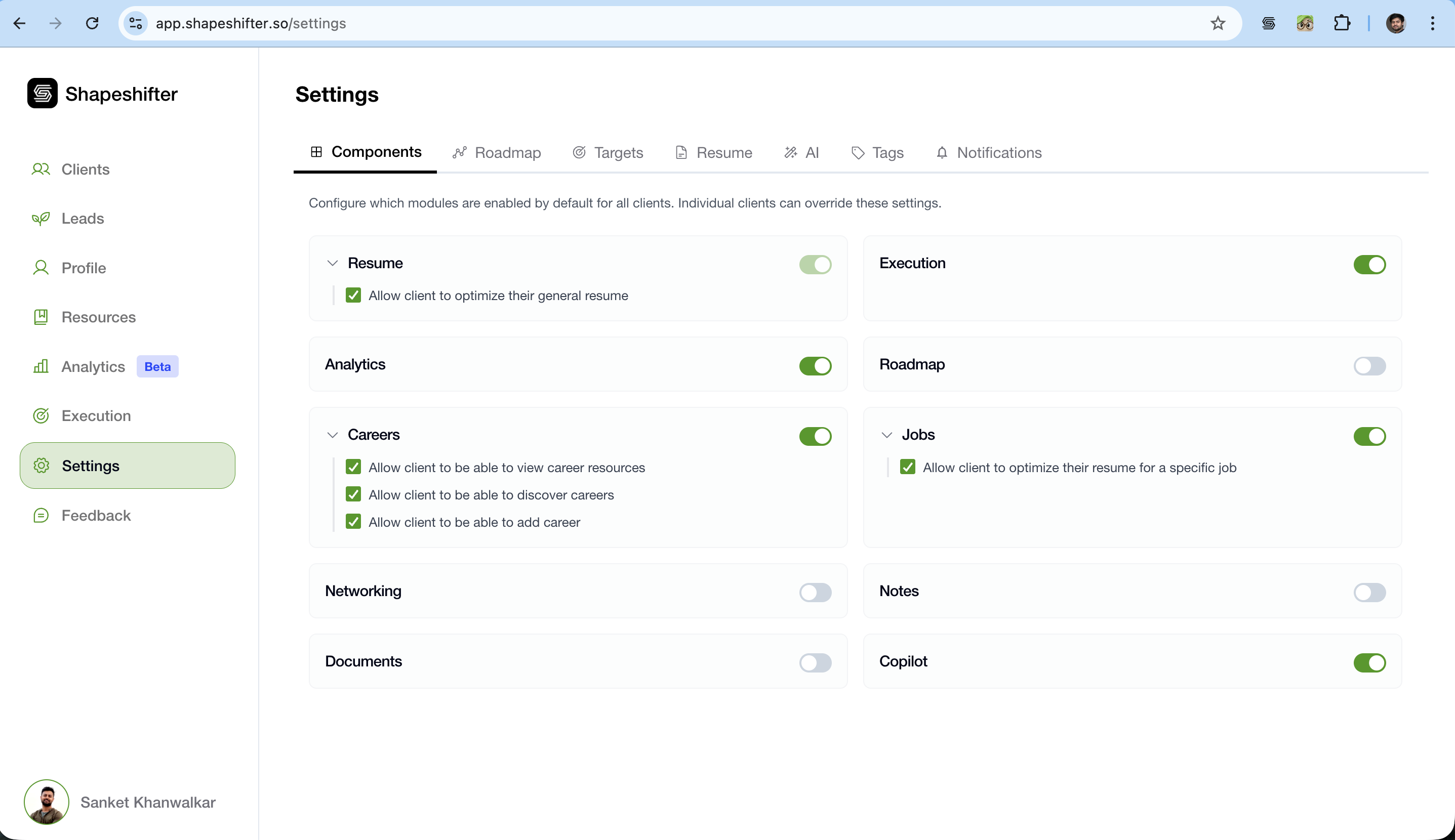
Resume
Allow client to optimize their general resume
Allow client to optimize their resume for a specific job
Careers
Allow client to view career resources
Allow client to discover careers
Allow client to add a career
Sub-feature permissions only apply if the component is enabled.
Override components for a specific client
Open the client profile and click the Settings icon, then choose Components.
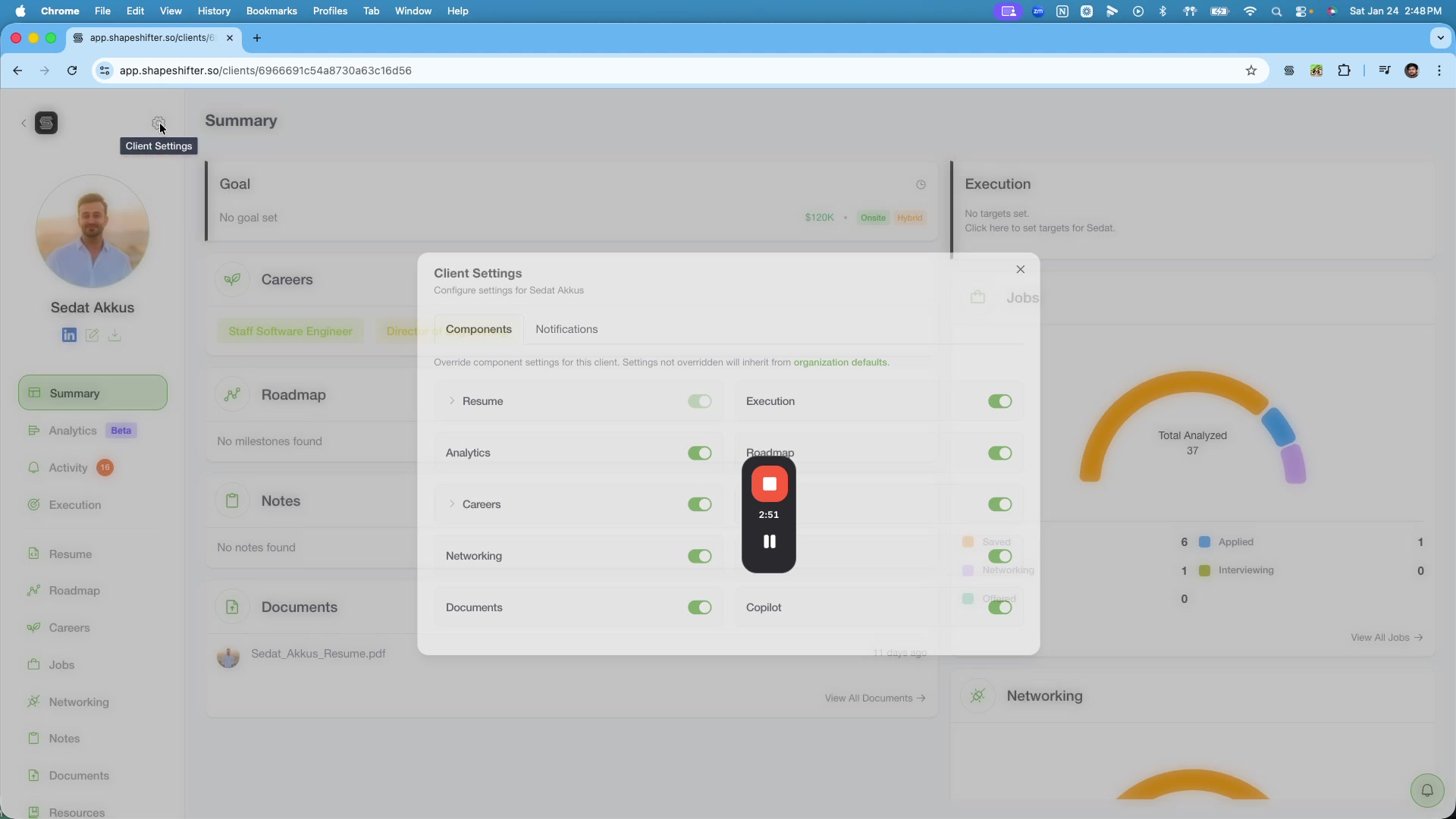
Toggle off any modules you want hidden for that client, such as Analytics or Copilot.
Select Save changes to apply the client-specific configuration.
Client-level overrides only affect that client. Organization-level settings still apply to all other clients.
Loom walkthrough
If you want to watch the full video, use the embedded Loom below.