
Adding New Careers
Adding careers for your clients helps Shapeshifter's AI match them with relevant job opportunities and build personalized roadmaps. You can use AI-powered Career Discovery to get suggestions based on their resume and LinkedIn profile, or manually add specific roles they're targeting.
Once careers are added, clients get detailed scorecards showing skill gaps, role information, and curated resources to help them prepare.
Accessing the Careers Section
Navigate to your client's profile and click Careers in the left sidebar. If no careers have been added yet, you'll see two options: + Add Career (manual) and Career Discovery (AI-powered).
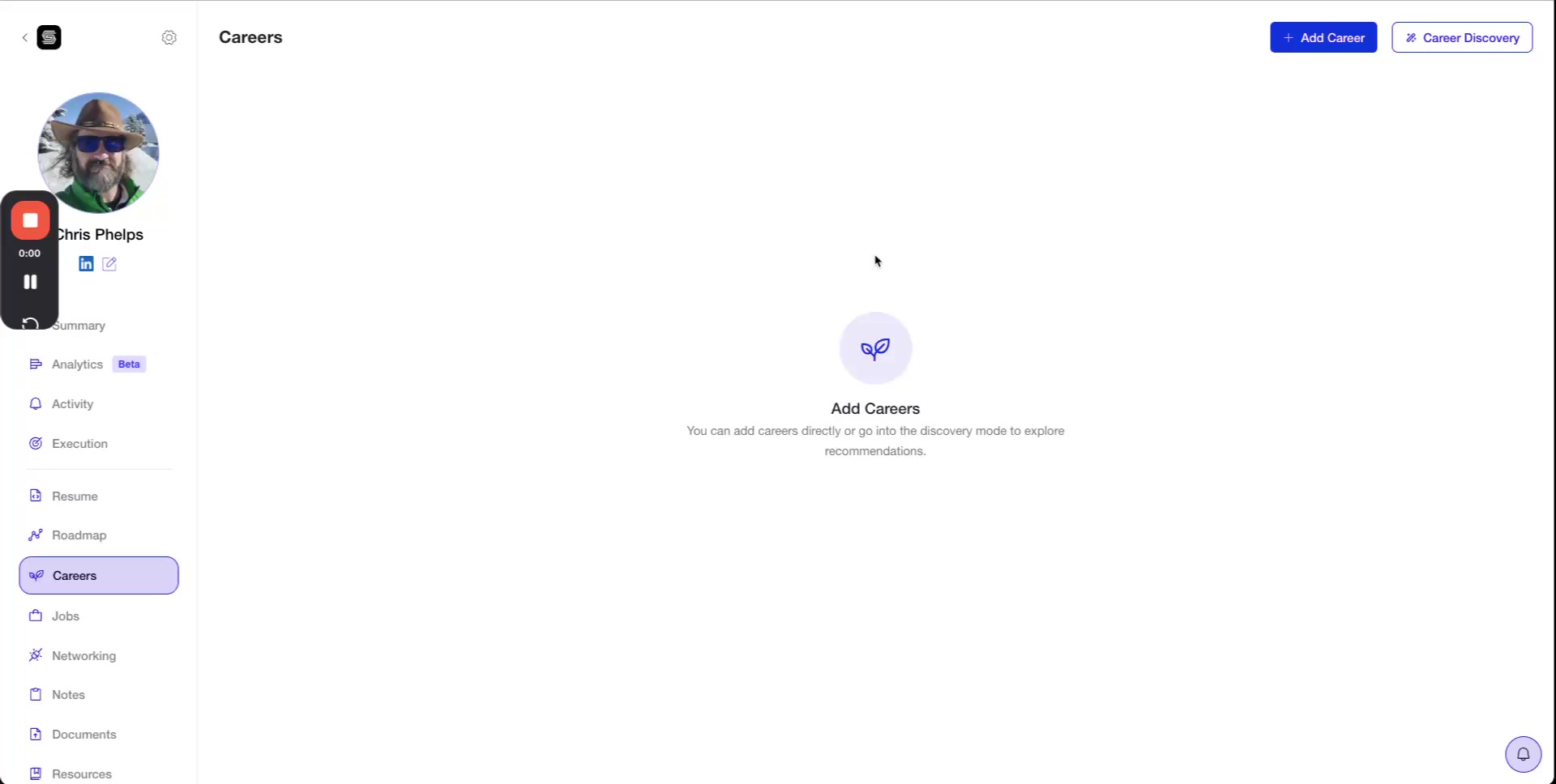
Method 1: Using Career Discovery (AI-Powered)
Career Discovery analyzes your client's LinkedIn profile (and resume if uploaded ) to suggest roles that match their skills and goals.
Step 1: Start Career Discovery
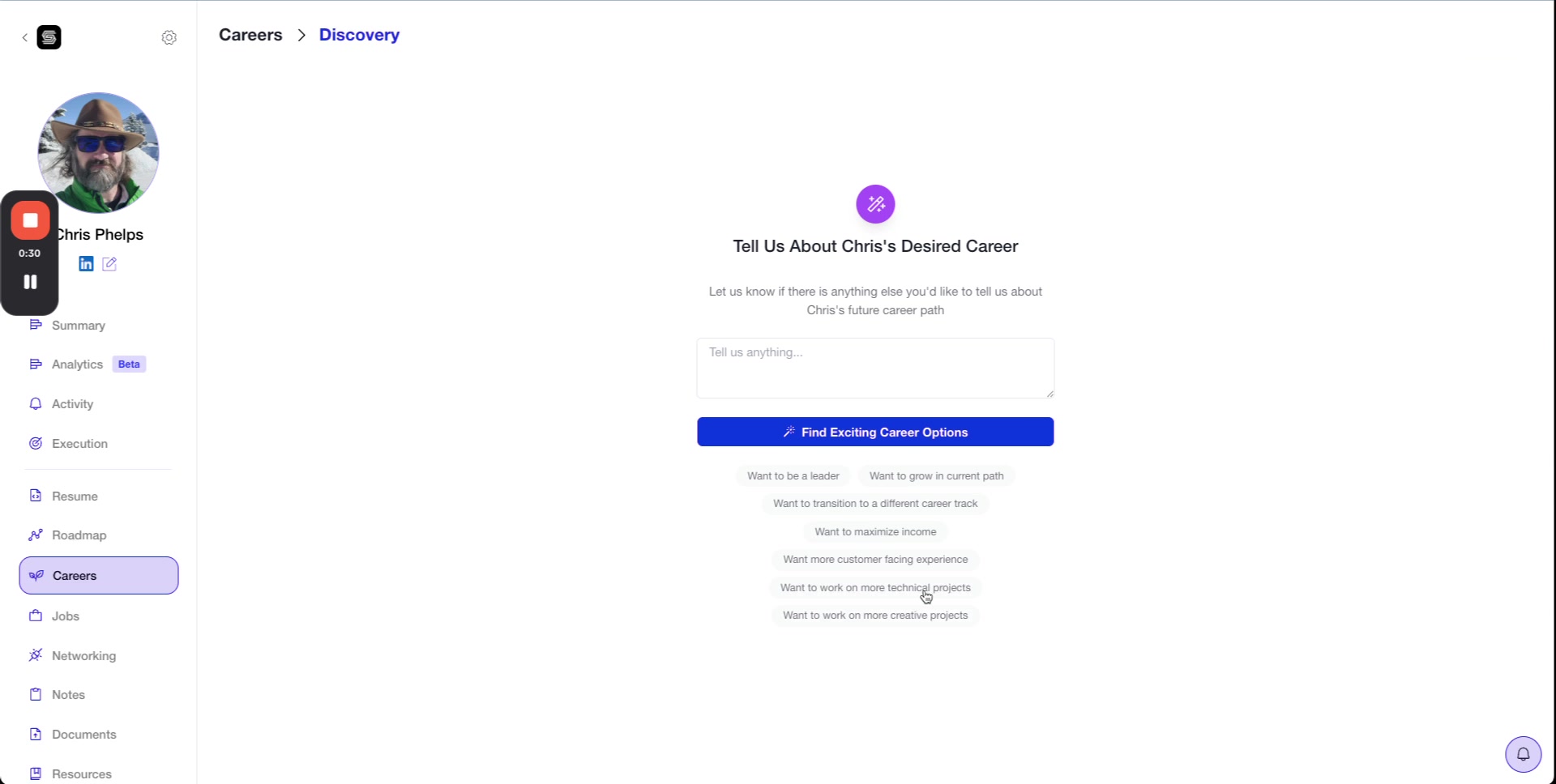
Click the Career Discovery button. You'll see a prompt asking about your client's desired career path.
Step 2: Describe Their Career Goals
Either type free-form text describing what your client wants (e.g., "wants to transition into leadership roles in tech") or select from the suggestion chips:
Want to be a leader
Want to grow in current path
Want to transition to a different career track
Want to maximize income
Want more customer-facing experience
Want to work on more technical projects
Want to work on more creative projects
Click Find Exciting Career Options when ready.
Step 3: Review AI Suggestions
The AI will analyze your client's LinkedIn profile and resume, and within seconds, you'll see a list of suggested roles with compatibility percentages.
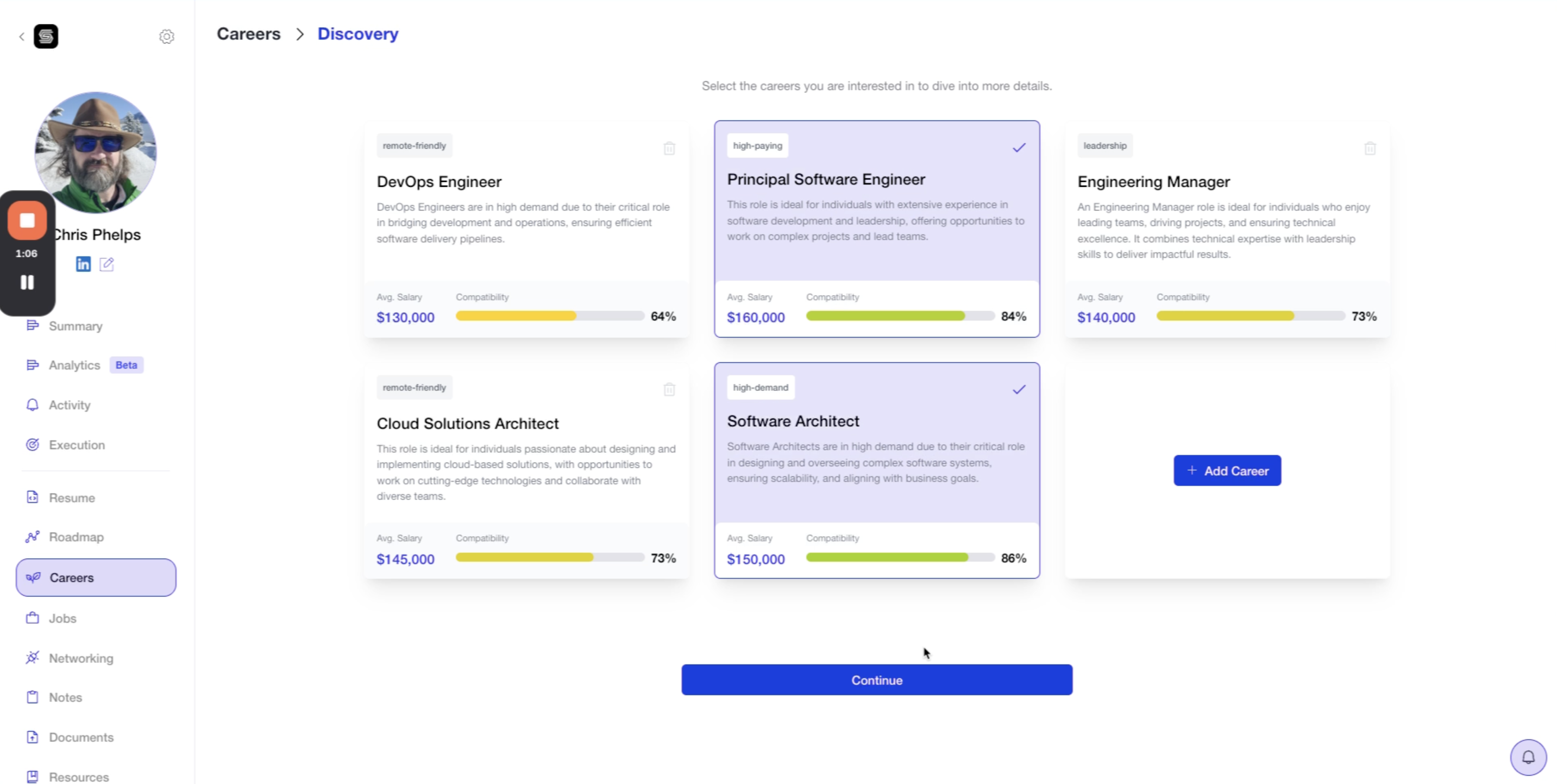
Each suggestion shows:
Role title (e.g., "Principal Software Engineer")
Compatibility score (e.g., 84%)
Brief explanation of why they're a good fit
Step 4: Select and Add Roles
Check the careers you want to add and click Continue. The selected roles will be added to your client's profile.
Method 2: Manually Adding a Career
If you know the specific role your client is targeting, you can add it manually.
Step 1: Click + Add Career
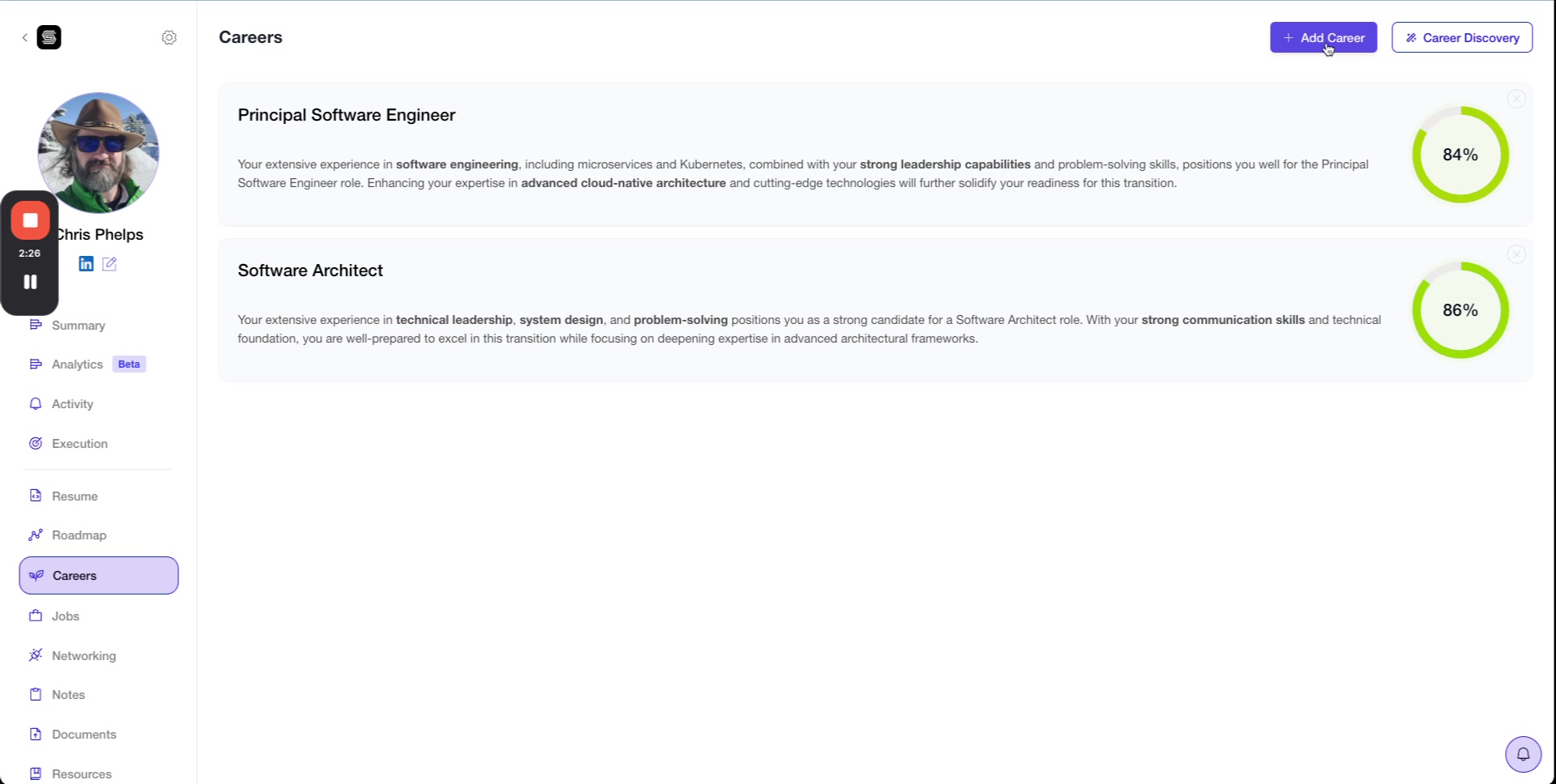
From the Careers page, click the + Add Career button in the top right.
Step 2: Enter the Role Title
Type a standard, globally recognized job title (e.g., "Director of Engineering", "Product Manager", "Data Scientist"). Avoid abbreviations or company-specific titles.
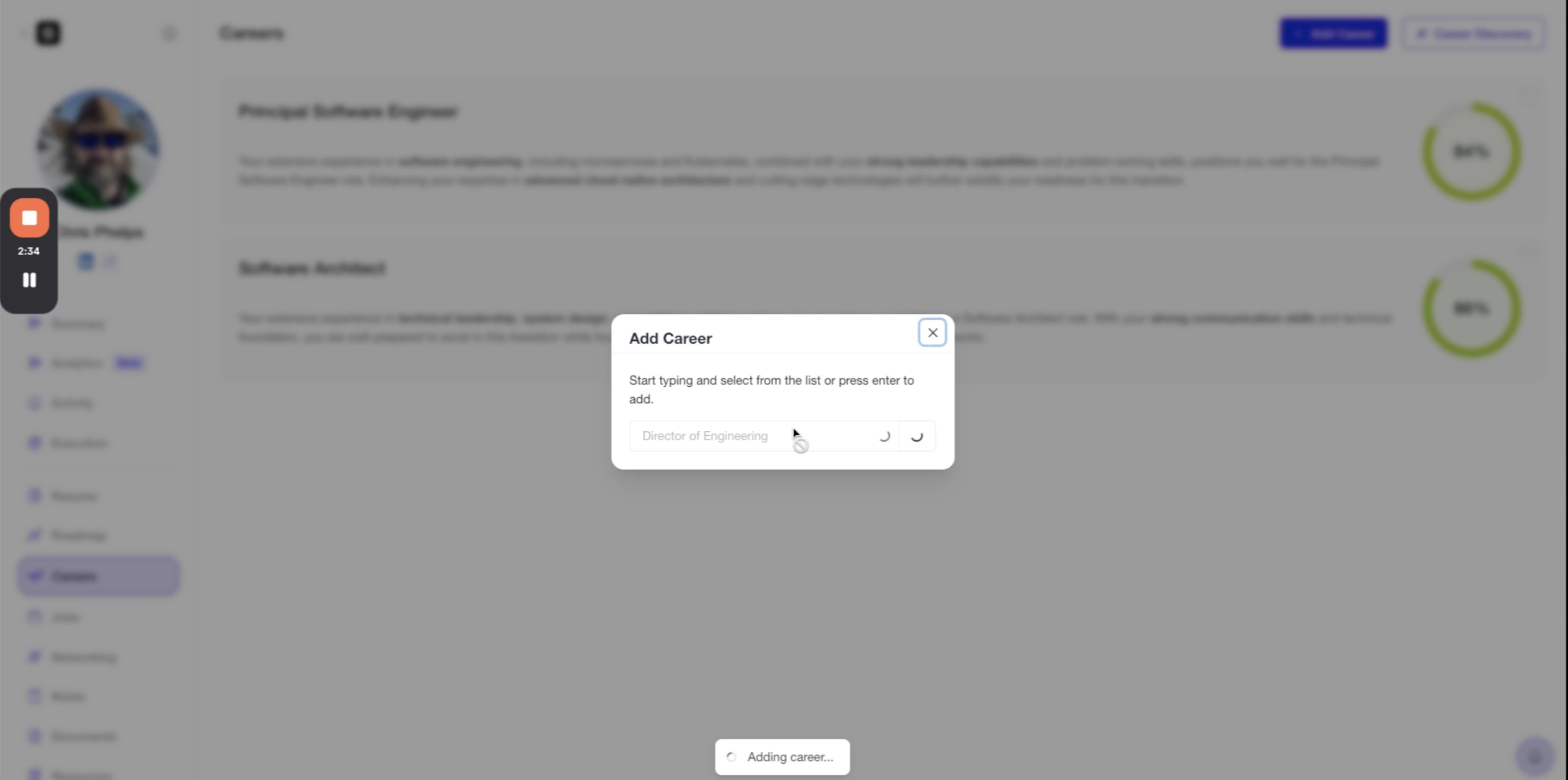
Use industry-standard titles for best results. The AI will automatically generate role details, scorecard, and resources within a few seconds.
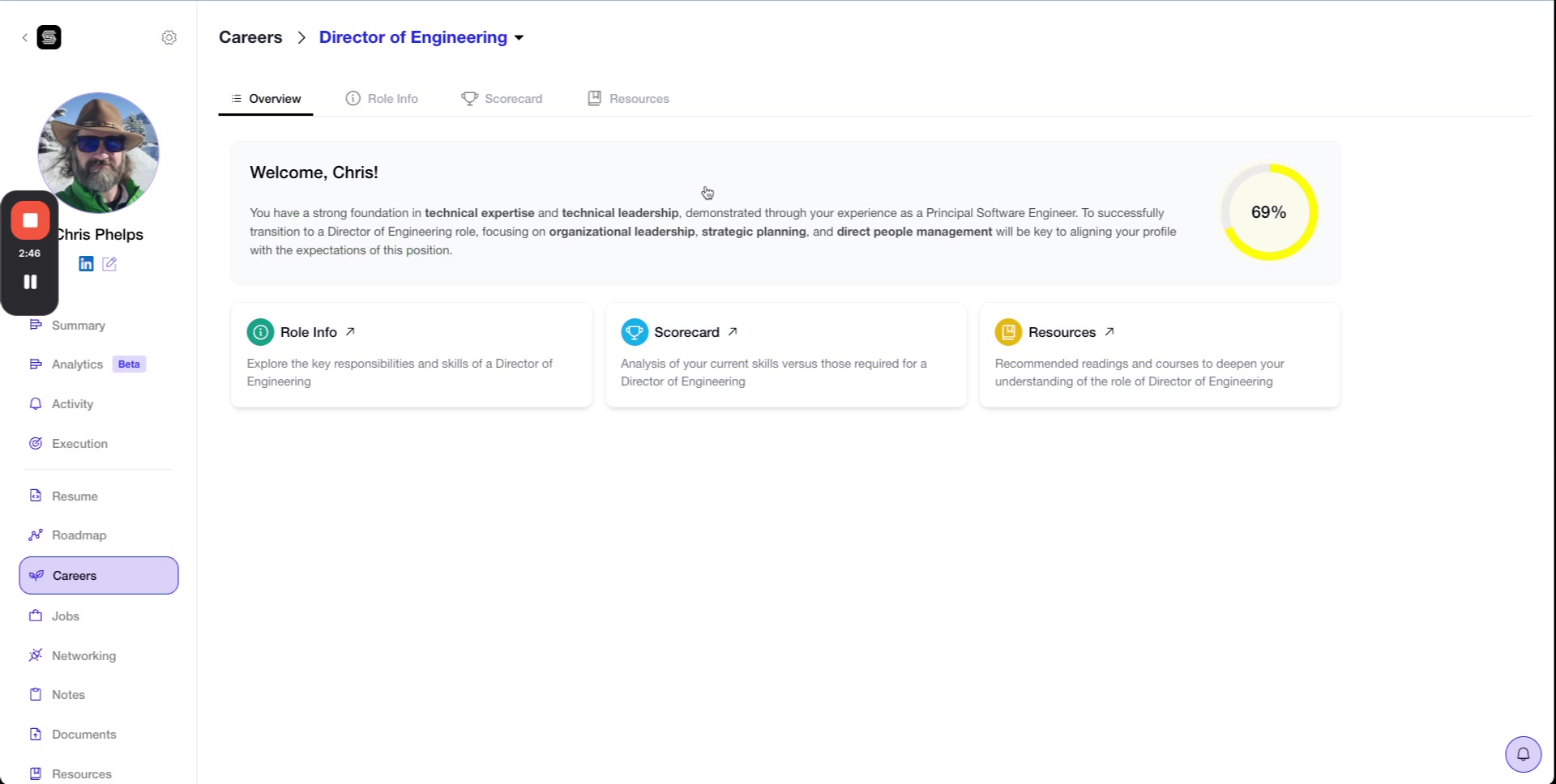
Step 3: Review Auto-Generated Details
Shapeshifter automatically populates the career with comprehensive information. You'll see a compatibility score and full career profile immediately.
Best Practices
Keep career titles as globally known as possible, including their spelling and order. It should not include industries in career titles [industries can be selected in the Jobs module]
Director of Product Management ✅
Dir. of PM ❌
Product Manager Director ❌
Product Management ❌
Director of Product Management, Biotech ❌
Shortlist about 5-10 options, review it with your client and then remove the career titles that are no longer required (keep the career titles to be 5 at best)
If you don’t do that, Shapeshifter will pull jobs for the careers that are not needed and it will clutter your client’s job feed making it difficult for the client to focus.
Understanding Career Details
Once a career is added, click on it to view detailed information across four tabs:
Overview Tab
The overview provides a personalized welcome message for your client, highlighting their existing strengths and what skills they need to develop for the target role. You'll see three key cards:
Role Info — Detailed role description and requirements
Scorecard — Visual skill assessment with compatibility percentage
Resources — Curated learning materials
Scorecard Tab
The scorecard shows your client's readiness for the role using a radar chart and detailed skill breakdown.
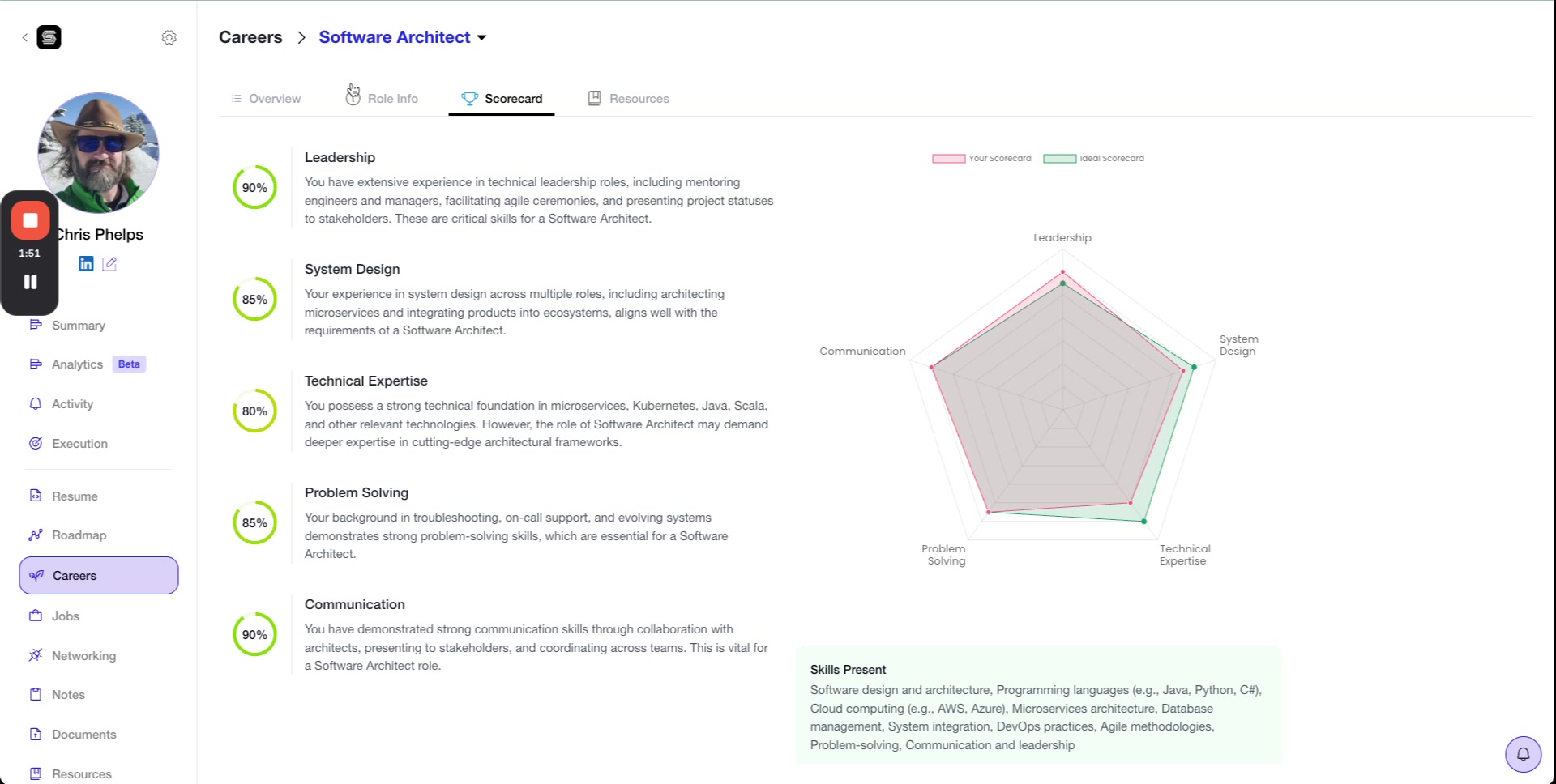
The radar chart compares your client's current skills (red) against the ideal profile for the role (green). Below the chart, you'll find:
Percentage scores for key competencies that are specific to each career
Skills Present — Existing skills that match the role
Skills Missing — Gaps to address
Use the scorecard to have data-driven conversations with clients about their development priorities and create targeted action plans.
Role Info Tab
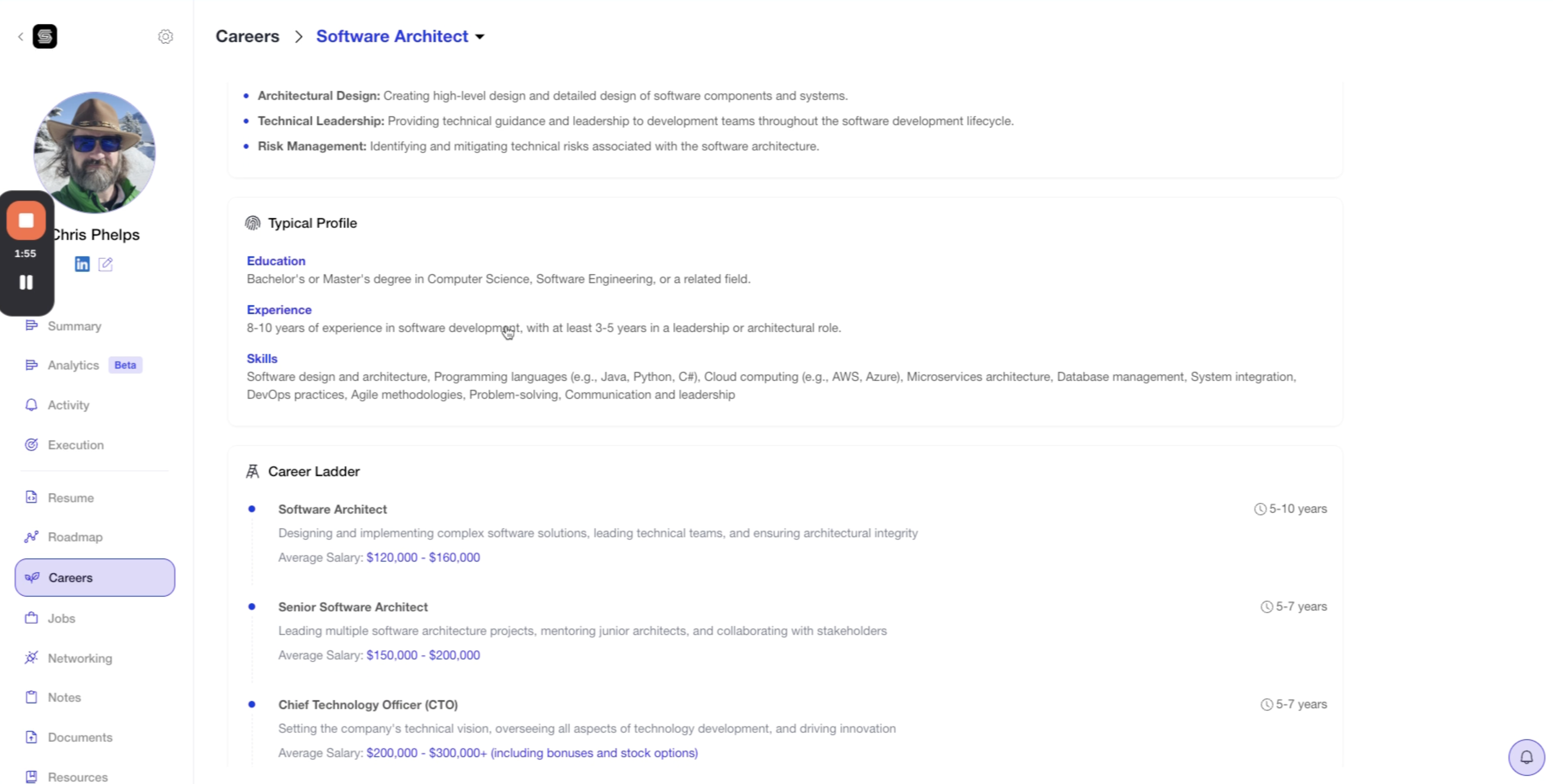
This tab provides comprehensive information about the role itself:
About — Overview of the role and its importance
Responsibilities — Key duties and expectations
Typical Profile — Education, experience, and skills required
Career Ladder — Progression path and related roles
Common Myths — Misconceptions about the role
Resources Tab
Shapeshifter curates relevant learning resources for each career, including:
Recommended books
Industry conferences
Online courses
Professional certifications
Networking opportunities
...and few more resources
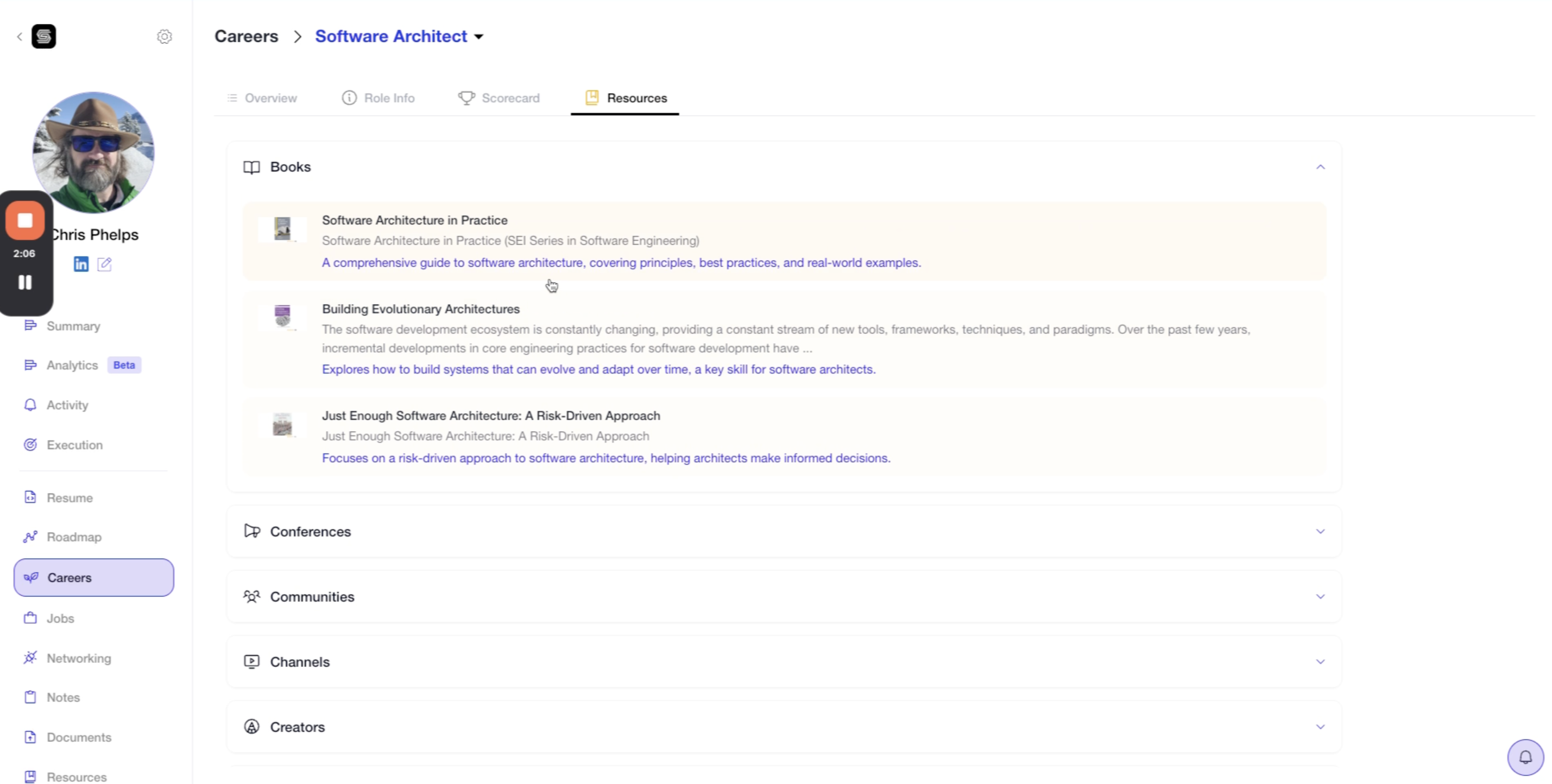
These resources help clients prepare strategically for their target roles.
Viewing All Careers
The main Careers page lists all added careers with their compatibility scores. Clients with multiple career targets can easily compare options and focus their efforts.

Best Practices
Add careers during your initial client onboarding call. This ensures job matching starts immediately and helps clients see relevant opportunities from day one.
Recommend 3-5 careers per client for optimal job matching without overwhelming them
Use standard titles when manually adding careers (e.g., "Senior Product Manager" not "PM3")
Review scorecards together with clients to identify skill development priorities
Update careers as client goals evolve during the coaching relationship
Leverage resources to create actionable homework assignments
Video Walkthrough
Watch this complete walkthrough of adding careers for clients: