
How to Archive a Client
Archiving a client removes them from your active client list while preserving their data for future reference. This is useful when a client has successfully found a job, is no longer part of your program, or needs to be temporarily set aside. You can unarchive clients at any time to restore them to your active dashboard.
Archiving does not delete any client data. Archived clients can be viewed, restored, or permanently deleted at any time.
Archive a Client
From your Clients dashboard, locate the client you want to archive in your active client list.
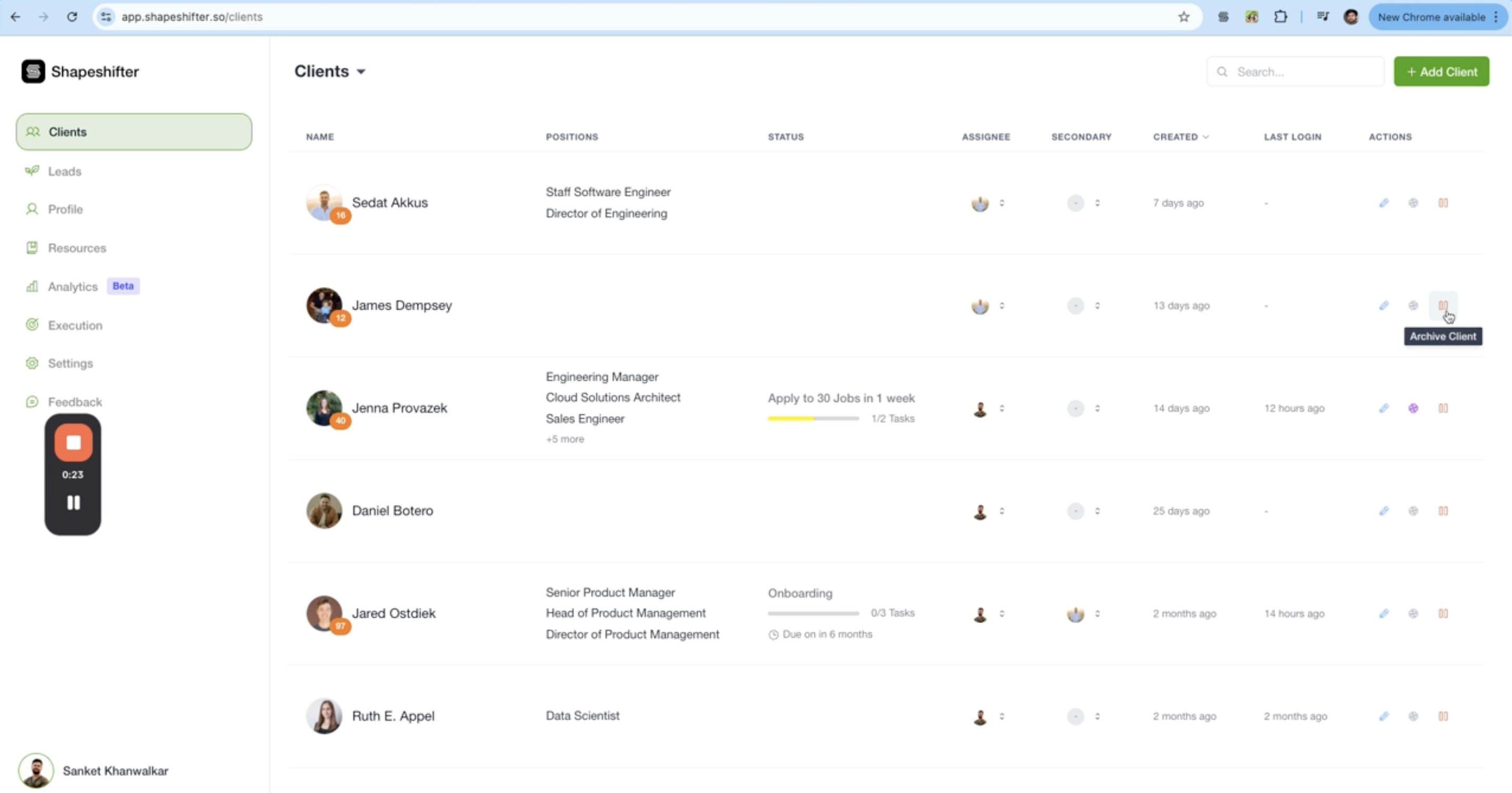
In the Actions column at the end of the client's row, click the Archive Client icon (pause button).
Select an Archive Reason
A modal will appear asking you to select a reason for archiving:
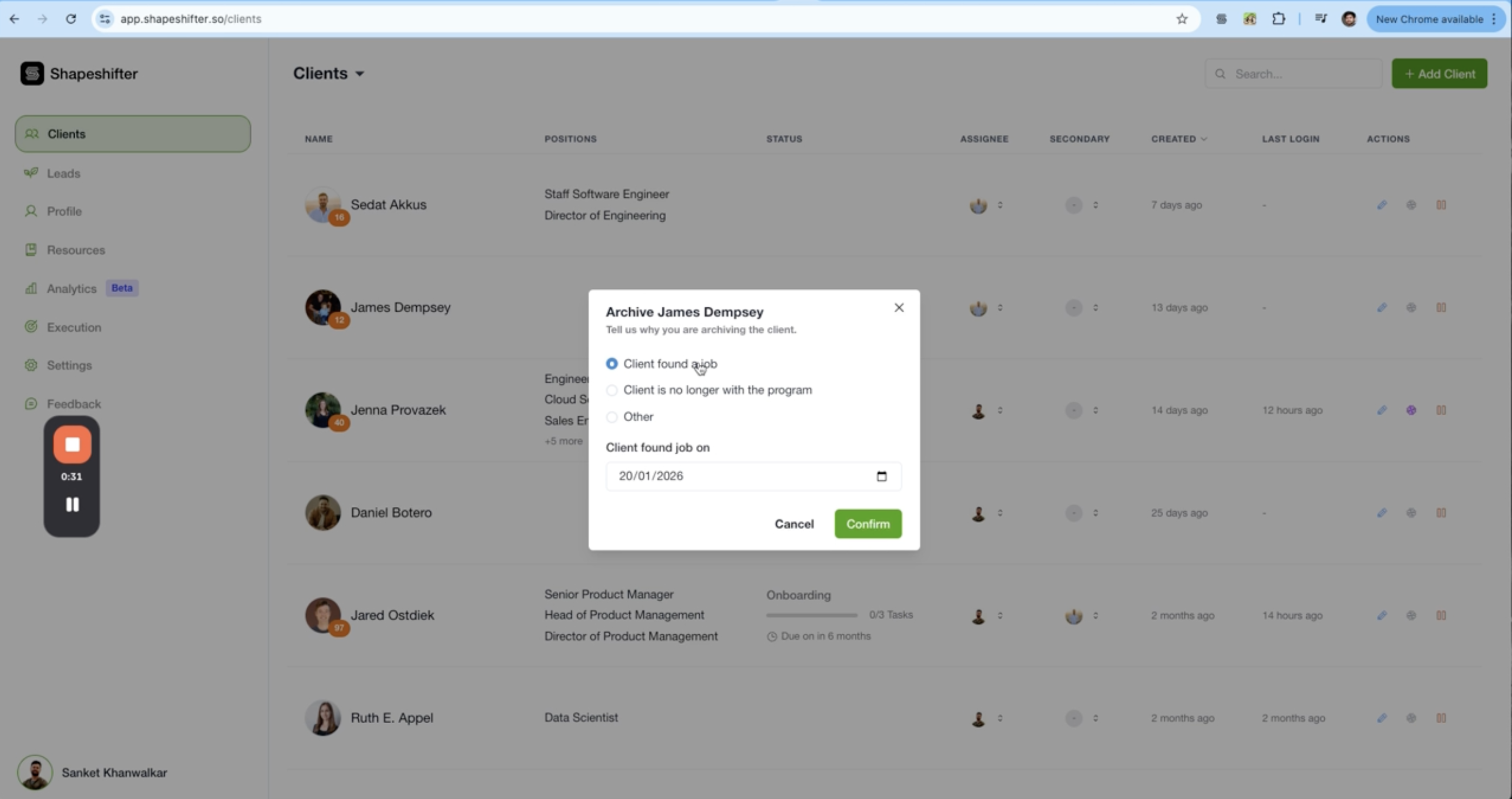
Client found a job - The client successfully achieved their goal
Client is no longer with the program - The client has left the program for other reasons
Other - Any other reason (refunds, issues, etc.)
Select the appropriate reason. If the client found a job, you can also specify the date they found their job using the date picker. Click the confirmation button to archive the client.
You'll see a success message confirming the client has been archived. The client will now be removed from your main client view.
View Archived Clients
To access your archived clients, click the Clients dropdown at the top of your dashboard and select Archived Clients.
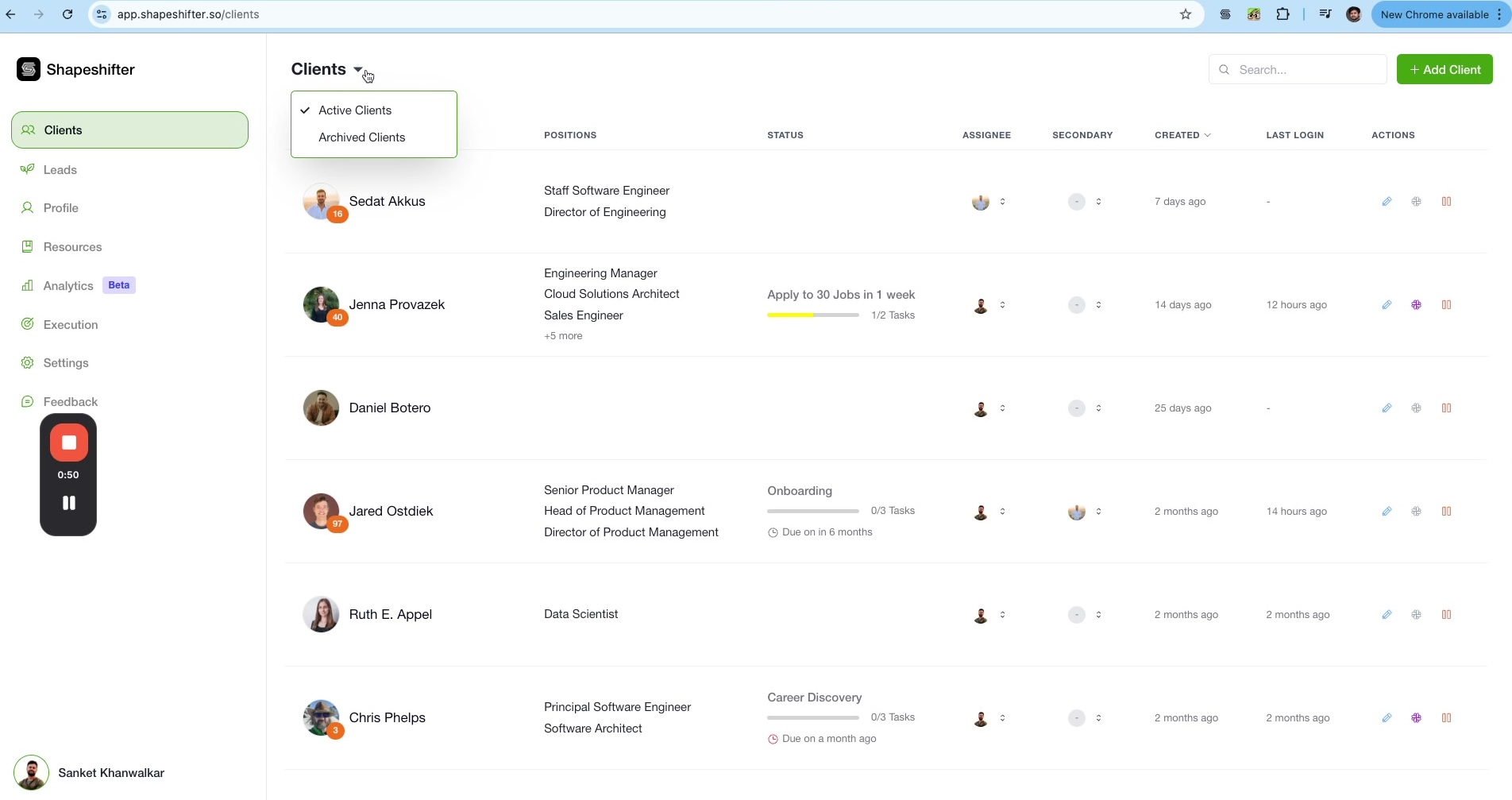
The archived clients list shows all clients you've previously archived, with an "ARCHIVED" status badge. From this view, you can unarchive or permanently delete clients.
Unarchive a Client
If you need to restore an archived client to your active dashboard (for example, if they rejoin your program or you archived the wrong client), you can unarchive them.
From the archived clients list, click the Unarchive Client icon (play button) in the Actions column.
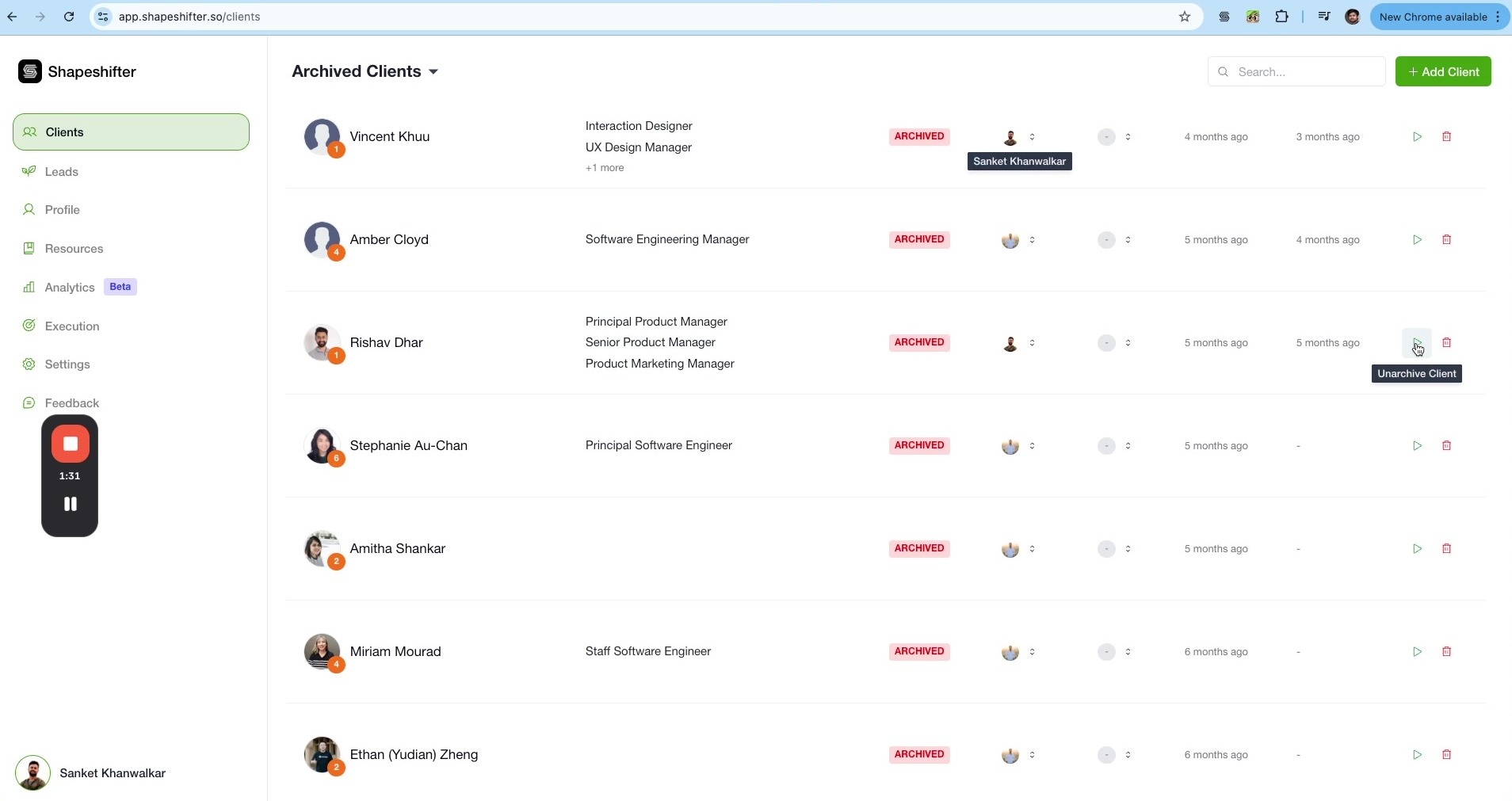
The client will be immediately restored to your active client list, and you'll see a confirmation message. The client now appears in your main dashboard with all their original data intact, and you can continue managing their profile.
If a client may return to your program in the future, keep them archived rather than deleting them. This preserves their profile and basic information while removing them from your active view.
Delete an Archived Client
From the archived clients list, click the Delete Client icon (trash can) in the Actions column.
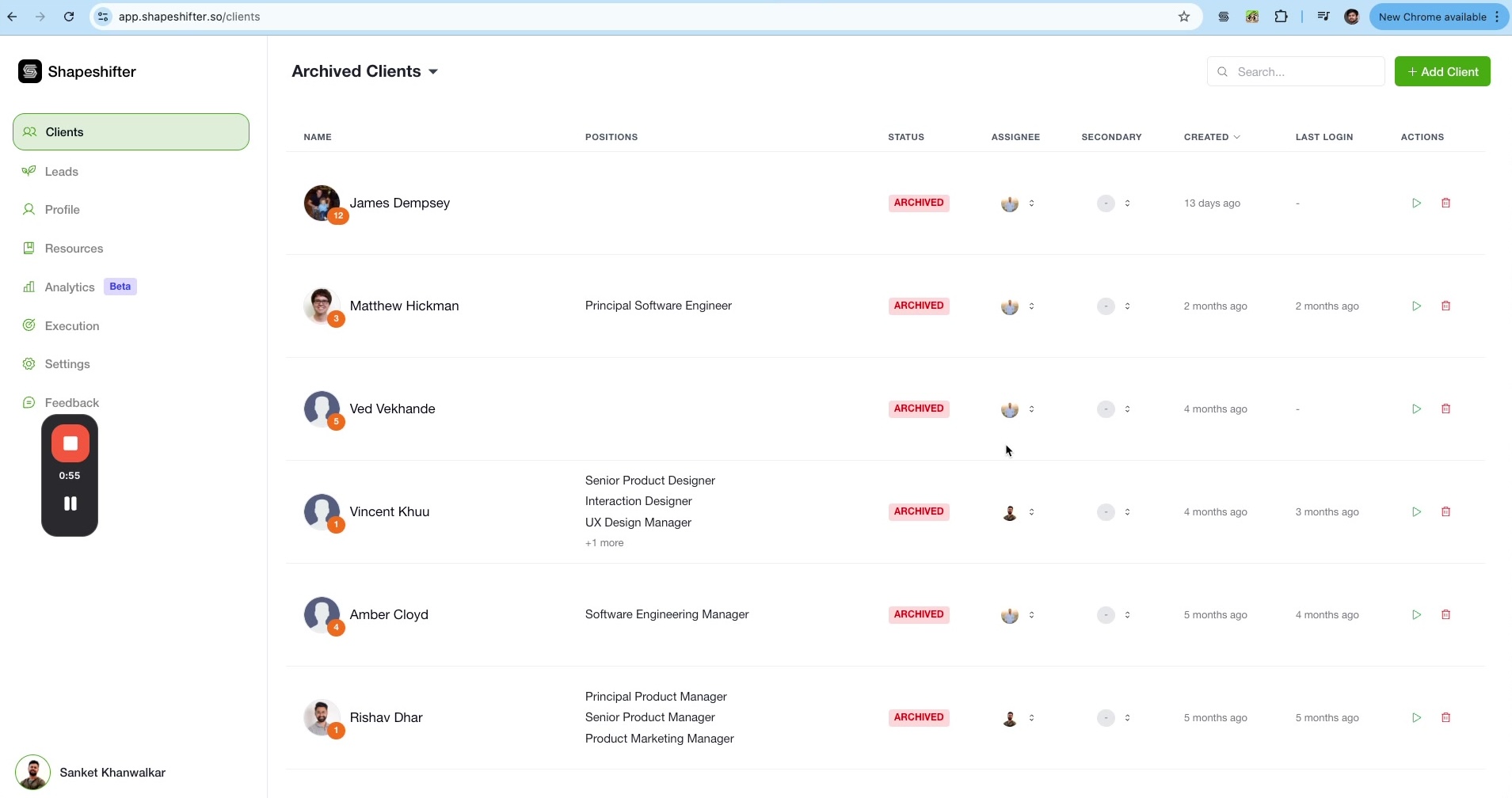
A confirmation modal will appear warning you that this action cannot be undone.
Click Delete to permanently remove the client and all their data, including jobs, networking activities, applications, and profile information.
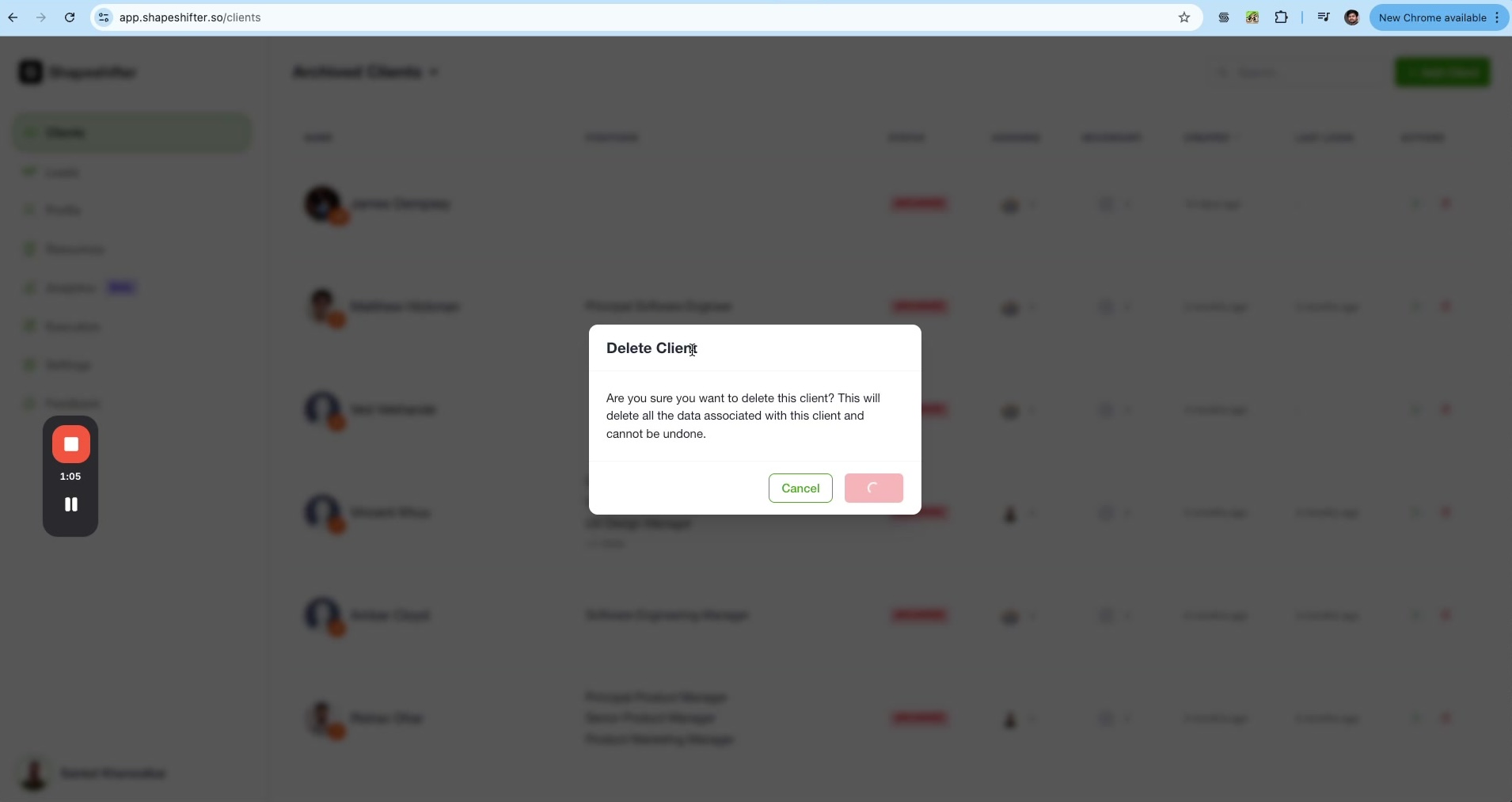
Deleting a client will permanently remove all associated data and cannot be undone. Only delete clients if you're certain you won't need their information again.
Video Tutorial
Watch the complete walkthrough of archiving, viewing, deleting, and unarchiving clients: